How to install and run old games on Windows
This guide covers installing and playing old games on Windows. If a game will not run after installation, see troubleshooting Windows games.
How to extract files on Windows
Games downloaded here usually come as .7z, .zip or .rar archives, which need extracting before you can reach the game files. Which software you need depends on the format.
Which software do I need?
- .zip – Windows 10 and 11 extract these on their own. On older versions of Windows, use 7-Zip or WinRAR.
- .7z – use 7-Zip or WinRAR.
- .rar – use 7-Zip or WinRAR.
Extracting with Windows
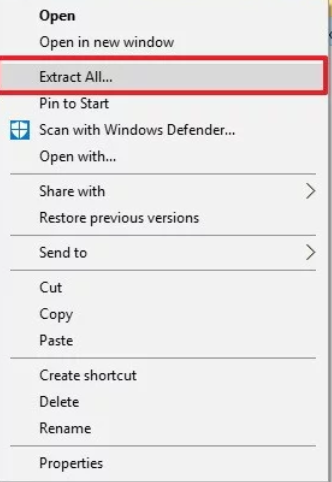
Right click the archive and choose Extract All.
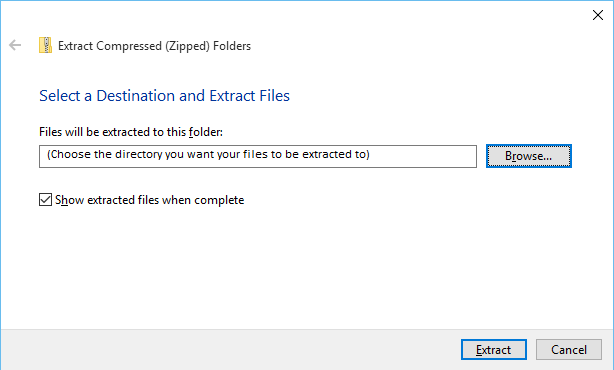
A window opens. By default the files go into the same folder as the archive – choose Browse to put them somewhere else, then click Extract.
Extracting with 7-Zip
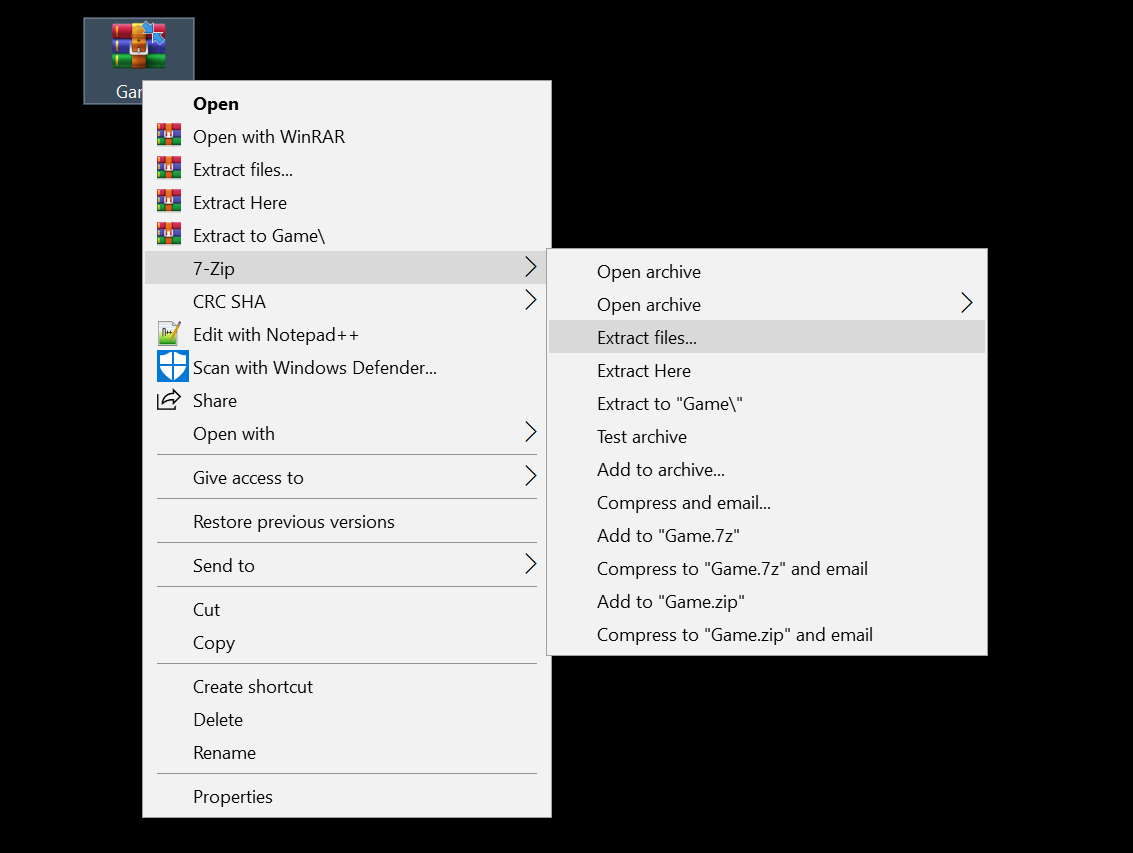
Right click the archive, hover over 7-Zip and choose Extract files.
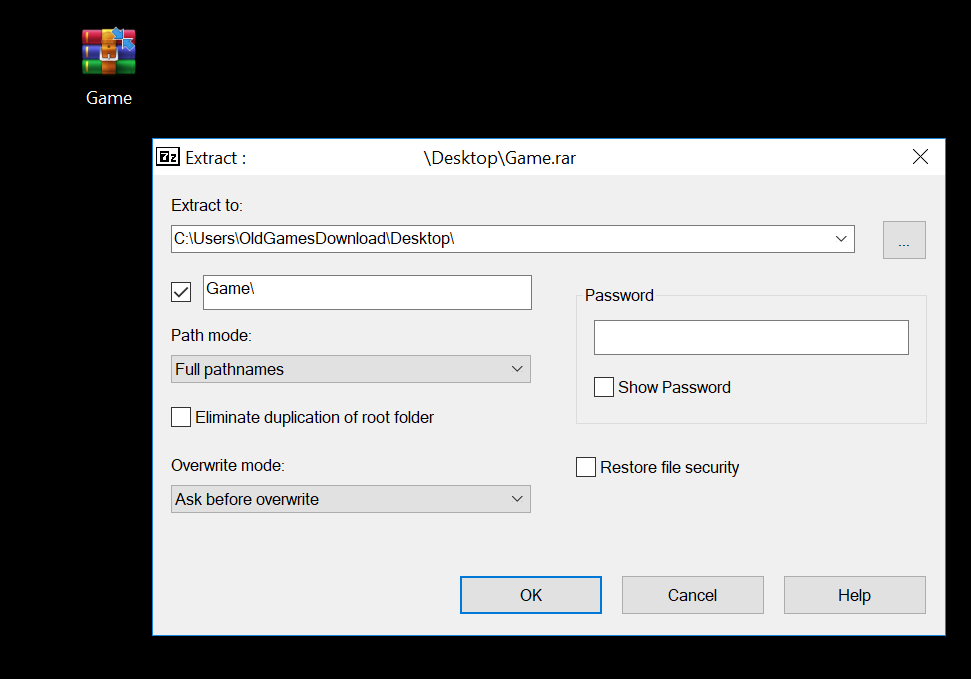
Click OK to extract alongside the archive, or pick a different folder with the … button.
Extracting with WinRAR
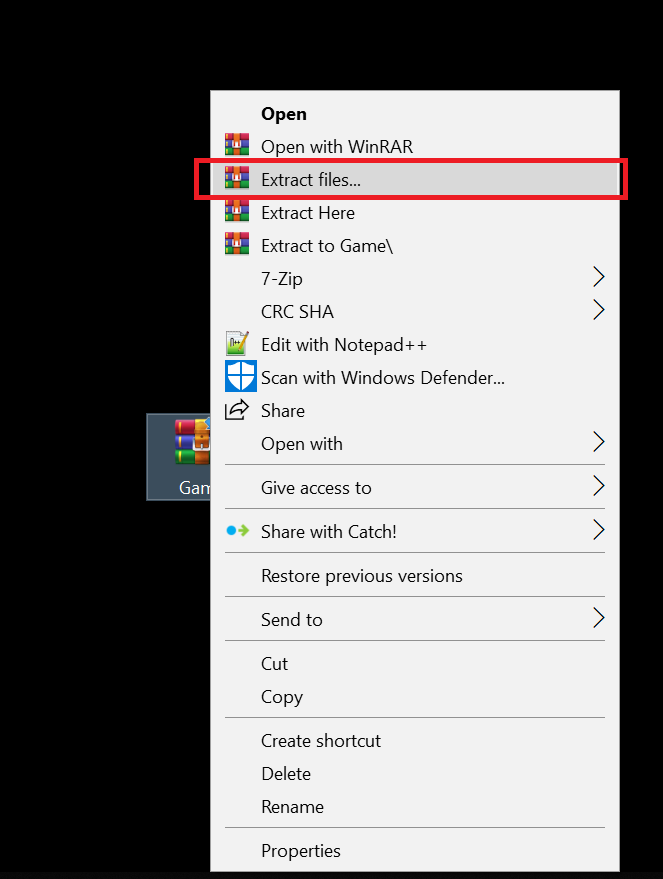
Right click the archive and choose Extract files.
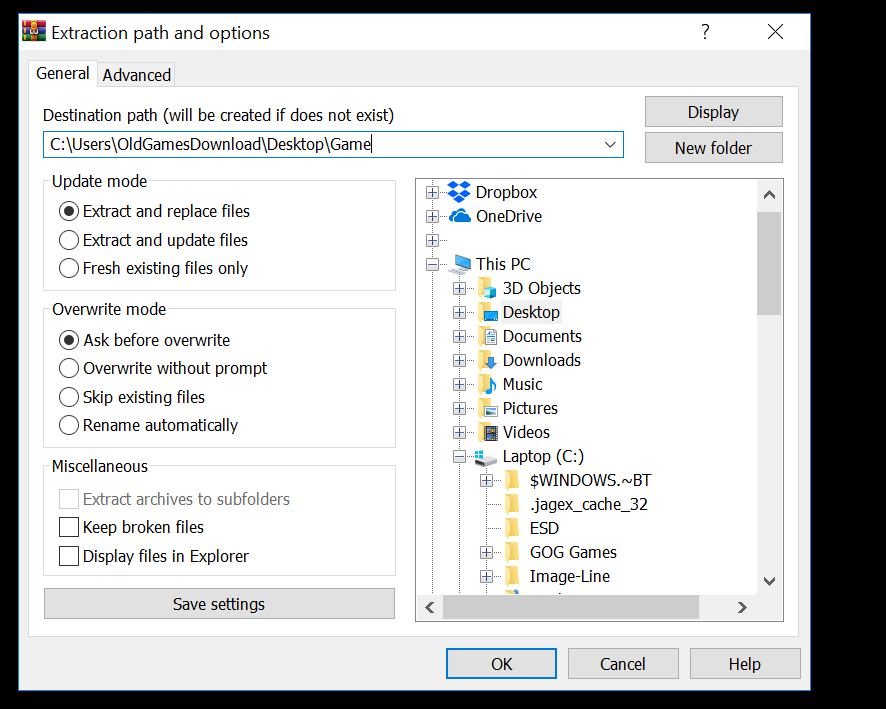
Click OK to extract alongside the archive, or choose a different folder.
Software you might need
How to mount ISO and disc image files
Many old games come as a .ISO or another disc image, because they were originally sold on CD or DVD. A disc image is a copy of the original disc, so to install the game you mount the image to a virtual drive. Windows then sees it as a disc in a drive and you can reach the files.
Mounting on Windows 8, 10 and 11
These versions of Windows mount ISO and VHD files without any extra software:
- Double click the ISO – it mounts to an empty virtual drive automatically.
- Or right click it and choose Mount.
- Open This PC and double click the mounted drive to reach the files.
Mounting on older versions of Windows
Windows 7 and earlier cannot mount disc images on their own, so you will need software for it. WinCDEmu is the easiest option and handles the same formats listed below – install it, then follow the steps in that section.
Mounting MDS/MDF, IMG, BIN/CUE, NRG and CCD files
Windows cannot mount these formats on its own. WinCDEmu is free, small and open source, and handles all of them.
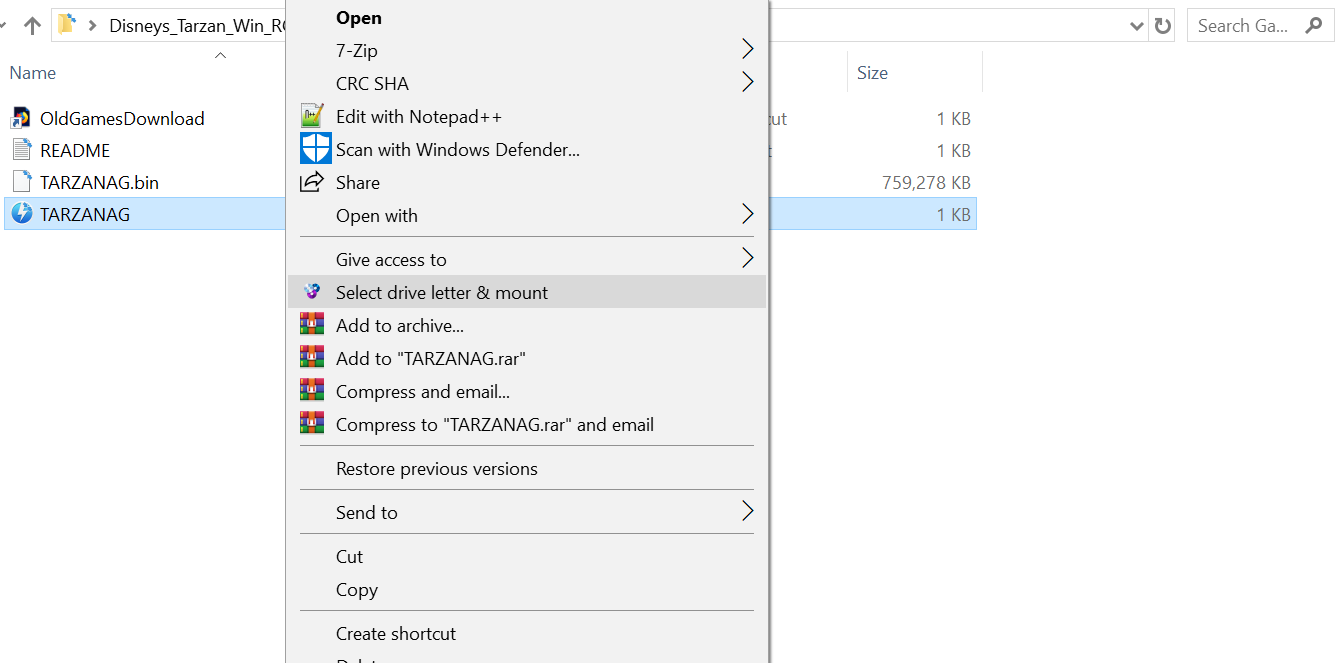
Right click the image file and choose Select drive letter & mount.
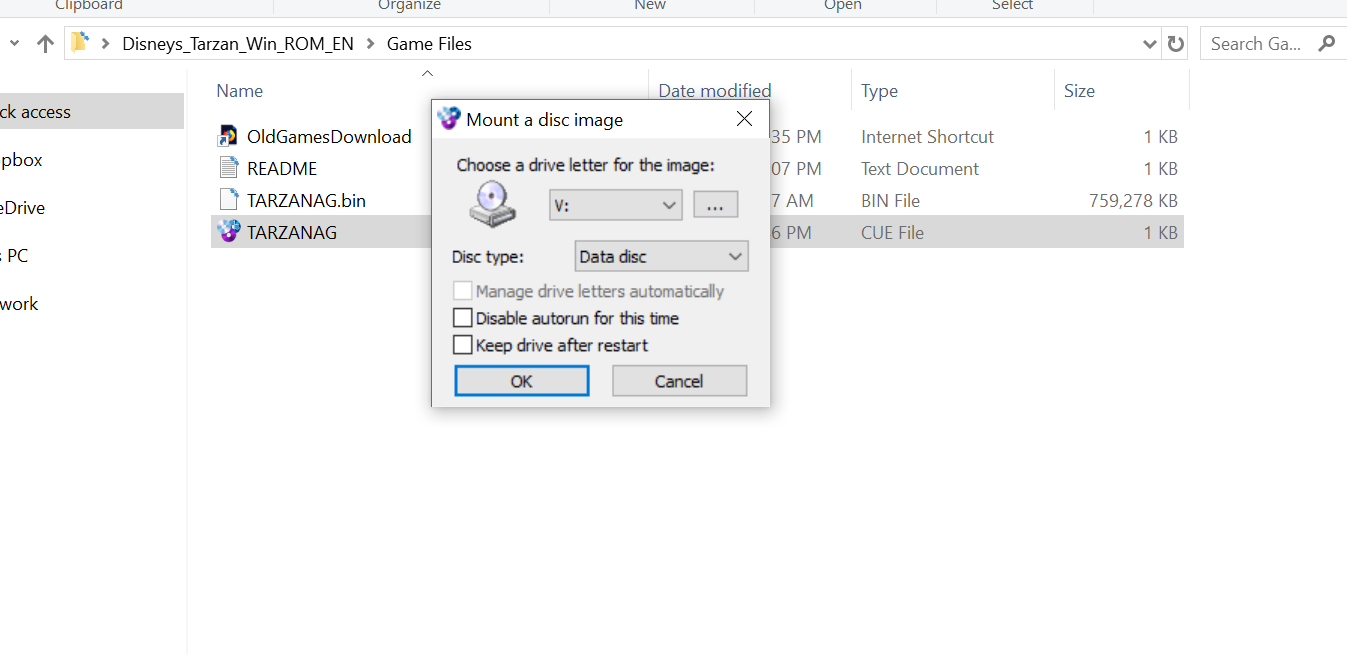
A window asks which drive letter to use. The default is fine for most purposes – click OK and the drive is mounted.
Open This PC and double click the mounted drive to reach the files. To unmount, right click the drive and choose Eject.
Software you might need
- WinCDEmu – recommended
- Daemon Tools Lite
Dealing with copy protection
Copy protection is not new: games from twenty years ago often shipped with it, and some will not start from a mounted image without it being dealt with. How that works varies from game to game. Install the game first, then:
- Find the game’s crack files. They are usually in a folder called NoCD or Crack. Select them all and copy them.
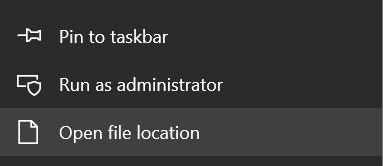
- Find the game’s installation folder. If you are not sure where it is, right click the game’s shortcut and choose Open file location.
- Paste the files into the installation folder and choose Replace the file in the destination for each one.
- Launch the game from its .exe or shortcut.

How to play DOS games on Windows
DOS games need a DOS emulator. DOSBox is free and the usual choice.
DOS games normally have to be mounted inside DOSBox, but for most games here that is already set up: drag the file we specify onto the DOSBox icon and the game starts.
Playing games from other platforms
Plenty of old games were never released for Windows – they ran on other systems such as the Commodore 64, MSX or Windows 3.x, or on consoles like the Atari, Sega and PlayStation machines. To play those on a PC you need an emulator for that platform.
Our guide to emulators for Windows covers which one to use for each system.