| Publishers | Electronic Arts, Inc. |
| Developers | Maxis |
| Release date | 2014 |
| Genre | Simulation |
| Game rating |
Game Description
The Sims 2: Ultimate Collection includes the original game along with all expansion and stuff packs.
Download The Sims 2: Ultimate Collection
The Sims 2: Ultimate Collection is no longer abandonware. You can now buy the game from:
Windows (2014)
The Sims™ 2 Legacy Collection on Steam
Additional files, patches and fixes
The Sims 2: Ultimate Collection Screenshots
Windows
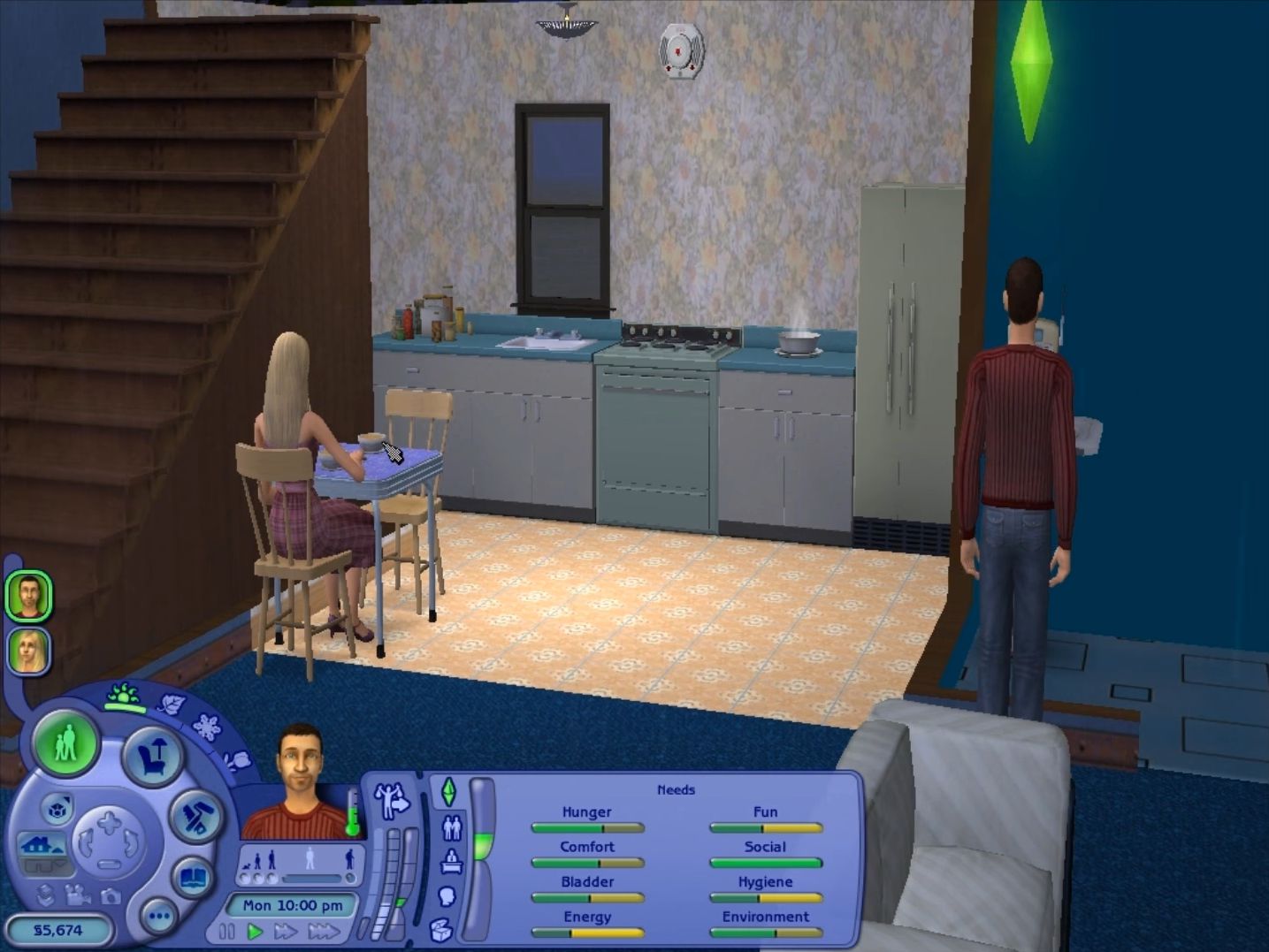
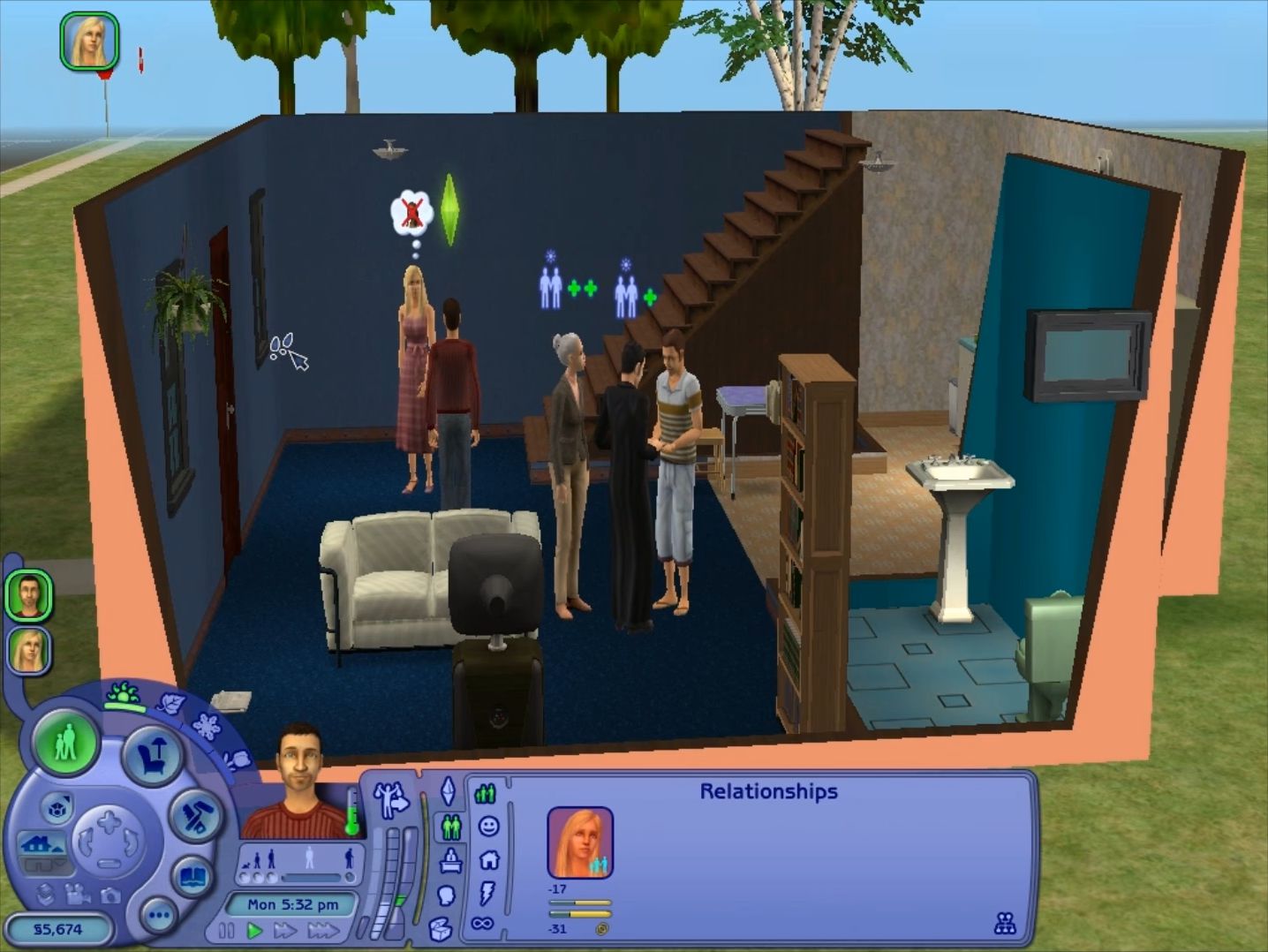
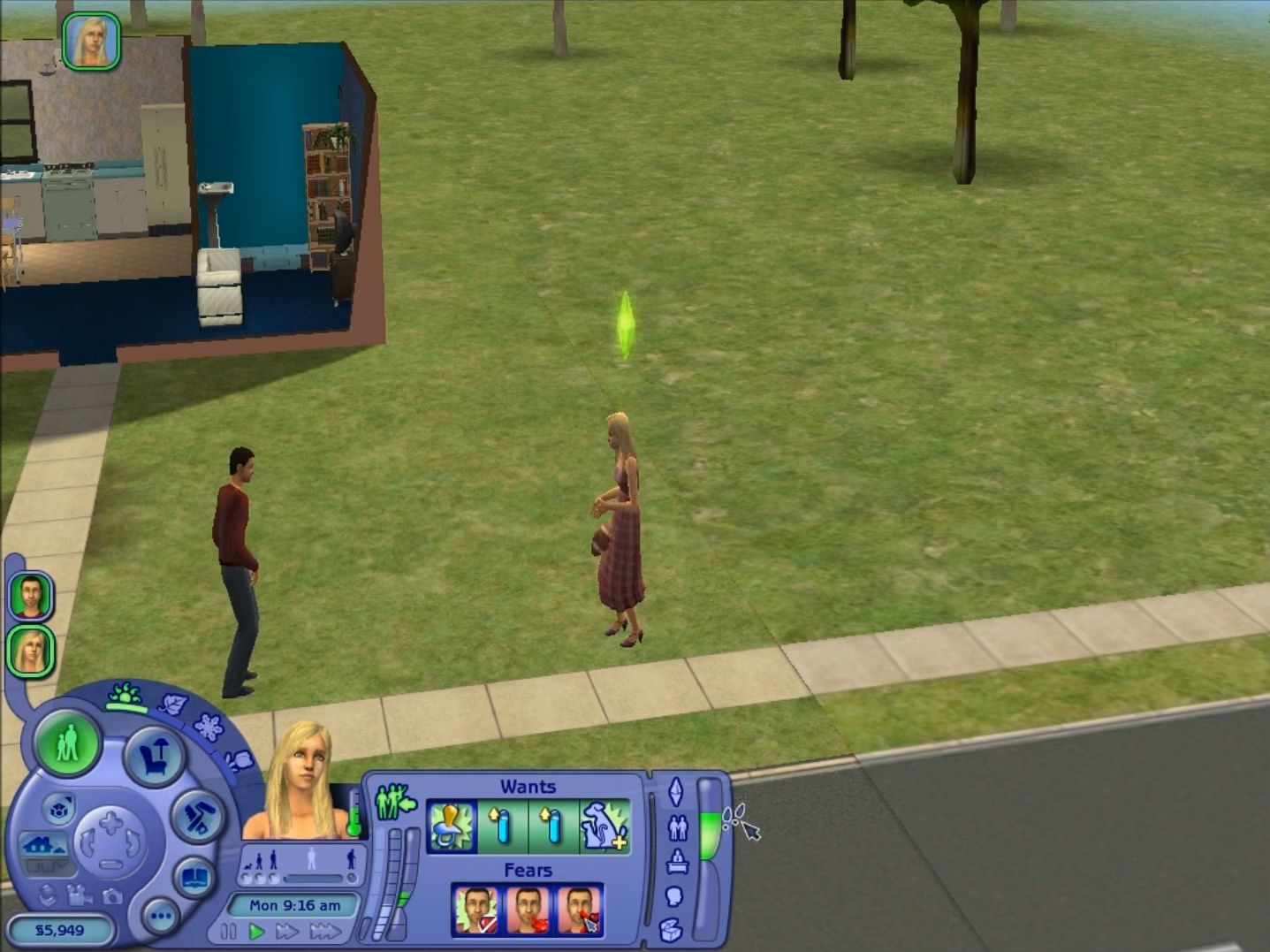
0
0
0
0
0
0
don’t really know if it all works fine, but I hope this help you
https://uploads.disquscdn.com/images/0d620cce1bd975fd463fa77a2f09b690c38c3755b2e279632f7ee0d5154b3130.png
0
0
0
0
0
https://uploads.disquscdn.com/images/00a4f141568bb4be90a64651a068136fdc9738e473905a2fd42ac87659c19580.png
0
0
0
0
So everything went right untill I select a town. This appears. Can anybody help ? https://uploads.disquscdn.com/images/d739a83824b4b89fc2fa45ec39ae6abbdd6d7ee86cda452c0ad6ab22af883397.png
0
0
This tutorial helped me out so much! Make sure to follow EVERY step and download the apps you need to run this game . Worked for me! (;
0
and this link tells you how to edit the files https://simscommunity.info/2016/04/27/the-sims-2-setting-up-the-resolution-windowed-mode-smooth-edges-sim-shadows/
0
Can you please help me. Thx
0
0
0
0
0
0
On Windows 2000/XP, navigate to Start, Run, then type “regedit”.
For Windows Vista, go to Start, and in the “Search” field enter “regedit”. Select it from the list that comes up or just press Enter. You may have to accept a security warning.
2: Find your game in Registry Editor
For the base game only (no expansions/stuff packs/etc.)
In the left pane, navigate through the folders, following this path:
ComputerHKEY_LOCAL_MACHINESOFTWAREEA GAMESThe Sims 21.0
For expansion packs/stuff packs (maybe.. not tested stuff packs :D)
In the left pane, navigate through the folders, following this path:
ComputerHKEY_LOCAL_MACHINESOFTWAREEA GAMES*name of last-installed expansion or stuff pack*1.0
3: Change the language
In the right pane of the window, find the entries labeled “Language” and “LanguageName”.
Double-click “Language” and, using the list below, change the previous number to the number or letter corresponding to the language you wish to switch to. Be sure it’s set to “Hexadecimal”. Click OK.
This isn’t necessary, but it’s a good idea: Double-click “LanguageName”. Using the list below and the number or letter you just entered, enter the name of the language you wish to switch to. Click OK.
If you have expansion packs, especially more than one, it could be helpful to change each key for each expansion (and the base game) just to be sure they’re kept in sync.
Language List
0 English
1 English
2 French
3 German
4 Italian
5 Spanish
6 Swedish
7 Finnish
8 Dutch
9 Danish
10 Russian
11 Simplified Chinese
12 Traditional Chinese
13 … (appears corrupted)
14 Polish
15 Thai
16 Norsk (Norwegian)
17 Portuguese
18 Hungarian
a Portuguese
b Czech
c Hebrew
d Greek
e Japanese
f Korean
4: Restart the game
The change should take effect after restarting the game.
0
0
0