| Publishers | Electronic Arts |
| Developers | Maxis |
| Release date | 2005 |
| Genre | Simulation |
| Game rating |
Game Description
The following expansion packs were released for the game, bundled in a single game known as The Sims: Complete Collection:
- The Sims: Livin’ Large
- The Sims: House Party
- The Sims: Hot Date
- The Sims: Vacation
- The Sims: Unleashed (Pets)
- The Sims: Superstar
- The Sims: Makin’ Magic
Download The Sims: Complete Collection
The Sims: Complete Collection is no longer abandonware. You can now buy the game from:
Windows (2005)
The Sims™ Legacy Collection on Steam
Additional files, patches and fixes
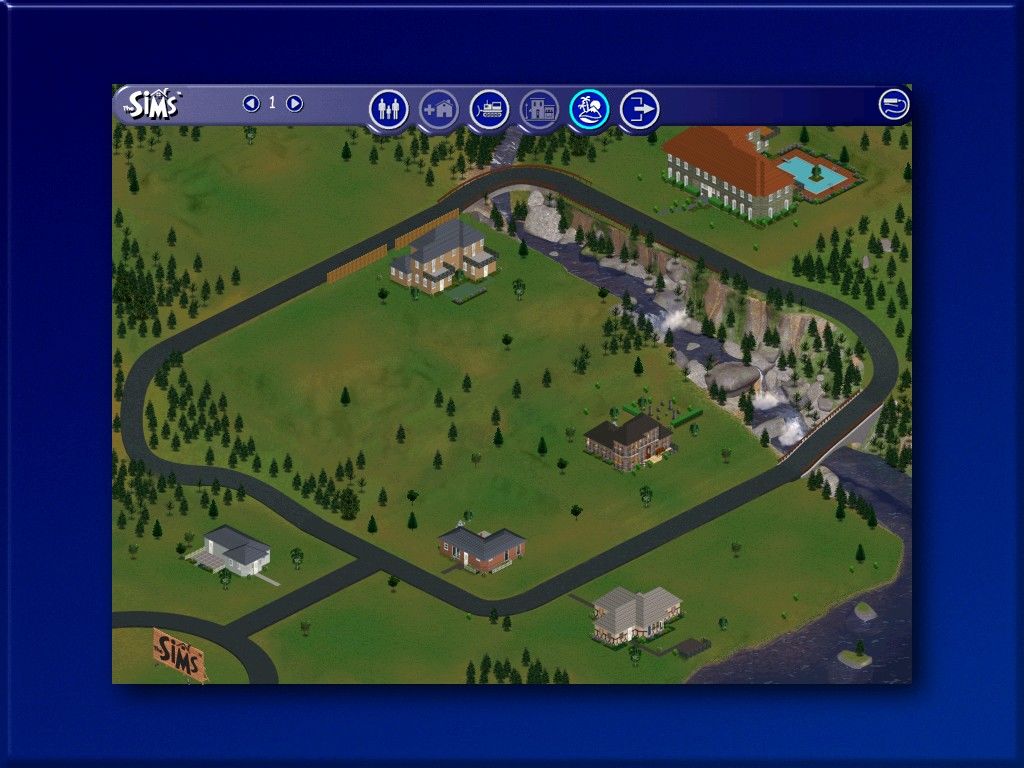
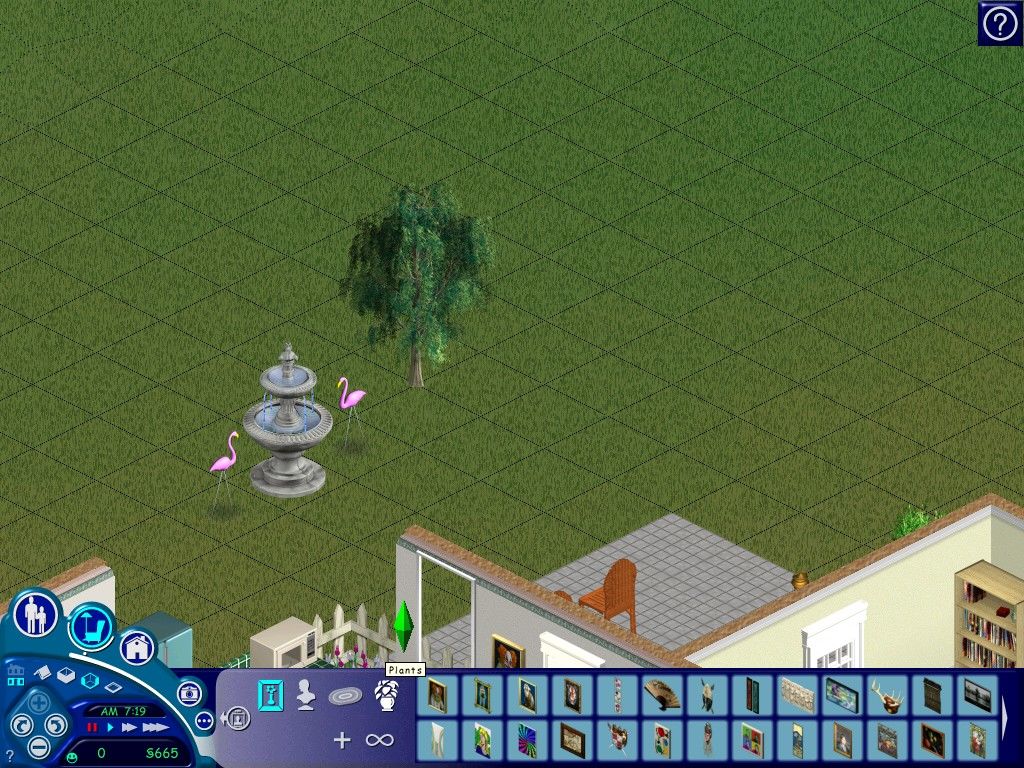
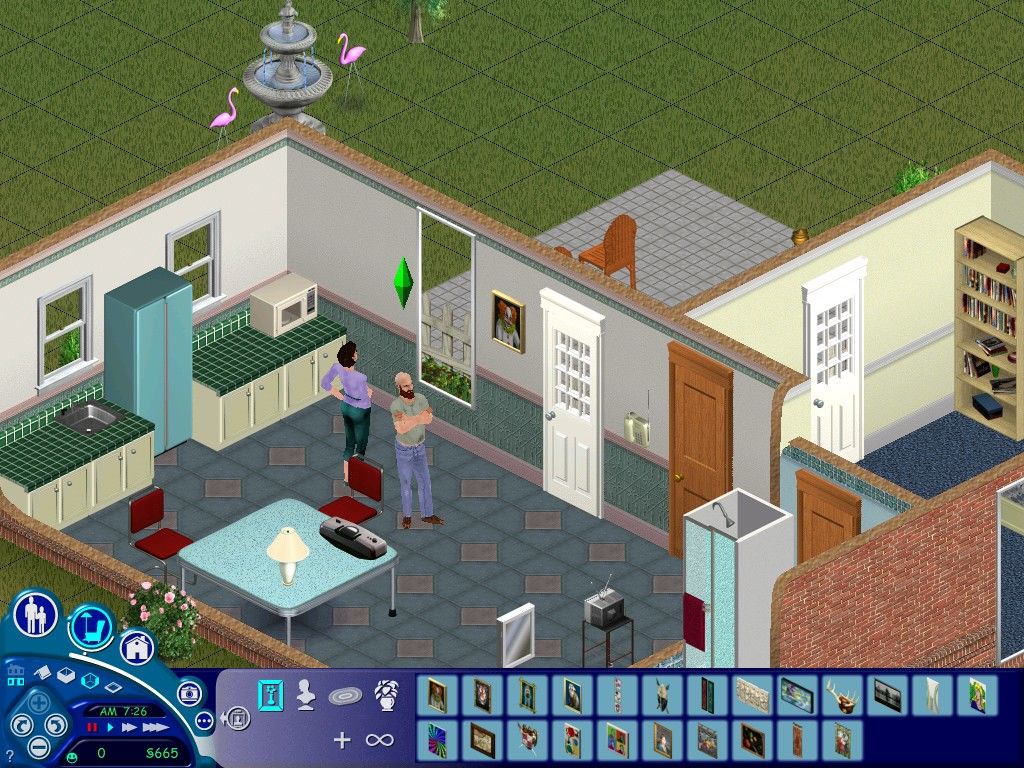
The Sims: Complete Collection Screenshots
Windows
0
0
0
0
0
0
0
0
0
0
0
0
0
0
0
0
Open file explorer – Open Program Files (x86) folder – Open Maxis folder – Open The Sims folder.
0
0
(for those having issues and run on Windows 11)
————————————————
Step 1: Download and Extract The_Sims_Complete_Collection_Win_Setup_EN.zip. If you don’t know how to extract, read this article: https://oldgamesdownload.com/wiki/install-games-on-windows/
(I personally selected the Archive.org download link which takes a little while to download)
Step 2: Double click on the file which says “Setup” under the Setup folder and then follow the on-screen instructions. Don’t mess with anything unless you know what you’re doing and just keep clicking next or ok.
Step 3: They will prompt you to enter a serial code – the code you want to use is: EQMV-73XB-F8J4-GSLX-4M67
Step 4: They will now prompt you to register – you want to select “Register later”. (I never got this prompt so ignore this step if you don’t see this)
Step 5: Now, open the the file called “The Sims Crack” and cut and paste the “Sims.exe” to the directory where you installed the game (by default this is: C:\Program Files (x86)\Maxis\The Sims). When the pop-up appears telling you the file already exists, you want to select “REPLACE”.
Step 6: Right click on the newly pasted “Sims.exe” file, copy it, and paste it on your desktop to create a shortcut
Step 7: You can now launch your game from your desktop! Keep reading to avoid issues >>>
Step 8: IMPORTANT: If your game is stuck in an endless loop when you launch it then try doing this:
• Right click on the shortcut game icon and click on properties. Go to the “Compatibility” tab and then:
• Check the box next to “Run this program in compatibility mode for” and then select “Windows XP (Service Pack 2)” in the drop down menu.
• Check the “Run as an administrator”
• And then click on “Apply” and then click on “Okay”. Now, launch the game by double clicking on the game icon.
Step 9: If your game is glitching and having issues do the following:
• Right click on your new shortcut again and click properties. Go to the “Compatibility” tab and then:
• Check the box for “Reduced color mode for 8-bit (256) color” and also for “Run in 640 x 480 screen resolution”
Step 10: Launch the game and you should have no issues!
Feel free to reply if you guys have any questions. I hope this helps! This is basically an accumulation of all the help people have given in older comments that worked for me.
0
0
0
0
You might need to create an exception for “Setup” under Windows Defender Firewall if you’re still having issues. If all that isn’t working, try re-installing the game with that exception because Windows Firewall may have excluded an essential part of the download.
My game personally wasn’t affected so you may not have to do that. I also had that error but it was when I was trying to launch the game the wrong way after set up.
For anyone getting this error after successfully completing the “Setup” step:
>> Don’t launch through “start” under the main “Game Files” folder
>> Make sure you’re launching through “Sims” under “C:\Program Files (x86)\Maxis\The Sims”
>> You’ll need to restart your computer if you attempt to launch through the uncracked game. That or end the task by bringing up task manager
0
0
0
0
https://i.postimg.cc/mkpwLSgr/Help.png
0
what do i do
0
0
0
0
0
0
0