| Publishers | Microsoft |
| Developers | Blue Fang Games |
| Release date | 2001 |
| Genre | Simulation |
| Game rating |
Game Description
Zoo Tycoon is a simulation computer game developed by Blue Fang Games, and published by Microsoft in 2001. It’s a single player game, initially released to be played on a Microsoft PC or Apple Macintosh. In Zoo Tycoon, the player gets to experience all the excitement of running a business by becoming the titular zoo tycoon: building, running and expanding their very own zoo.
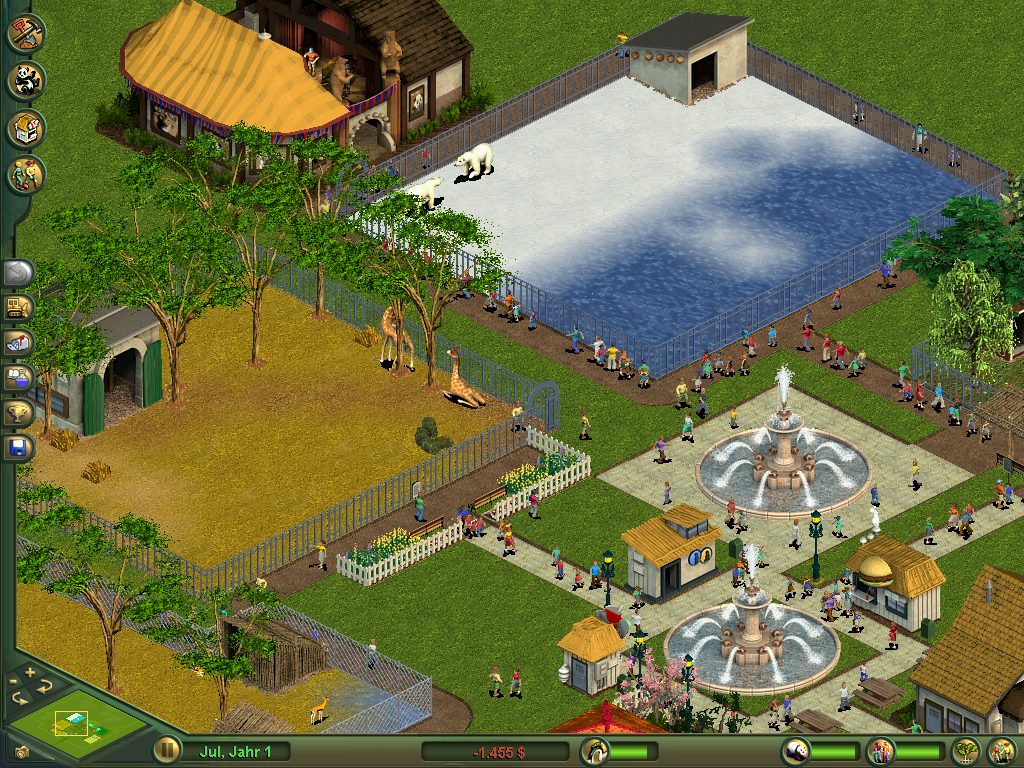
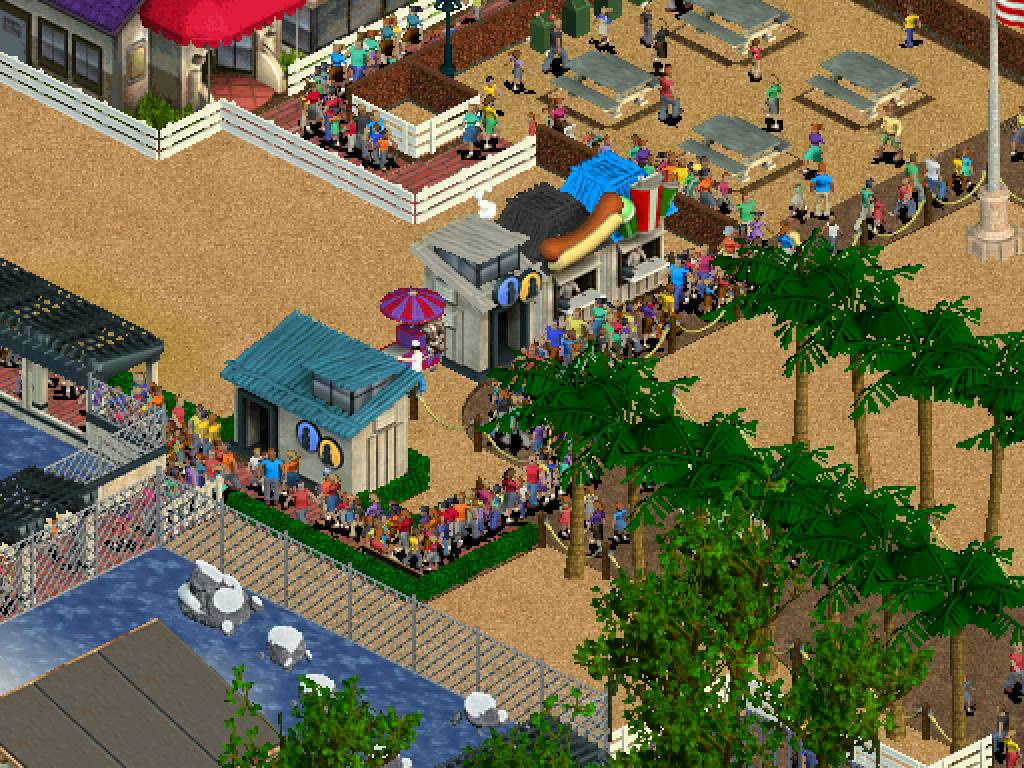
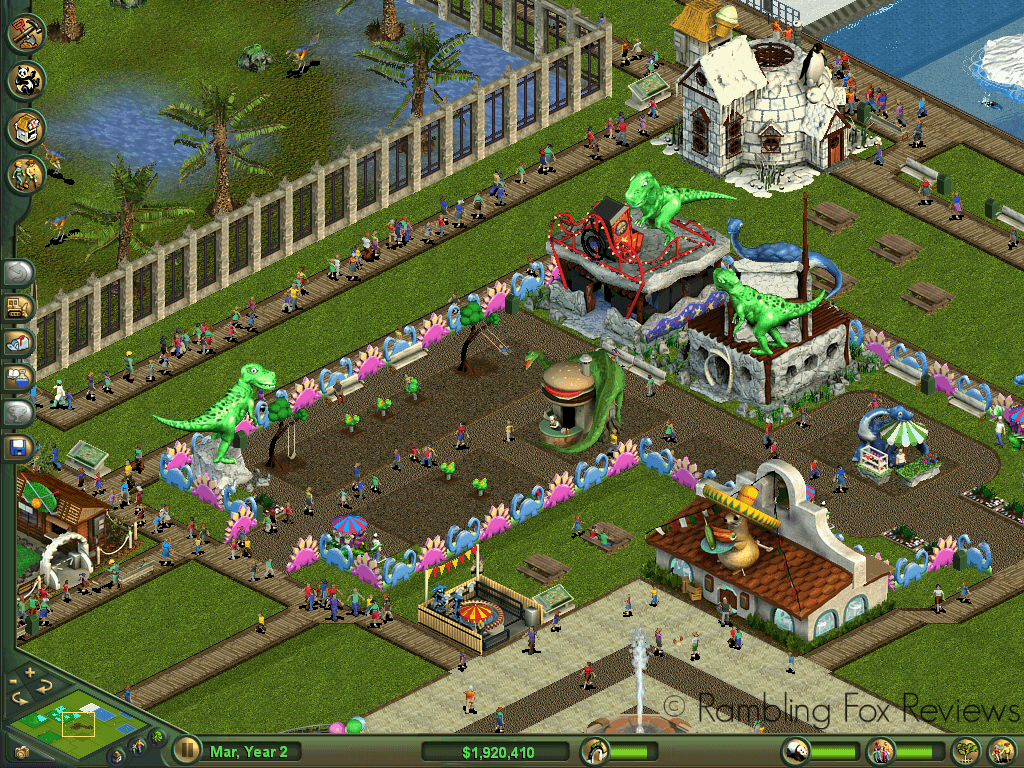
The player can build everything from food stands to movie theatres – and of course, animal exhibits, for a wide choice of animals. While restaurants and shops help keep guests happy, you need both guest and animal happiness high to make money. To keep the animals happy you’ll need to carefully choose their habitat and terrain. If you put the lions in an arctic exhibit, they won’t be too pleased! Don’t forget to employ plenty of zookeepers, or else an animal might just get loose – and could kill a guest.
You can choose to play in either scenario or freeform mode. In scenario mode, the game sets objectives for the player to reach, often in a limited time. This could mean achieving a certain level of guest happiness, or breeding a particular animal in your zoo. Scenario mode provides structured game play and regular, measurable achievement. In freeform mode, the player has total freedom. They can set their own aims and pursue them at any pace they’d like. As the game progresses, you can invest in researching new items and new animals, unlocking them and making them playable.
Download Zoo Tycoon
We might have the game available for more than one platform. Zoo Tycoon is currently available on these platforms:
Windows (2001)
Zoo_Tycoon_Win_Preinstalled_EN.zip (972.4MB)
Zoo_Tycoon_Win_ROM_EN.zip (1.19GB)
Zoo_Tycoon_Win_ISO_EN.zip (483.9MB)
How to play in Windows
- Download Zoo_Tycoon_Win_ROM_EN.zip and extract the files to your desktop. You might need to use a software such as 7-zip or WinRar to extract.
- After that, you want to mount the 2 ROM files found inside the downloaded folder, to do this you will need to use a software such as Daemon Tools.
- When you have them mounted, run the setup found inside the mounted drive for the base game (not expansion) and finish installing the game. After, run the setup for the expansion and install it.
- Finally, you want to open the crack folder and copy-paste the files found inside into the game installation directory (right click on game desktop shortcut and select “open file location” to see installation directory). Confirm you want to overwrite those files. Now you can run the game.
- Enjoy!
Mac (2001)
Zoo_Tycoon_Mac_ROM_EN.zip (457.9MB)
Additional files, patches and fixes
Zoo Tycoon Screenshots
Windows
0
sometimes it closes back after 5sec ..
0
0
0
For some reason though, ZT fails to display properly after the introductory Blue Fang Games graphics play. First, the window minimizes from fullscreen to about 1/4 of the screen. At this point, nothing is cropped, the window is just smaller. However, once I am brought to the main menu of ZT, it automatically zooms in to the top left corner of the screen and prevents me from moving my mouse around to see the rest of the main menu.
I am, however, able to click the first menu option (it’s the only visible menu option). When I do so, I am taken to the correct page. But still, I cannot navigate or see beyond the zoomed-in area. When I expand the window to full screen, it merely enlarges the zoomed-in area — still not allowing me to see the rest of the Main Menu, and immediately snaps back to the original, smaller window size.
Then Windows freezes, leaving me no choice but to quit ZT externally via the dock on Mac OS.
I’ve tried running compatibility tests (i.e., right-click the ZT shortcut on my Desktop > Properties > Compatibility) and playing around with the different resolution settings on Windows (e.g., switching my display resolution to 800 x 600) but neither worked. I also even attempted to edit the resolution settings in the .ini file (i.e., BD-ROM Drive (F:) ZOO_TYCN > DATA) to match my recommended display resolution on my Windows 10 (i.e., 2560 x 1366), but kept getting the error message “You can’t save to ‘F:DATA’. Please choose another location.” (I tried saving the edited file elsewhere but doing so had no effect on how ZT displayed).
I’ve read through a Reddit thread and watched a YouTube video addressing this same issue but nothing has worked for me. I am dying to play this game again and relive my childhood so any suggestions or insights (e.g., Does it have to do with the fact that I have not yet purchased Parallels or Windows? The message “Activate Windows – Go to settings to active Windows” is on the screen and does not disappear.) would be very much appreciated. If I need to provide more details about my issue in order to be better assisted, I am more than happy to do so. Thank you in advance!
Note: I am unable to add my screenshots to this post, so please refer to my Reddit post here: https://www.reddit.com/r/ZooTycoon/comments/kvkzto/zoo_tycoon_1_zoomedin_display_issue_on_parallels/
0
0
on my computer. I followed all the
steps and downloaded it multiple times but the game still won’t launch. I even tried to change the compatibility to previous versions of windows but still no luck :/
0
0
0
0
0
0
0
0
First things first, if your computer runs Windows 10, this game won’t work as is. You’ll have to download a special patch for the issue. If you do have a Windows 10 computer, follow these steps and then reply and I’ll give you some more steps on the downloading the patch.
Okay, here we go!
1. Click on the button that says “Zoo_Tycoon_Win_ROM_EN.zip (1.18 GB)” It will open up a link to a website called “Mega”. Click on the green download button. A progress bar will appear at the top of the screen. You don’t have to do anything else on that page, just wait for the download to finish.
2. Once it downloads, double click on the file (it will pop up on the bottom of you browser most the time. If it doesn’t try searching “Downloads” in your Start menu to open your downloads folder. It should be there) to open it and find a button that says “Extract All”. It’s different on different computers, so I can’t tell you exactly where to find the button. Another window should pop up. Click “Extract” on that one, too.
3. For the next step, you’ll need a program that can mount digital CDs. I used Daemon Lite. Here’s the link: https://www.daemon-tools.cc/products/dtLite
On the left side of the screen is a blue download button. Click that and wait for the software to download. Once it finishes, open it.
4. Now that you have Daemon open, click on the gray button in the bottom left corner that says “Quick Mount”.
5. Find the UNZIPPED (Note unzipped. If you try the zipped file it won’t work. You can tell it’s unzipped because it will have the same name as the one you downloaded off this website but the icon won’t have a zipper on it like the other one) file. Open it (you might have to open it twice, I can’t remember), then open the folder called “Game Files”, then the folder called “Base Game”. There should be two files in it called rzr-ztcc1. Open the one that says “BIN File” a little bit to the right of the name. This will “mount” a digital CD on Daemon.
6. A blue icon should pop up next to the Quick Mount button that says something like “(E:) ZOO_TYCN”. Click on it and the installer for the game should pop up. Install it like usual (At some point in the install, it asks you if you want to make a desktop icon. I suggest doing so because it makes later steps easier).
7. If you want the expansion, repeat steps 4-6 but instead of opening the “Base Game” file in step 5, open the one that says “Expansion” and open the BIN file there.
8. Go back to the Zoo Tycoon folder and open the “Crack” folder. You’ll need to click on the Base Game Crack folder and then click Extract All again. Then open the unzipped folder and right click on the application called “zoo” and copy it.
9. Right click on the Zoo Tycoon icon on your desktop and click “Open File Location”. Paste the zoo application you just copied into the file, then confirm that you want to replace the files already there.
10. If you didn’t install the expansion, skip this step. Otherwise, repeat steps 8-9 but this time with the Expansion Crack folder and the application inside.
11. You’re done! You can run the game now. If it doesn’t work, let me know. I can try to help you troubleshoot.
0
0
0
GL and I hoped this helps!
0
0
0
0
0
Thanks!
0
0
It’s a shame, but I’m definitely wanting to enjoy the game anyway!
0
Thank you!!
0
1. Download the ROM file -> unzip + extract files
2. Download Daemon 2 Lite
3. Click Quick Mount
4. Select the the first bin file, then repeat step 3 with the second. Think of this as digitally putting in two CD’S – each bin file represents one. ztcc1 is the base game, ztcc2 is the complete collection.
5. Double click and install ztcc1
6. Double click and install ztcc2
Play!
This worked for me in fixing the matienence worker problem, however now I am expierencing issues trying to get marine animal shows to work if anyone has advice for that!
0