Adventures in Typing with Timon & Pumbaa
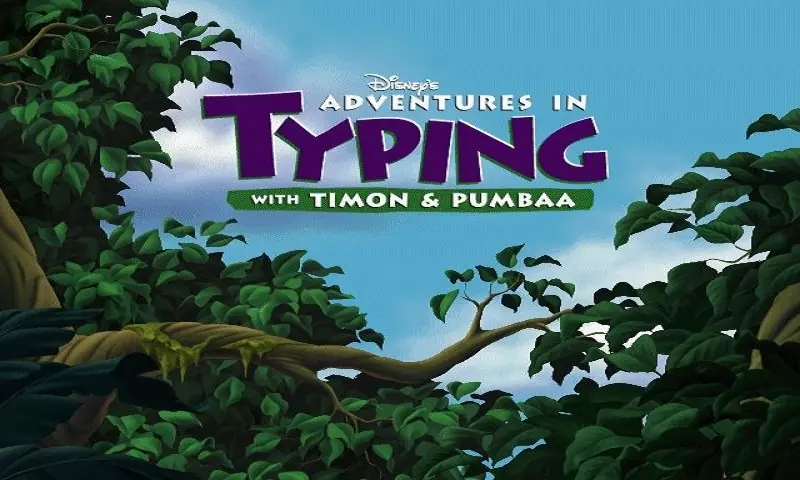
Adventures in Typing with Timon & Pumbaa is a 1998 educational game developed and published by Disney Interactive.
Genres
Publishers
Developers
Released
Platforms
Adventures in Typing with Timon & Pumbaa is a 1998 educational game developed and published by Disney Interactive.
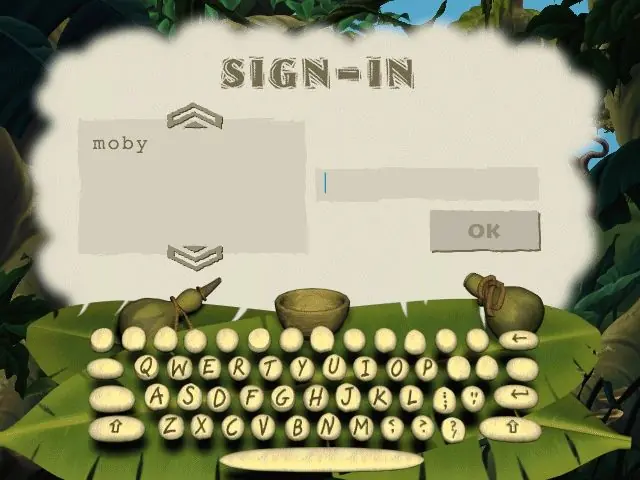
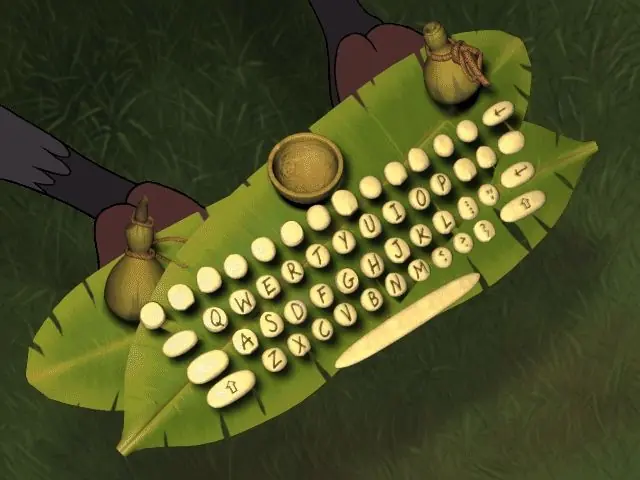
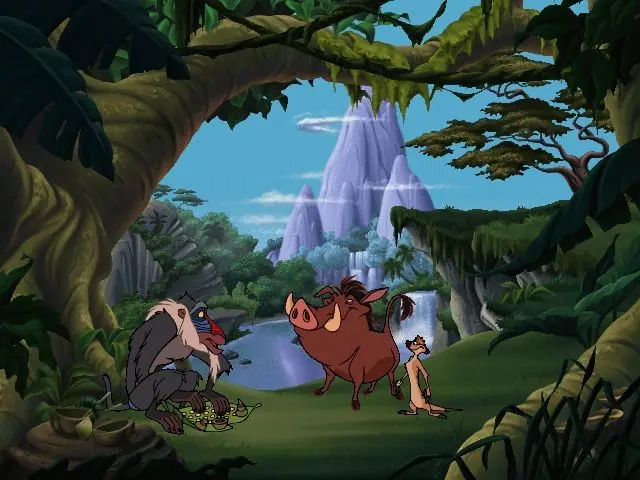
Disney's Adventures in Typing With Timon & Pumbaa presents a set of typing-focused activities in which the player practices finger placement, home‑row technique, speed, and accuracy while interacting with characters from The Lion King. The program offers multiple difficulty levels and five distinct typing exercises. As the player progresses, the software provides rewards and brief interactive moments with Timon, Pumbaa, and Rafiki.
Adventures in Typing with Timon & Pumbaa is abandonware and no longer sold or supported by its publishers. Files are archived here for these platforms:


1. Navigate to the Win95 folder
2. Right click on Typing.exe and select Properties from the dropdown
3. Go to Compatibility tab, check mark Run in Compatibility Mode(choose Windows 95) and Reduced Color Mode
4. Click Apply Button
5. Go back to main folder of the disc and right click on Launcher.exe
6. Click Properties and check mark the same settings as above steps, click Apply.
7. Right click Launcher.exe and select Run as Administrator
You should be presented with install instructions and after install if you right click and Run as Administrator it should be presented with Play button to actually play the game.