Dark Colony
Dark Colony is a 1997 strategy game developed by GameTek Canada and published by Strategic Simulations.
Genres
Publishers
Developers
Released
Platforms
Dark Colony is a 1997 strategy game developed by GameTek Canada and published by Strategic Simulations.
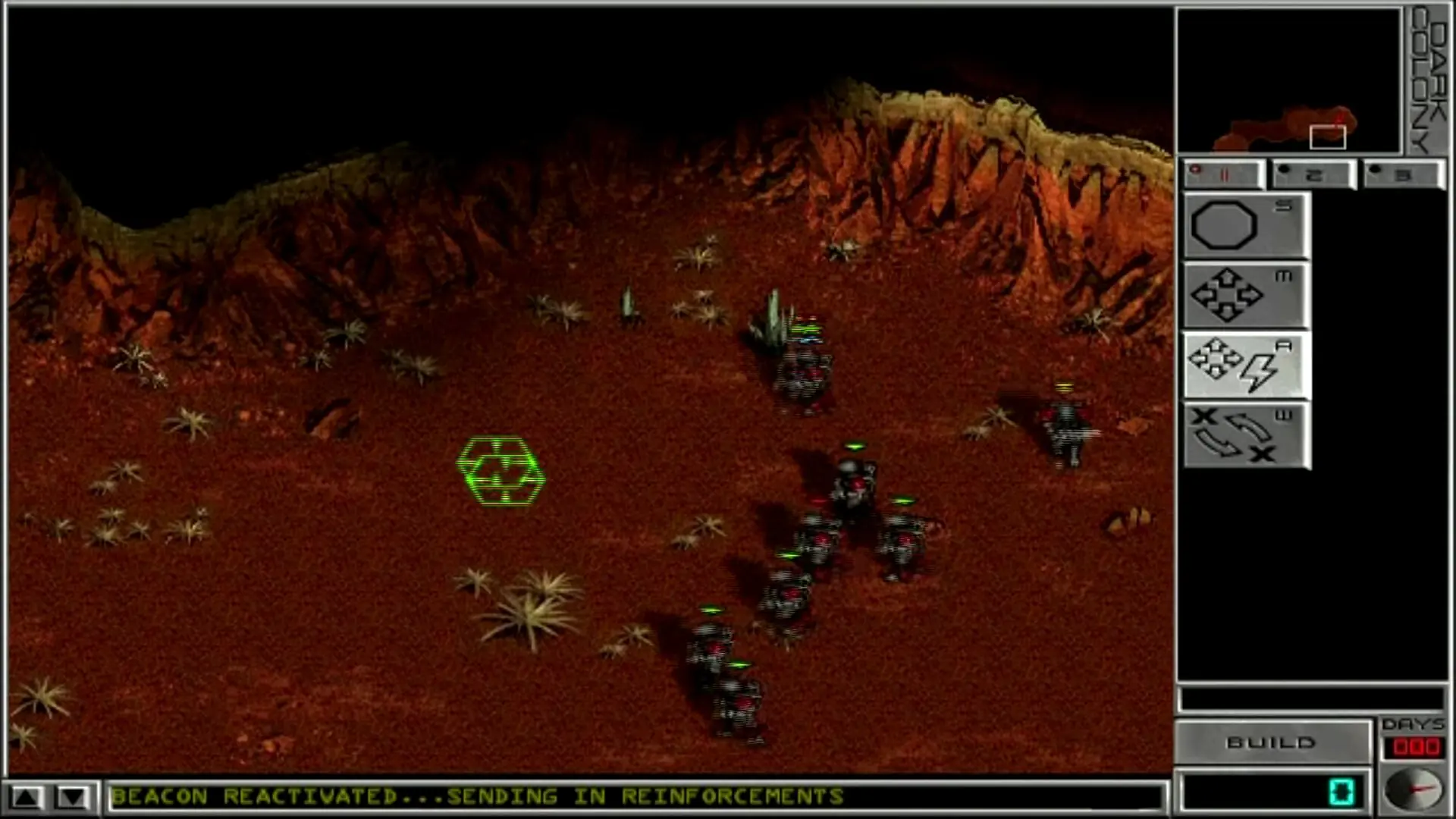
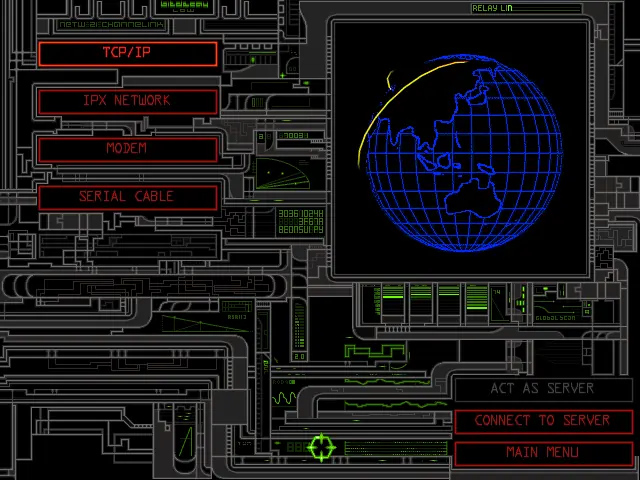
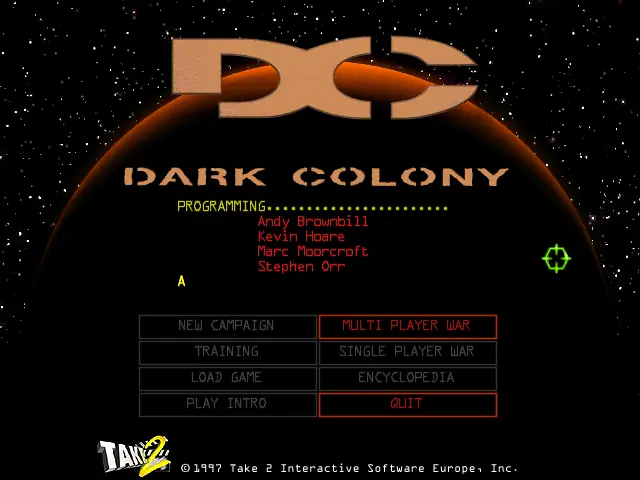
Dark Colony is abandonware and no longer sold or supported by its publishers. Files are archived here for these platforms:
How to play on Windows 10



assert failure, file ddex4.c line 586 (0)
how do i fix?
No option for the campaign
I had the same problem.
Actually, you need to have 2 copies of the game:
1. The mounted cd-rom image. You can mount the image using a tool like ‘Alcohol 120%’ or ‘Deamon Tools’. Or, if you first convert the MDF-image to an ISO-image, then you can directly mount the ISO-image in WIndows 10, without needing a tool.
2. And a copy of the entire ‘DC’ directory somewhere on a hard drive: Once you have the mounted image, copy the entire directory ‘DC’ to a hard drive. This is needed because you need to adapt the ‘HBNFUFL.01’ file, and in the mounted cd-rom image you cannot save the altered file because it is read-only there.
Once you have copied the DC directory to your hard drive, open it, and open the file ‘HBNFUFL.01’ with Notepad. In it, you will see that there is just 1 letter, probably ‘d’.
You need to change this letter with the drive letter of your mounted image. For me that was letter e.
Then, save the file.
From now on, YOU NEED TO LAUNCH THE GAME FROM YOUR HARD DRIVE, not from the mounted image.
But first, enable Windows COmpatibility mode: in the DC directory on your hard drive, right-click on the file DC16.exe, choose properties, go to Compatibility, check the box of “Run this program in compatibility mode for” and there choose “Windows XP Service Pack 2”. Then click ok.
From now on, to launch the game, double click on this executable file DC16.exe ON YOUR HARD DRIVE – not the one on the image.
If you put the correct drive letter in the file above, you will now be able to play the campaign as well.
This worked for me.
I am running this game on Windows 10 64-bit, on an AMD Athlon x4 950 64-but cpu. Works fine.
I created a shortcut to the executable on my desktop to make it easier to launch ( remember, the one on your hard drive, NOT the one in the mounted image ).
Have fun. 🙂