Home » Games » Microsoft Flight Simulator 3.0

Microsoft Flight Simulator 3.0

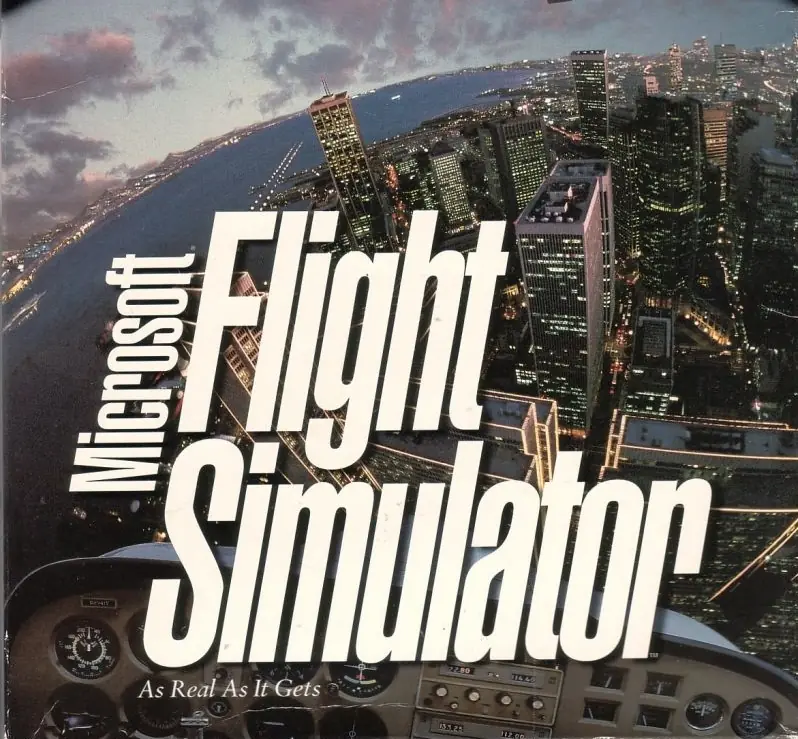
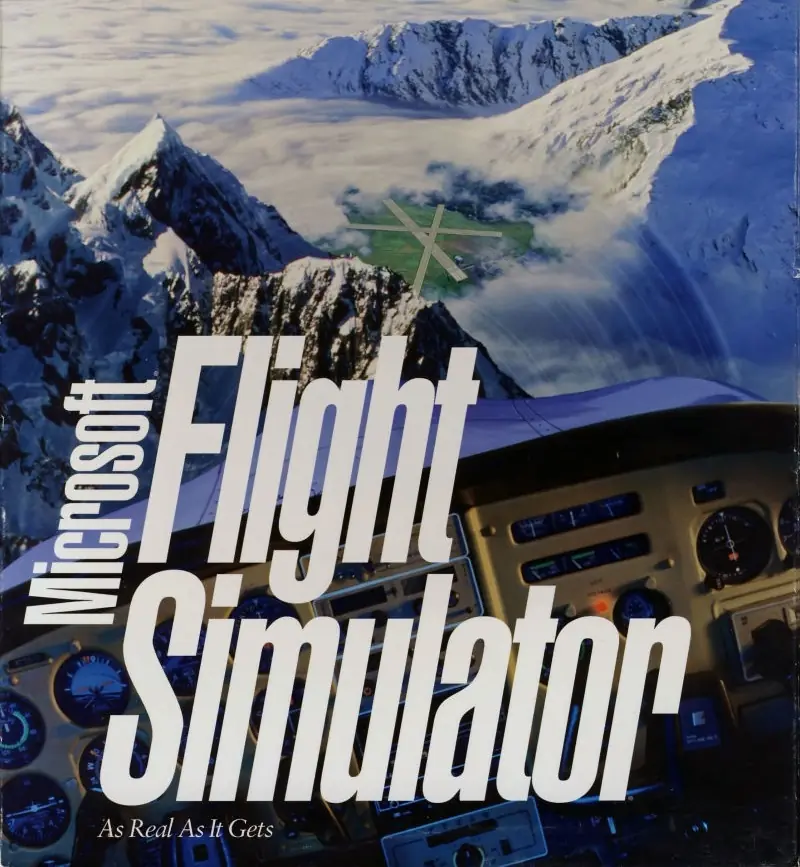
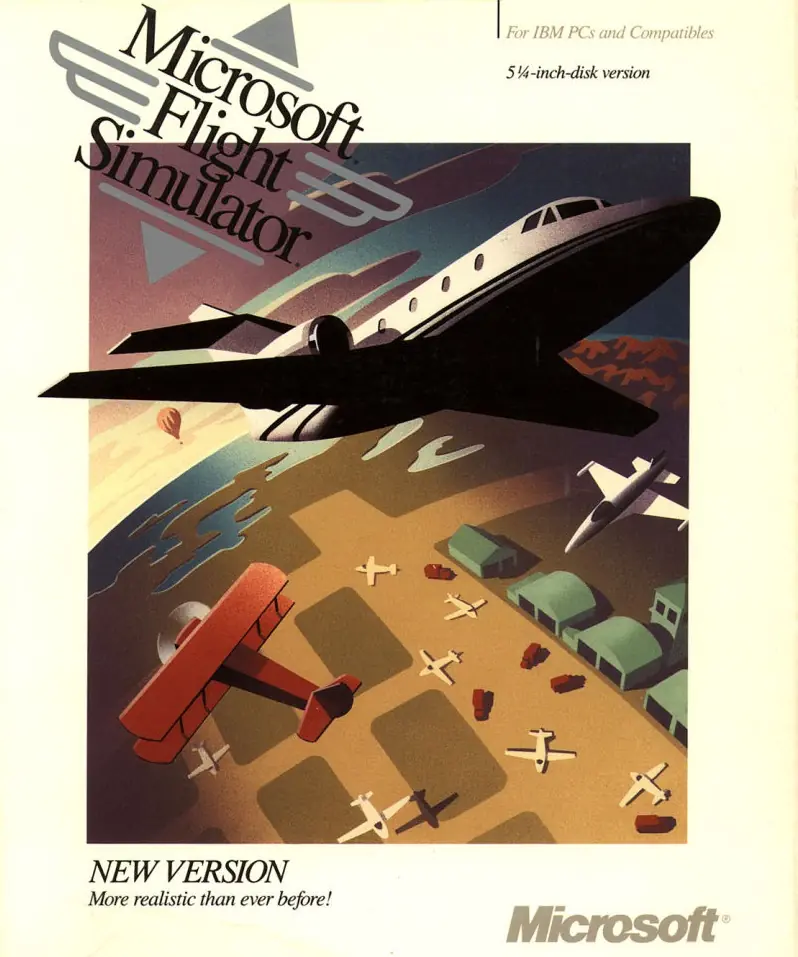
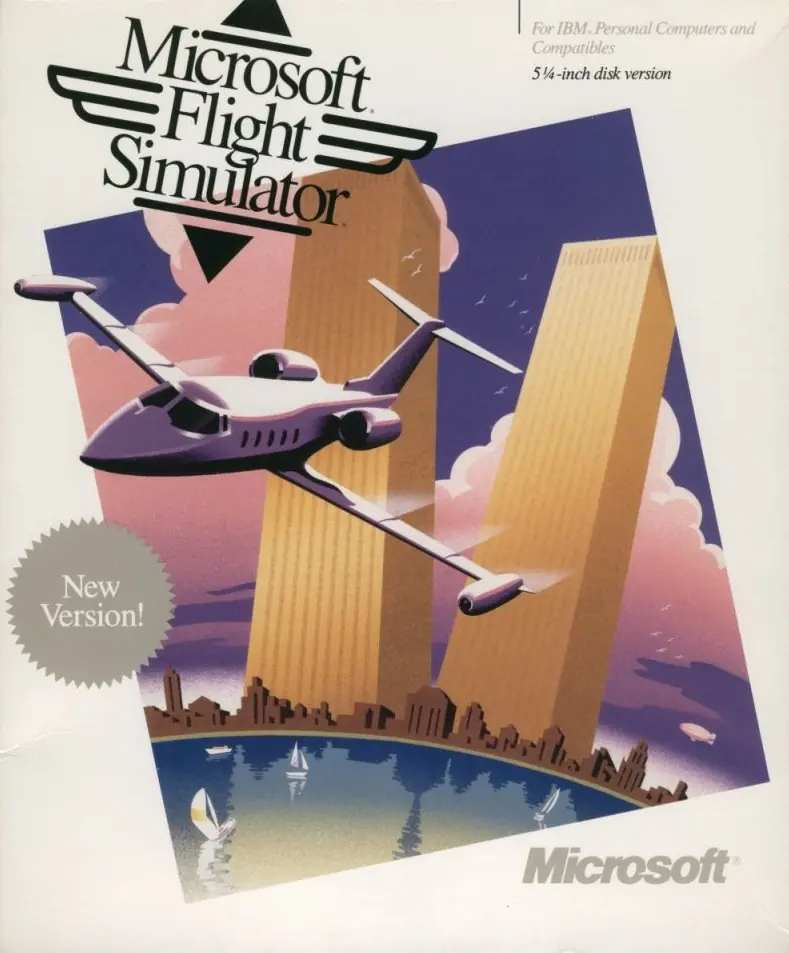
Microsoft Flight Simulator 3.0 Game Cover
5/5 - 1 vote

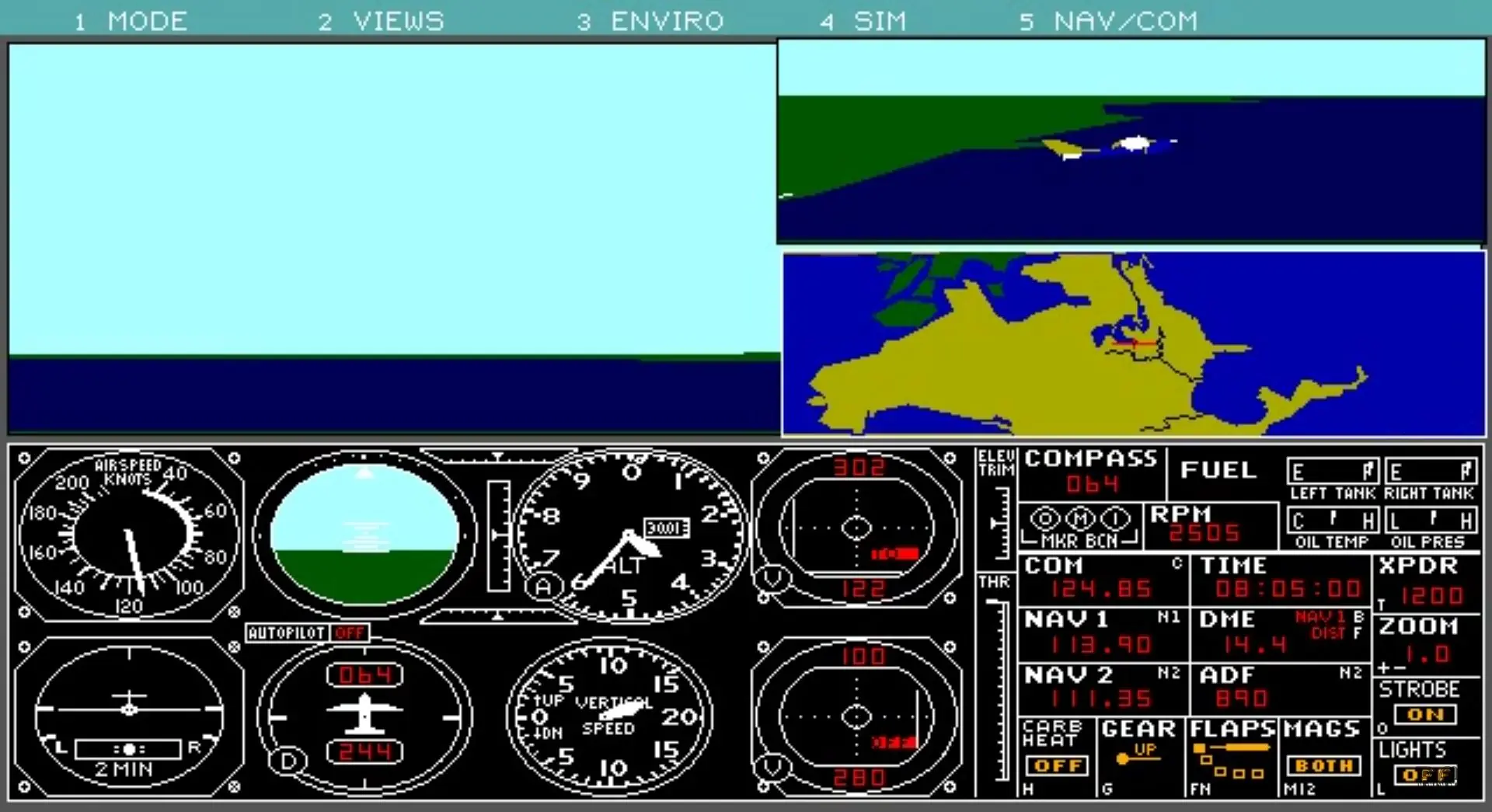
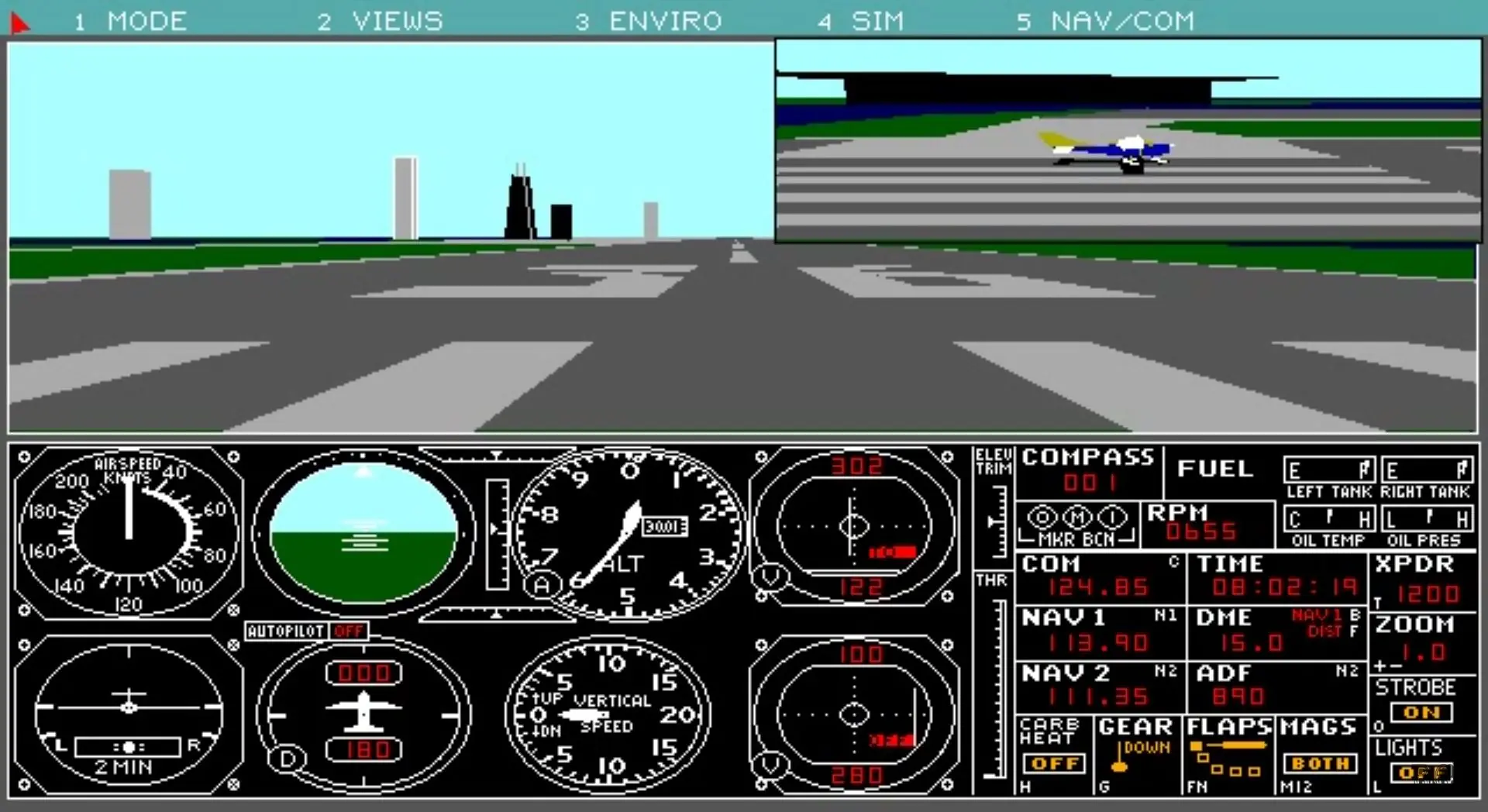
Microsoft Flight Simulator 3 improved the flight experience by adding additional aircraft and airports to the simulated area found in MSFS2, as well as improved high-res (EGA) graphics, and other features lifted from the Amiga/ST versions.

Other Titles

Microsoft Flight SimulatorMicrosoft Flight Simulator (v3.0)

Genres
Publishers
Developers
Released
Platforms
Download

About Microsoft Flight Simulator 3.0

Microsoft Flight Simulator 3 improved the flight experience by adding additional aircraft and airports to the simulated area found in Microsoft Flight Simulator 2.0, as well as improved high-res (EGA) graphics, and other features lifted from the Amiga/ST versions.

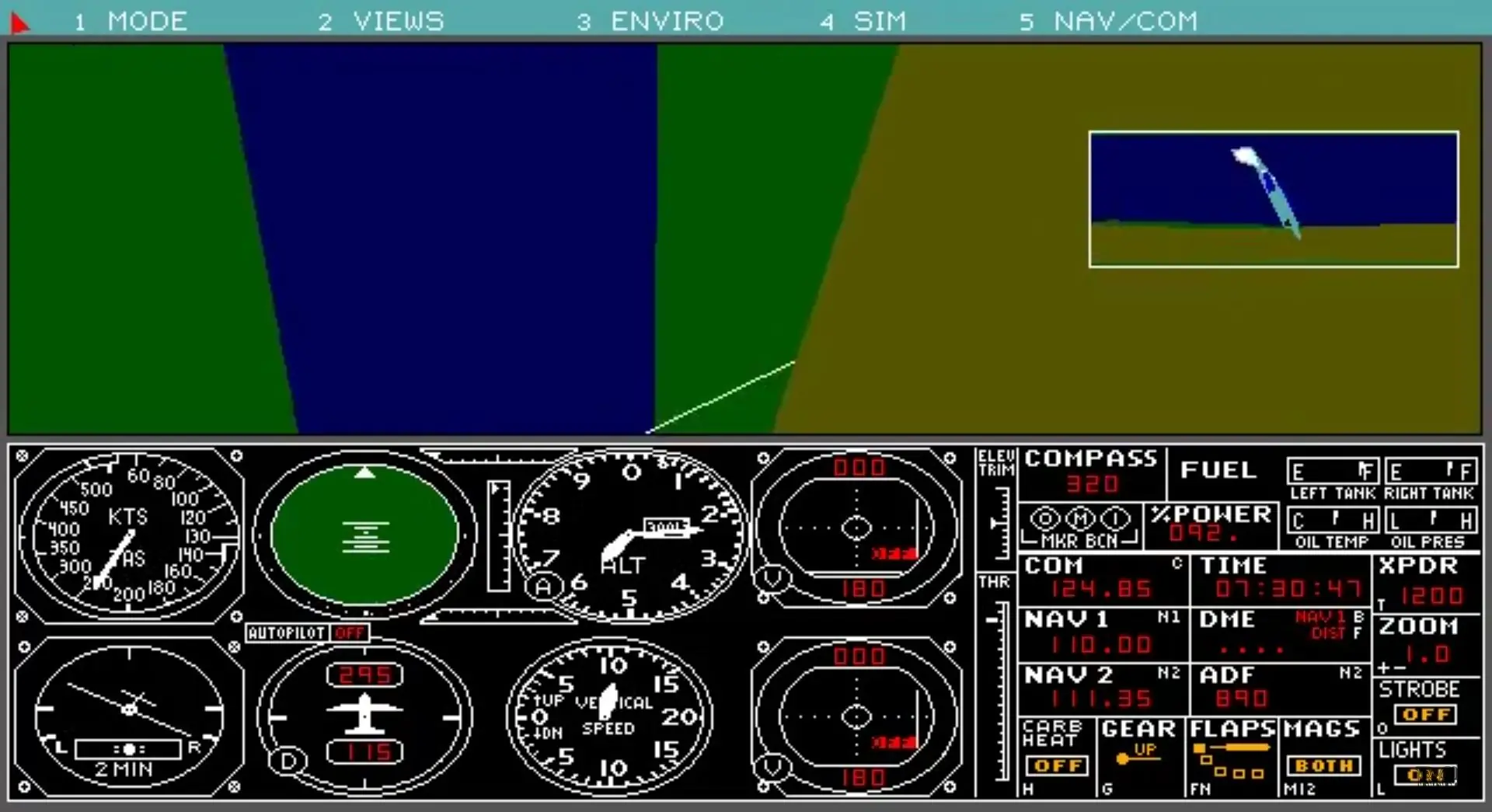
The three simulated aircraft were the Gates Learjet 25, Cessna Skylane, and Sopwith Camel. Flight Simulator 3 also allowed the user to customize the display; multiple windows, each displaying one of several views, could be positioned and sized on the screen. The supported views included the instrument and control panel, a map view, and various external camera angles.

This version included a program to convert the old series of Sublogic Scenery Disks into scenery files (known as SCN files), which could then be copied to the FS3 directory, allowing the user to expand the FS world.
Screenshots

DOS

Microsoft Flight Simulator 3.0 — DOS screenshot 1Microsoft Flight Simulator 3.0 — DOS screenshot 2Microsoft Flight Simulator 3.0 — DOS screenshot 3

Download Microsoft Flight Simulator 3.0

Microsoft Flight Simulator 3.0 is abandonware and no longer sold or supported by its publishers. Files are archived here for these platforms:

DOS (1988)

  • Microsoft_Flight_Simulator_3.0_DOS_Files_EN.zipEN393.77 KB
  • Instructions Microsoft_Flight_Simulator_3.0_DOS_Files_EN.zip

    How to play on Windows

    1. Download and Extract Microsoft_Flight_Simulator_3.0_DOS_Files_EN.zip
    2. Download DOSBox and put a shortcut for it on your desktop
    3. Open the "Game Files" folder and drag "fs3.exe" on top of the DOSBox shortcut
    4. Play the game
Tutorial: How to play DOS games on Windows

Comments