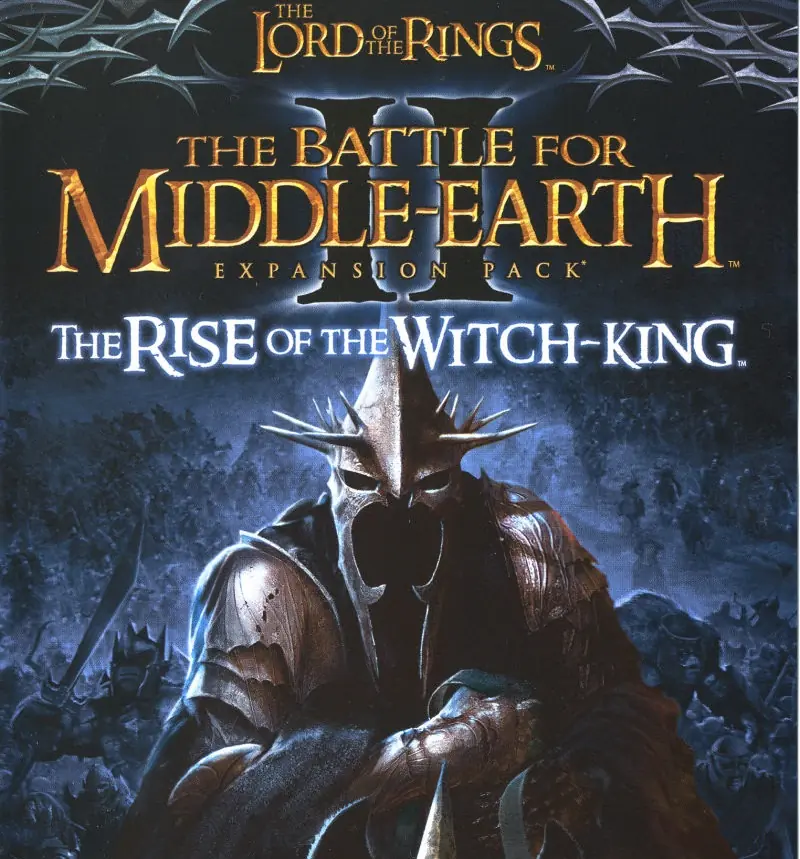
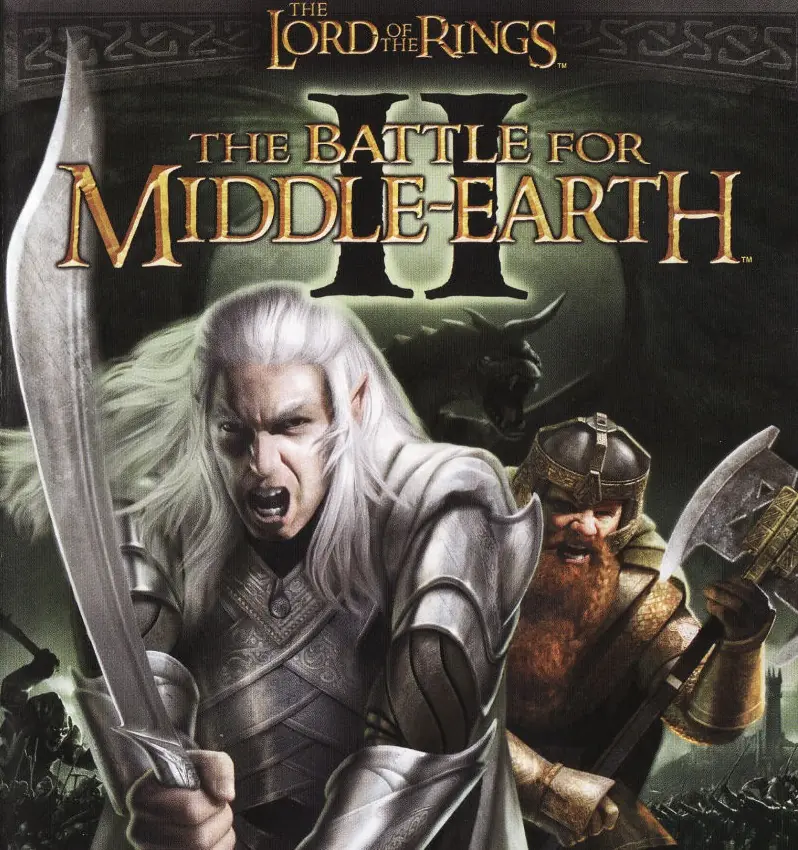
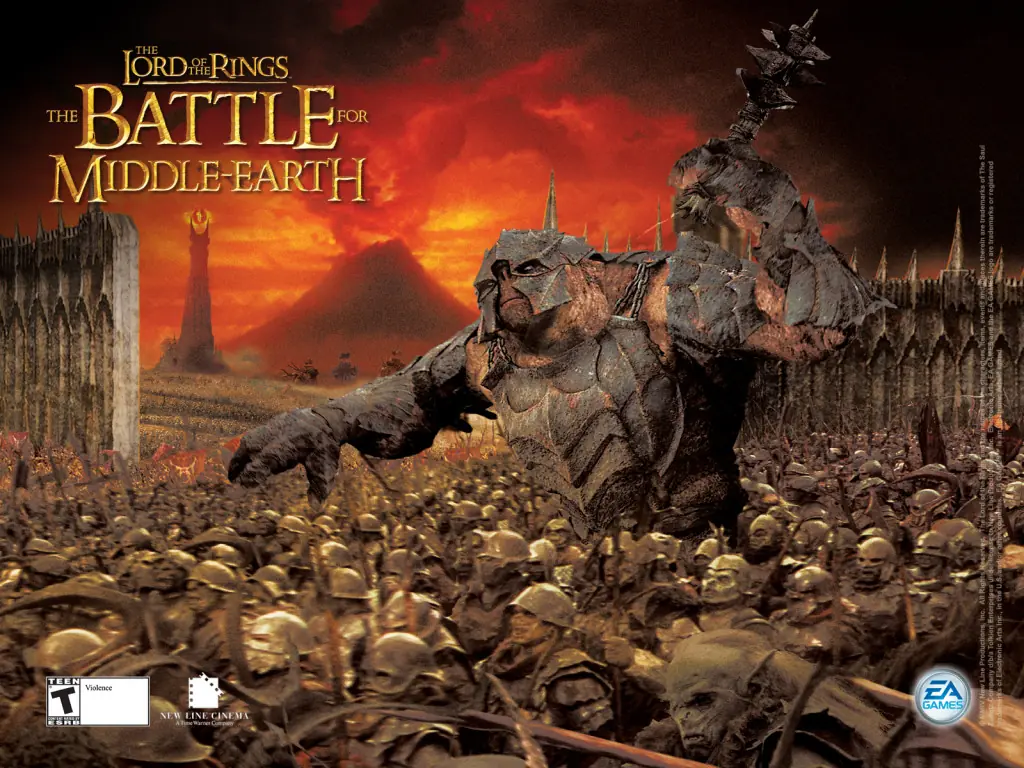
The Lord of the Rings: The Battle for Middle-earth II: The Rise of the Witch-king is a real-time strategy video game published by Electronic Arts, based on the Lord of the Rings film series based on the book, directed by Peter Jackson. The Rise of the Witch-king is the official expansion to The Lord of the Rings: The Battle for Middle-earth II, which was published by the same company and released in 2006, for Microsoft Windows.
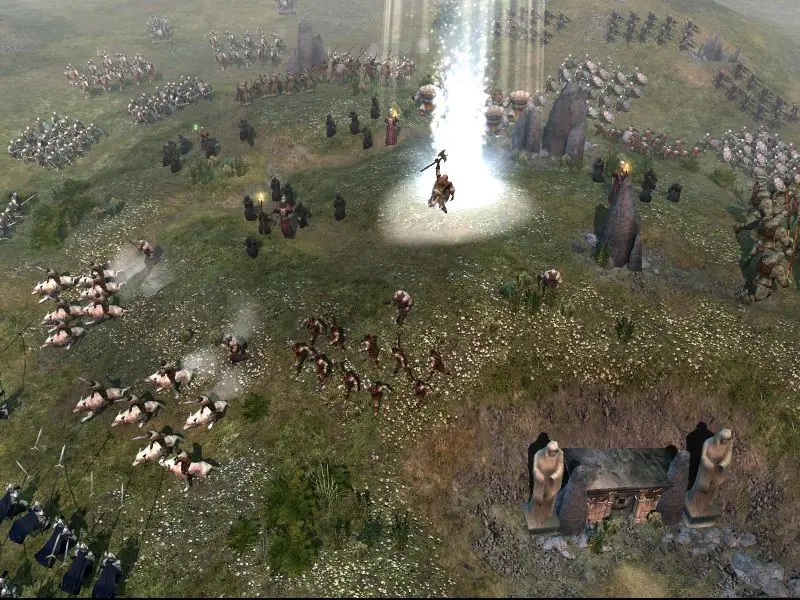
The Battle for Middle-earth II: The Rise of the Witch-king is abandonware and no longer sold or supported by its publishers. Files are archived here for these platforms:
How to play on Windows
Instructions for The Battle for Middle Earth 2
Instructions for The Battle for Middle-earth 2: The Rise of the Witch-king (you need to download the base game first)
Instructions for The Battle for Middle-earth 2: The Rise of the Witch-king (YOU NEED BFME 2 FIRST)

**Virtual CD workaround:** Mount the game discs with **WinCDEmu** so they remain permanently mounted, even after reboot.
**options.ini in AppData:** Place a working config at:
C:\Users\\AppData\Roaming\My Battle for Middle-earth(tm) II Files\options.ini
Use this content:
[…paste the ini above…]
**Folder names:** Confirm your %appdata% folders are named:
– My Battle for Middle-earth(tm) II Files
– My The Lord of the Rings, The Rise of the Witch-king Files (if using the expansion)
You can also easily play wit friends together via it. Just had same problem with game not runnin with this link, so I used it, and worked immediately out of the box, so happy about it now :DDD
https://bfmeladder.com/
Anybody know a solution?
After completing the step 1 (installing BFME2) I right clicked on the game shortcut that was created – followed the advice of Peter:
**Compatibility settings:** Run the game in **Windows Vista SP2 mode**
Once I tried running the game from that shortcut (it failed to run but created the folder)
Now complete the steps and the game has worked for me!
(Using WinCDEmu – Daemon tools didn’t work)
(Using WinRAR to extract for the first step – because the basic windows extraction failed)
Hope this helps!
1.) Extractions Problems // Just the built-in Windows file extraction or any other alternative.
2.) AutoRun.exe Problems // After successfully extracting the files place the entire installation files on your main drive (C: Drive), and make there no duplicate folders meaning when going one level deep in the parent folder named “C:\BFME 2 + Rise of the Witch King” the only folder you should see next is “Game Files” it would then be like this “C:\BFME 2 + Rise of the Witch King\Game Files”. If there’s an extra “BFME 2 + Rise of the Witch King” folder make that the parent folder instead.
3.) Mounting Problems // You need to mount only the .mds file. To do this best tool to use and the easiest is WinCDEmu, you just download the latest version on GitHub. Just install the tool wherever on don’t change any configurations, the default is already good enough. Then, once you have that installed the .mds file will now be an “executable” file since it gets auto-detected by WindCDEmu as a mountable file. Just double-click the .mds file and it will mount it to a virtual drive and that’s it.
You can then proceed to perform the actual game installation and it should go smoothly.
***If you did this but did not do No.2, it will show an error message asking to insert a CD. It’s because when you have a physical CD it extracts the file from your main drive, so to emulate that you need to install files you get from this site placed on your C: Drive. The mounting part is just emulating having a physical CD inserted as if your computer has a CD/DVD player. Most younger folks are not aware of this since most games are now digital, back then they were all in CDs and you have to keep the CD in (most of the time) to play the game.
4.) DirectX Problem // You need to configure the “Options.ini” file included in the zip package that you get here. Change the resolution values to the resolution of your current monitor screen (this is for the first time launch, then you can edit video settings in-game).
5.) Insert CD Problem When Launching Game // YOU NEED TO APPLY A PATCH FOR THIS.
***READ FIRST
============== No-CD Patch for v1.06 ==============
1.) Make sure BFME2 (Base Game) is properly installed and is patched to version v1.06, otherwise, the game will simply crash on launch.
2.) Copy the “game.dat” file to each to the BFME2 installation folder and click yes to every prompt.
3.) This should now apply the No-CD Patch and you can then launch the game without it asking to insert a CD every time.
3.1) You can backup the original game.dat file by renaming it first just in case there would be any errors.
===================================================
***READ SECOND
============== No-CD Patch for v2.01 ==============
1.) Make sure BFME2 (Base Game) is properly installed first and is patched to version v1.06, otherwise, the game will simply crash on launch.
2.) Make sure ROTWK (Add-On Expansion) is also properly installed and is patched to v2.01.
2.) Copy the “game.dat” file to each to the ROTWK installation folder and click yes to every prompt.
3.) This should now apply the No-CD Patch and you can then launch the game without it asking to insert a CD every time.
3.1) You can backup the original game.dat file by renaming it first just in case there would be any errors.
***Make sure you don’t make the mistake of copying the same game.dat on both installation folders as it would not work.
===================================================
***You can get the said files from the MyAbandoware website or ModDB.
5.) That should deal with most of the installation and launching issues. If there’s any that I missed, just reply and we’ll take a look.
1.) Extractions Problems // Just the built-in Windows file extraction or any other alternative.
2.) AuoRun.exe Problems // After successfully extracting the files place the entire installation files on your main drive (C: Drive), and make there no duplicate folders meaning when going one level deep in the parent folder named “C:\BFME 2 + Rise of the Witch King” the only folder you should see next is “Game Files” it would then be like this “C:\BFME 2 + Rise of the Witch King\Game Files”. If there’s an extra “BFME 2 + Rise of the Witch King” folder make that the parent folder instead.
0. PLACE THE INSTALLATION FILES IN “C://”.
1. “DAEMON TOOLS DOES NOT WORK IN THIS GAME”. I used WinCDEmu and it solved my Disk problem.
2. DirectX problem. I opened the “Options.ini” file and adjusted the resolution to the resolution I use on my PC. Resolved.
Have a good game!