Castle of the Winds
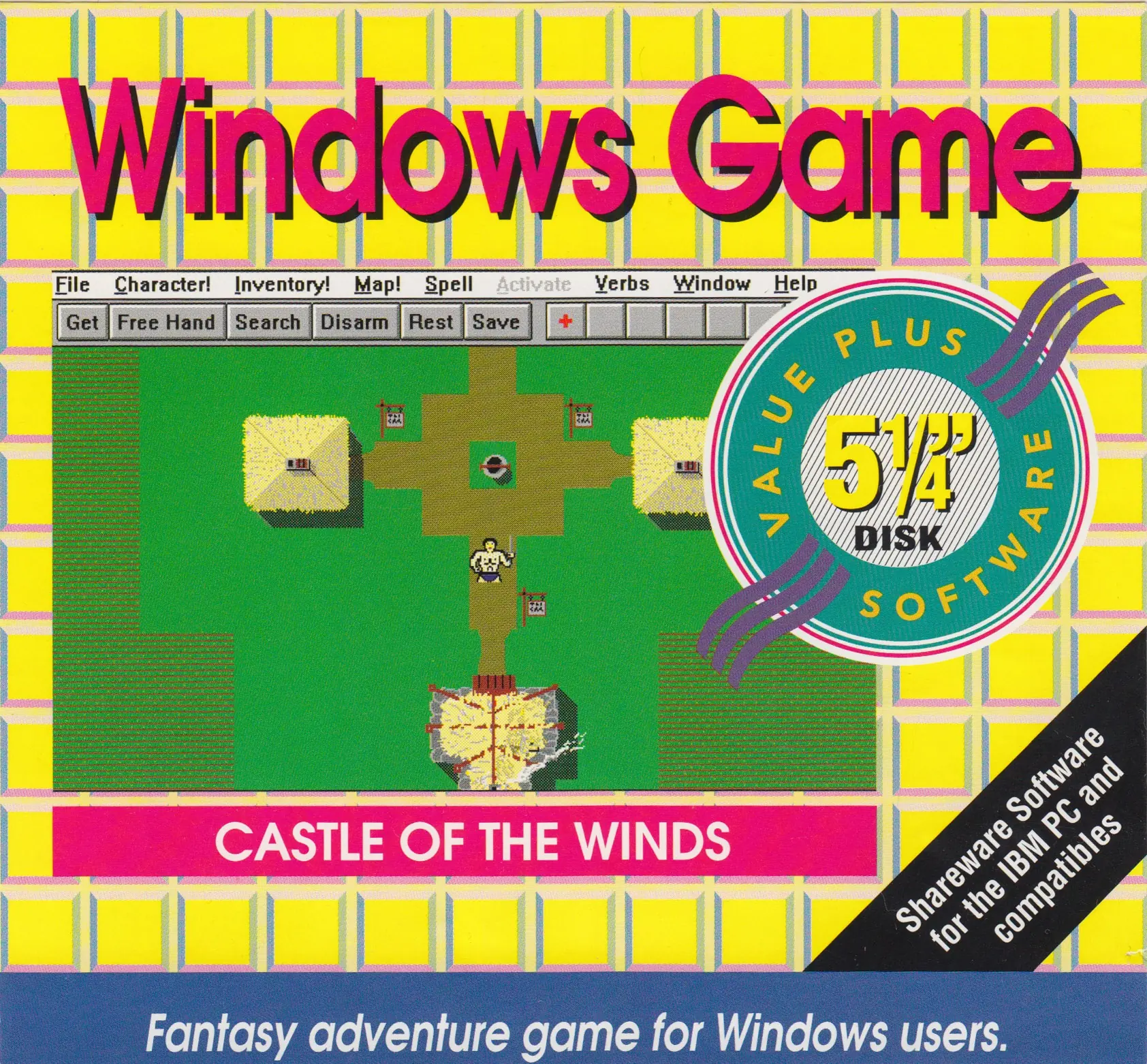
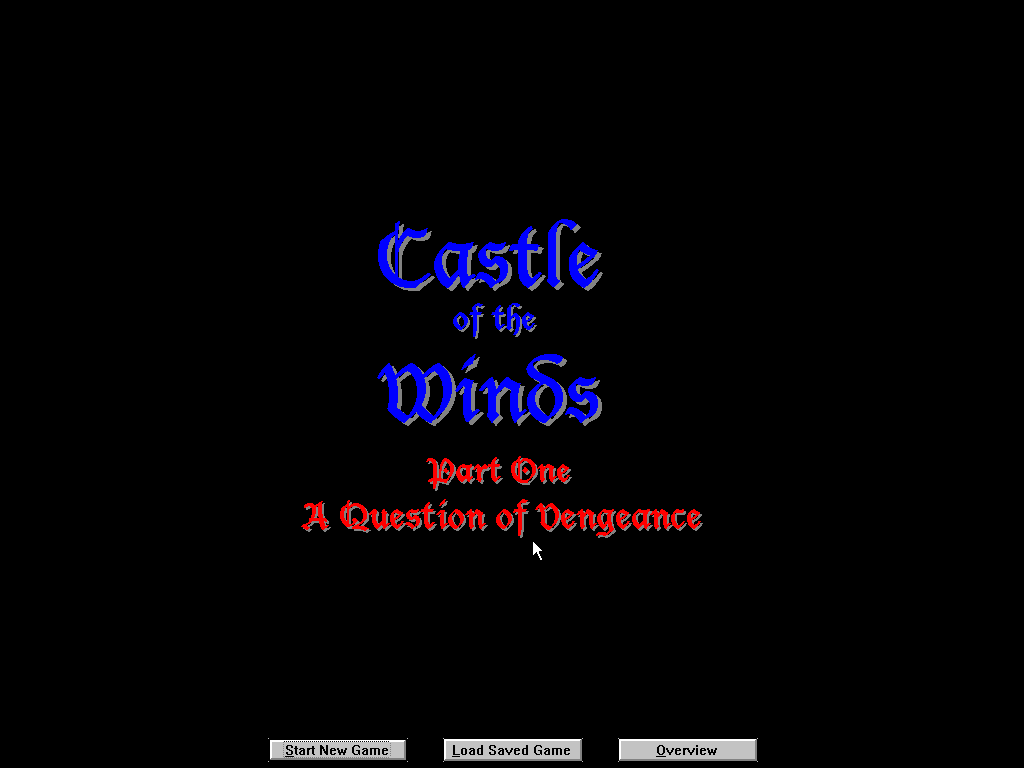
Castle of the Winds is a 1989 role-playing game developed by SaadaSoft and published by Epic MegaGames.
Genres
Publishers
Developers
Released
Platforms
Castle of the Winds is a 1989 role-playing game developed by SaadaSoft and published by Epic MegaGames.
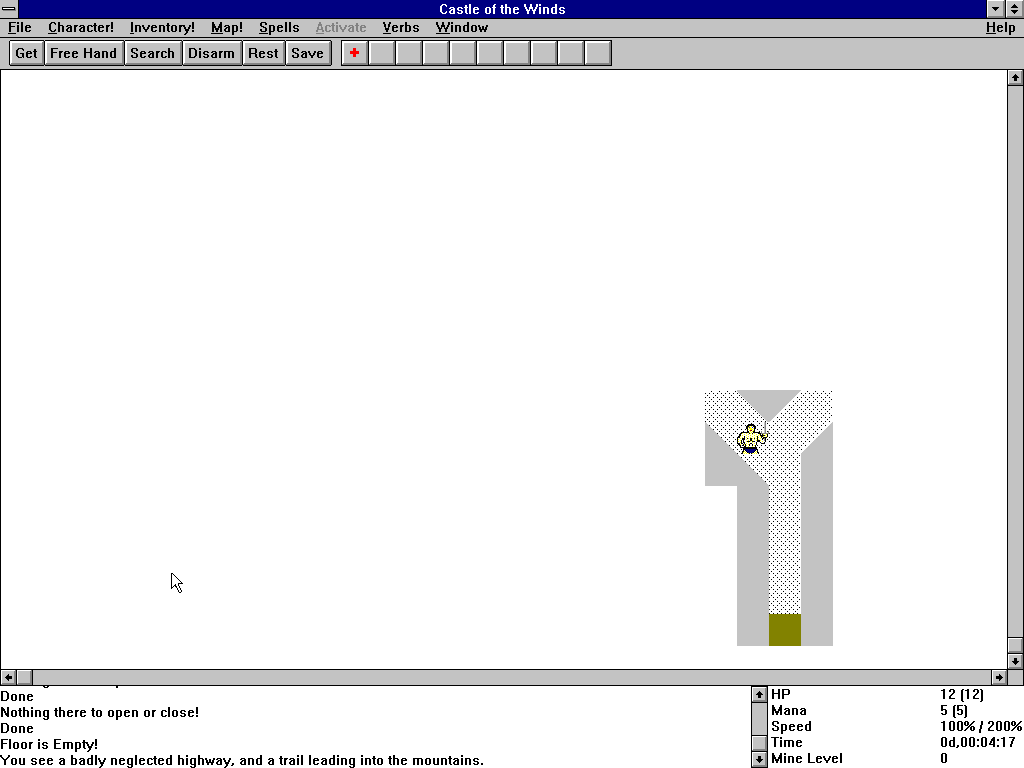
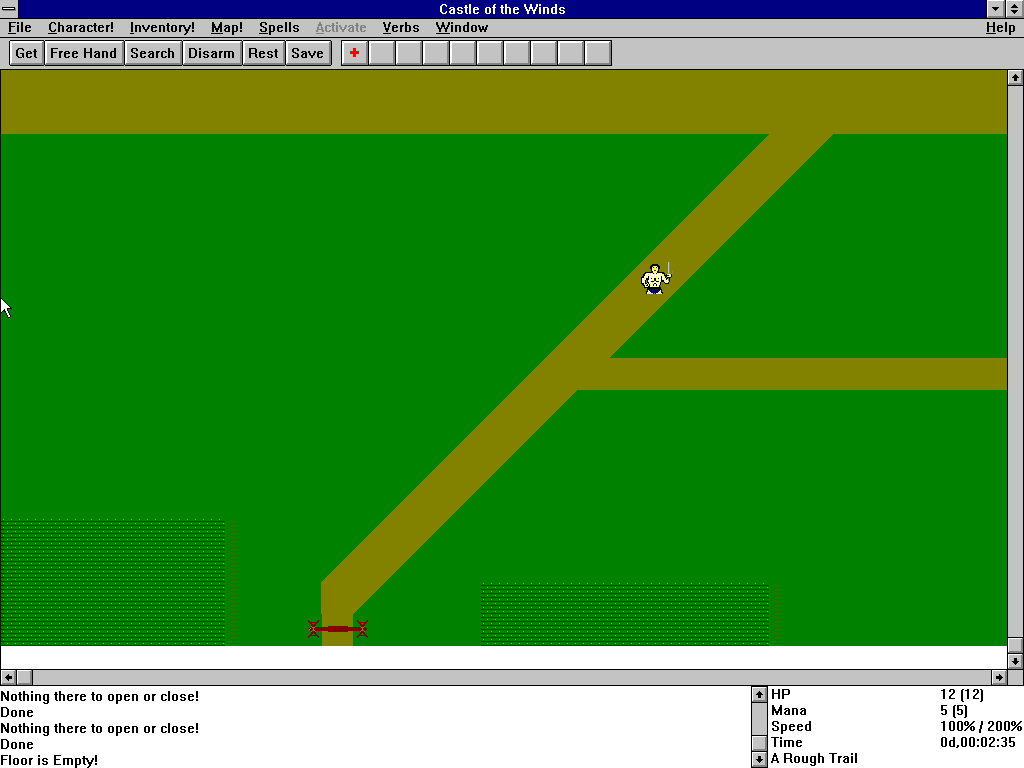
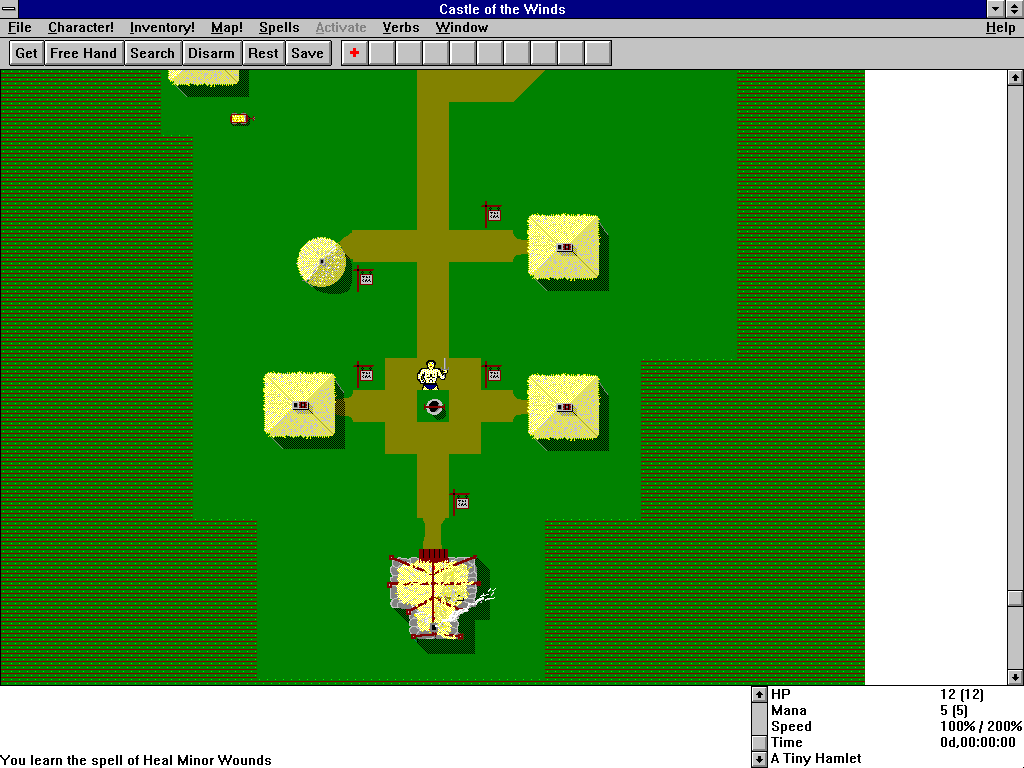
The game differs from most roguelikes in a number of ways. Its interface is mouse-dependent, but supports keyboard shortcuts (such as 'g' to get an item). Castle of the Winds also allows the player to restore saved games after dying.
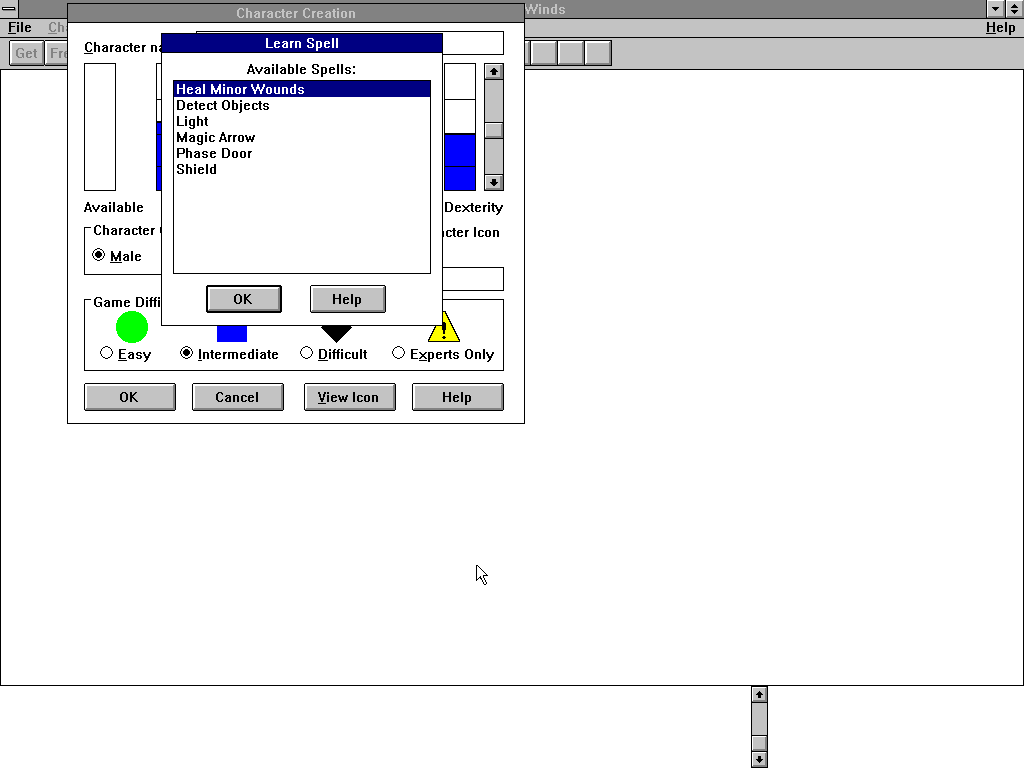
The game favors the use of magic in combat, as spells are the only weapons that work from a distance. The player character automatically gains a spell with each experience level, and can permanently gain others using corresponding books, until all thirty spells available are learned. There are two opposing pairs of elements: cold vs. fire and lightning vs. acid/poison. Spells are divided into six categories: attack, defense, healing, movement, divination, and miscellaneous.
Castle of the Winds possesses an inventory system that limits a player's load based on weight and bulk, rather than by number of items. It allows the character to use different containers, including packs, belts, chests, and bags. Other items include weapons, armor, protective clothing, purses, and ornamental jewellery. Almost every item in the game can be normal, cursed, or enchanted, with curses and enchantments working in a manner similar to NetHack. Although items do not break with use, they may already be broken or rusted when found. Most objects that the character currently carries can be renamed.
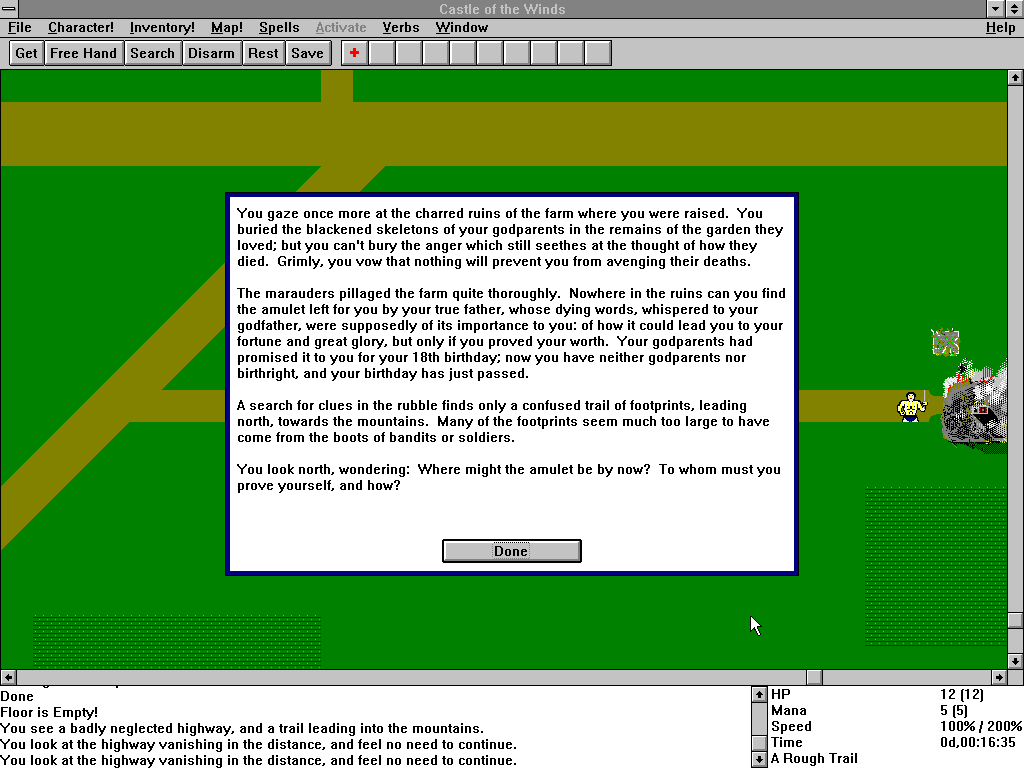
The player begins in a tiny hamlet, near which they used to live. Their farm has been destroyed and godparents killed. After clearing out an abandoned mine, the player finds a scrap of parchment that reveals the death of the player's godparents was ordered by an unknown enemy. The player then returns to the hamlet to find it pillaged, and decides to travel to Bjarnarhaven.
Once in Bjarnarhaven, the player explores the levels beneath a nearby fortress, eventually facing Hrungnir, the Hill Giant Lord, responsible for ordering the player's godparents' death. Hrungnir carries the Enchanted Amulet of Kings. Upon activating the amulet, the player is informed of their past by their dead father, after which the player is transported to the town of Crossroads, and Part I ends. The game can be imported or started over in Part II.
The town of Crossroads is run by a Jarl who at first does not admit the player, but later (on up to three occasions) provides advice and rewards. The player then enters the nearby ruined titular Castle of the Winds. There the player meets his/her deceased grandfather, who instructs them to venture into the dungeons below, defeat Surtur, and reclaim their birthright. Venturing deeper, the player encounters monsters run rampant, a desecrated crypt, a necromancer, and the installation of various special rooms for elementals. The player eventually meets and defeats the Wolf-Man leader, Bear-Man leader, the four Jotun kings, a Demon Lord, and finally Surtur. Upon defeating Surtur and escaping the dungeons, the player sits upon the throne, completing the game.
Castle of the Winds is abandonware and no longer sold or supported by its publishers. Files are archived here for these platforms:
How to play on Windows 10

I then copied the Castle2.exe app/icon and went back to the folder “Castwind” then went into the folder “Castle1”.
I pasted the Castle2.exe app/icon into the “Castle1” folder. I then deleted all the icons that were labelled “Castle1”. I then renamed the “Castle2.exe” app “Castle1” so that the program would think it was loading Castle1 when in fact it was loading the renamed Castle2. I then went back to the folder “Game Files” and clicked “Launch game”. It opened up the Windows 3.1 as usual and when I clicked on “Castle of the Wind” program it launched Part2 instead of Part 1. In the game I was able to click “Load” and was able to load my character from the first game (I had saved the game after beating part 1 and that file was still there and I loaded that file and it brought my character into part 2). I tried going into shops and saving and loading and it all worked. I haven’t tried going to the castle, but I’m assuming there won’t be glitches there either. If there are, I’ll post back. Thankyou Abandonware for putting this game together in a way that I can just click and play from my Windows 10 system. Hopefully this workaround will help anyone who, like me, isn’t tech savy enough to work out all the doxbox/Win3.1 stuff on their own. No extra downloads or anything needed. I did this all on my Windows 10 system with the files provided in the original download