Home » Games » Disney’s Dinosaur

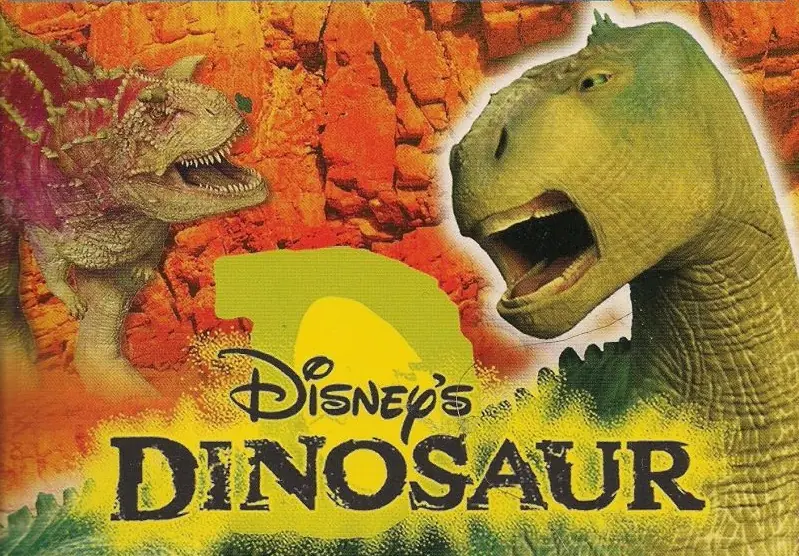
Disney’s Dinosaur

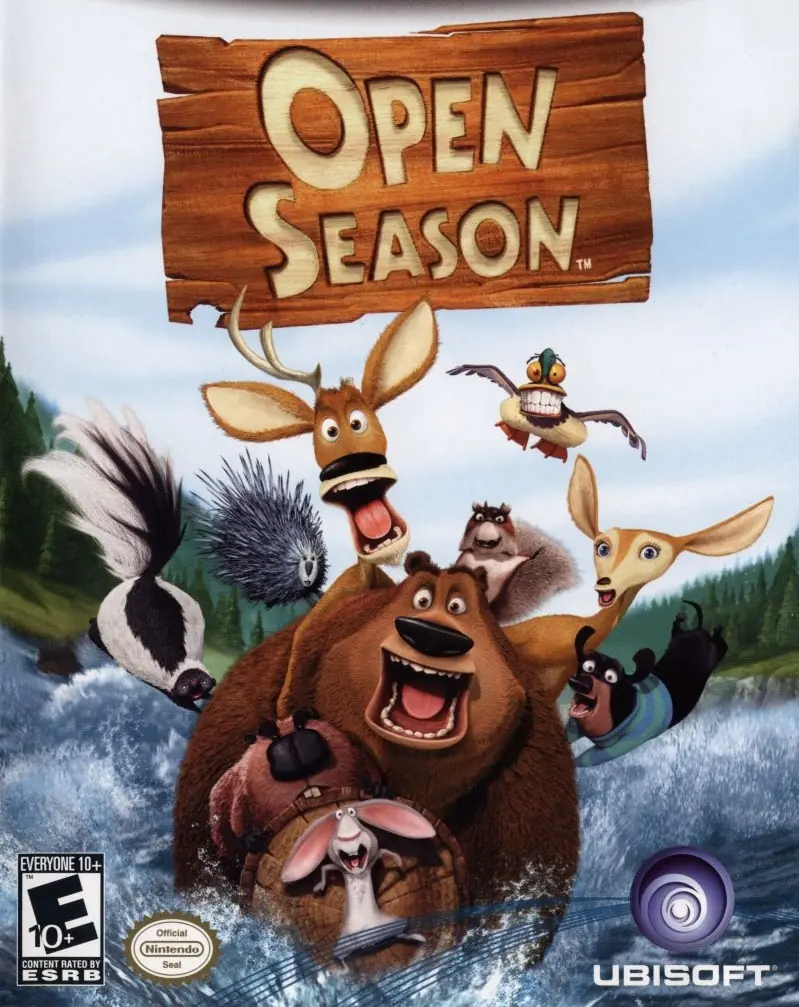
Disney's Dinosaur Game Cover
4.6/5 - 35 votes

Disney’s Dinosaur is a 2000 adventure game developed by Digital Eclipse and published by Ubisoft.
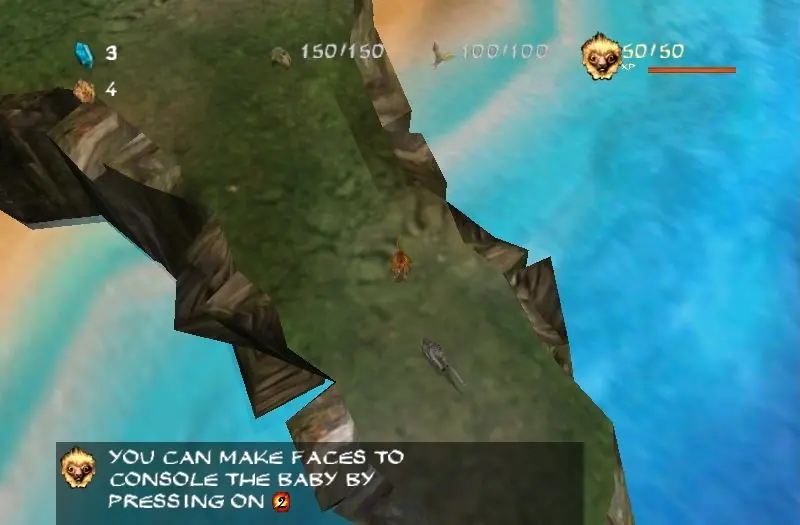
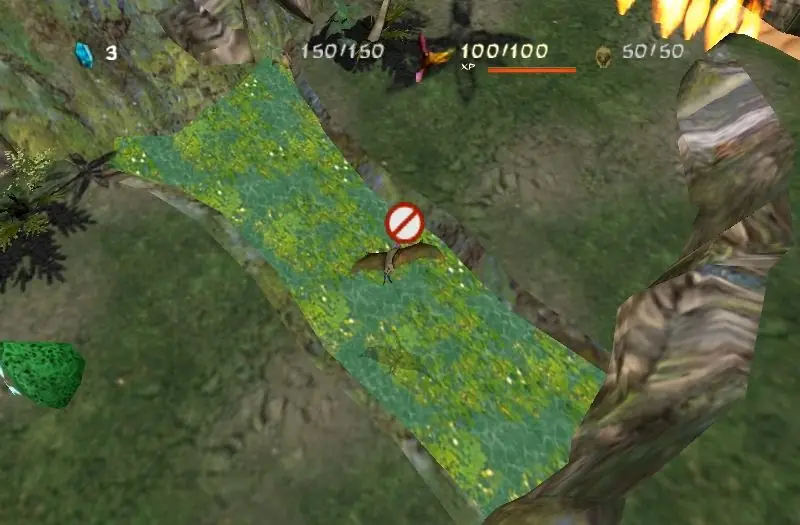
Other Titles

ДинозаврダイナソーDisney DinosaureDisney DinosauriDisney DinosaurioDisney DinossauroDisneys DinosaurierDisneys DinosaurerneDinosaurDinosaure迪斯尼恐龙

Genres
Publishers
Released
Platforms
,
Download

Screenshots

Windows

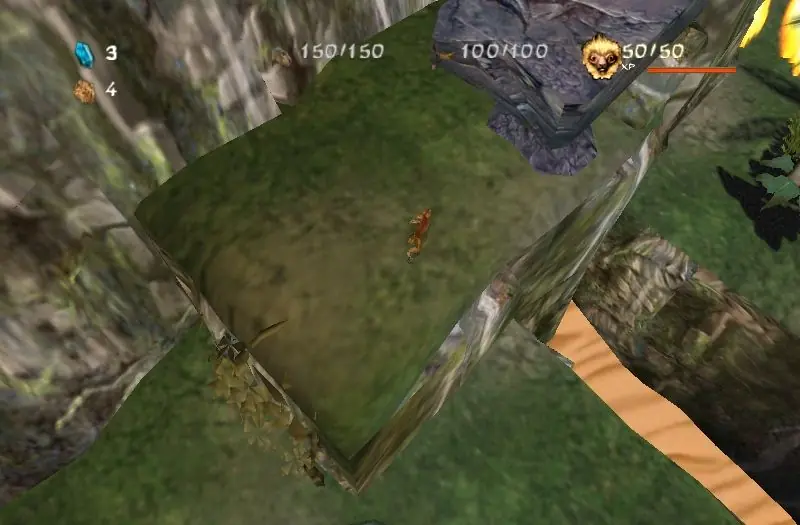
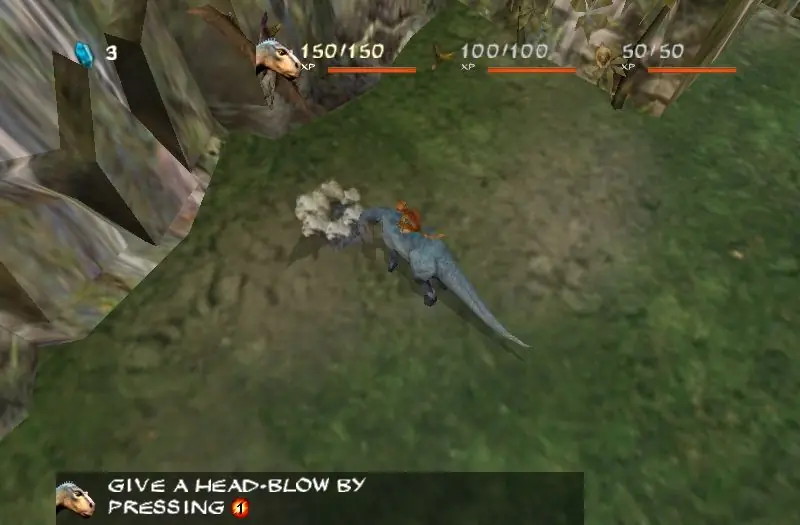
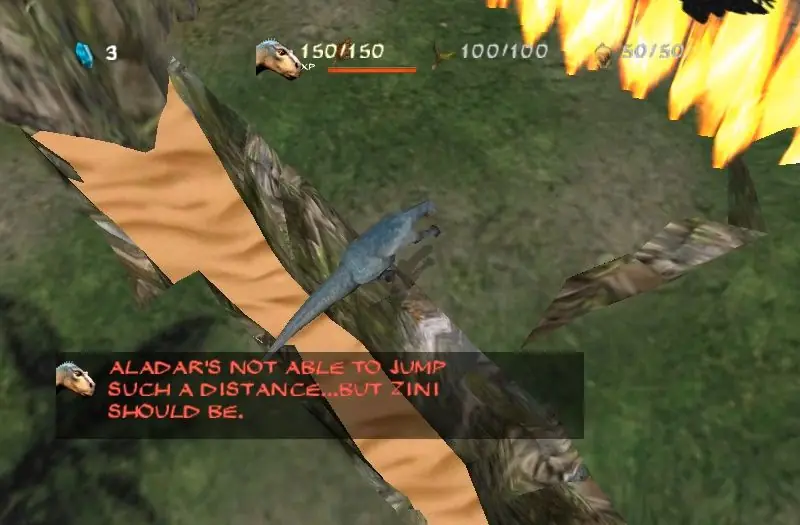
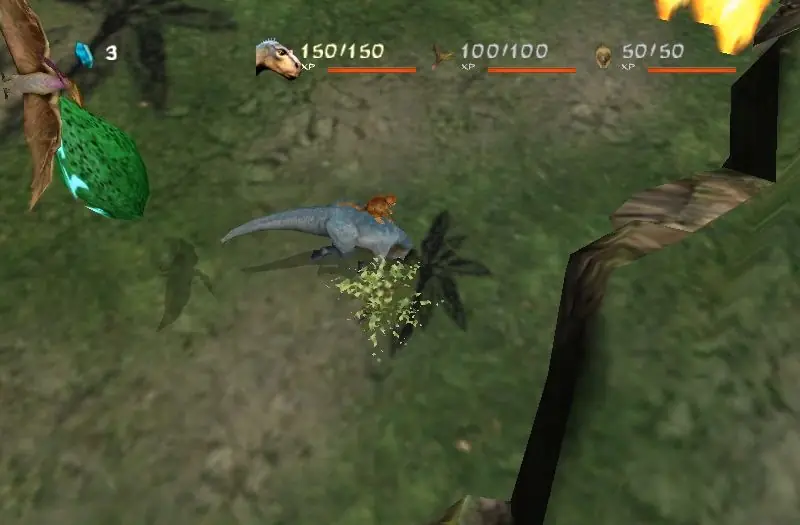
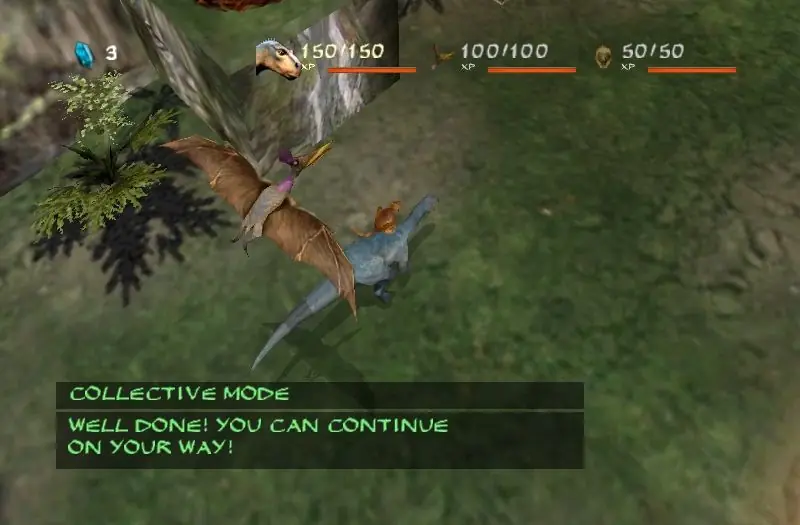
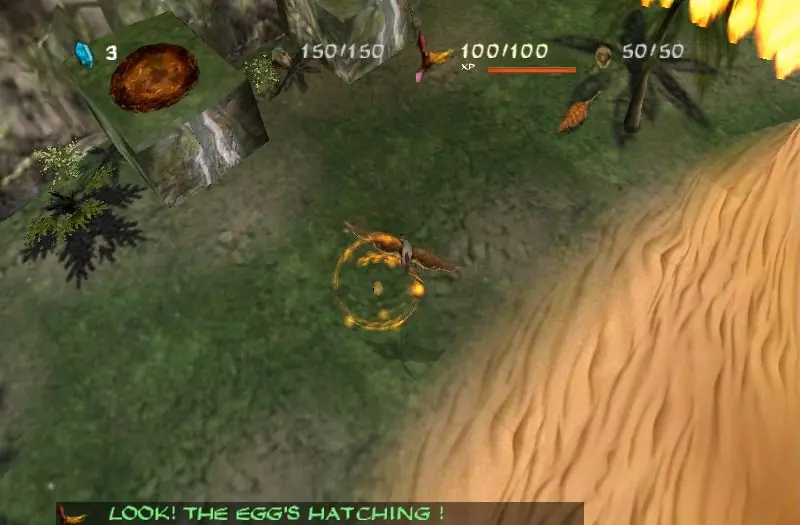
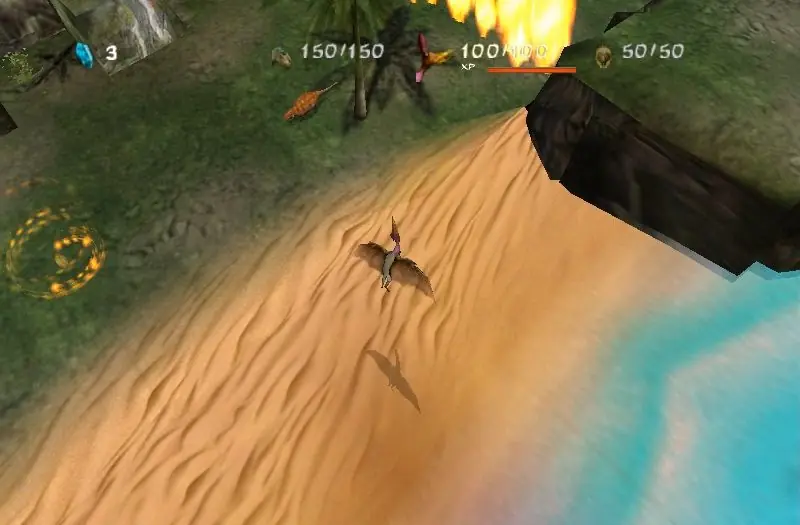
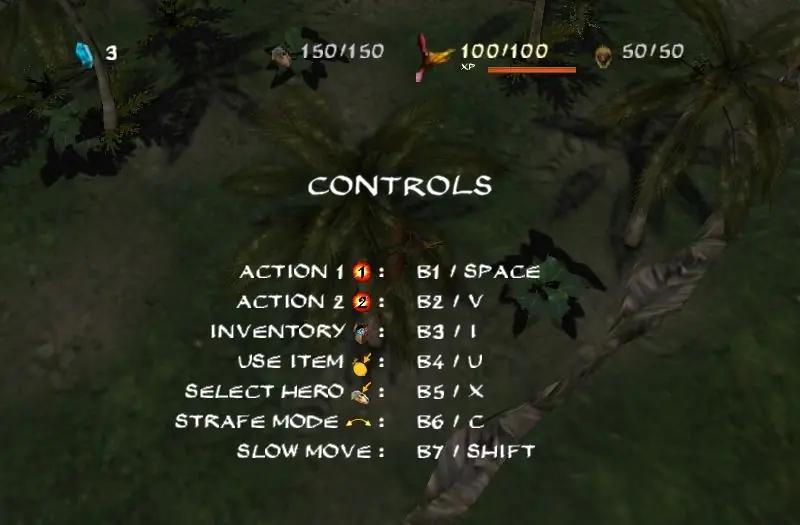
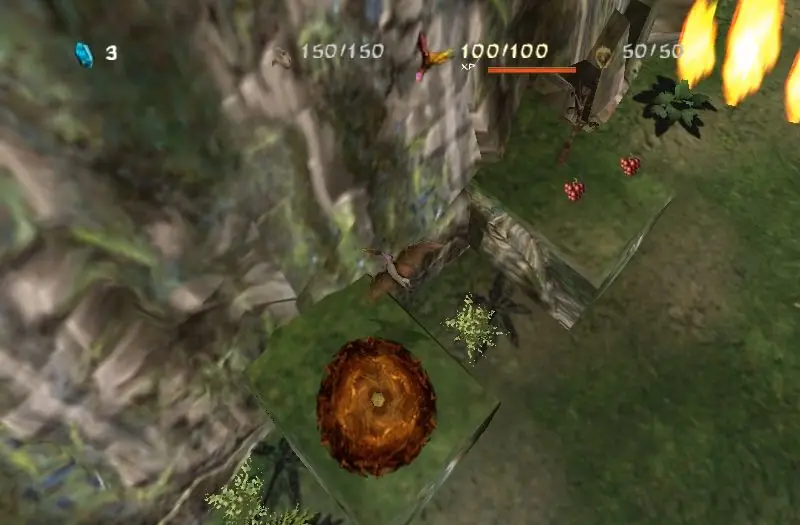
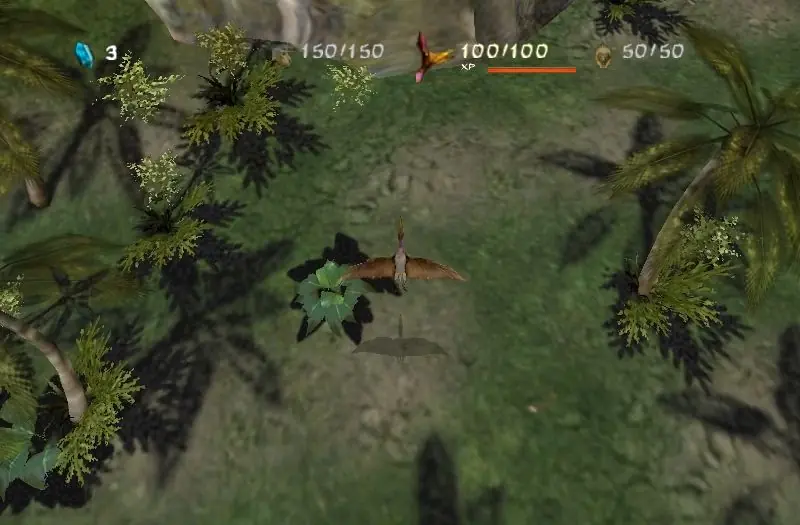
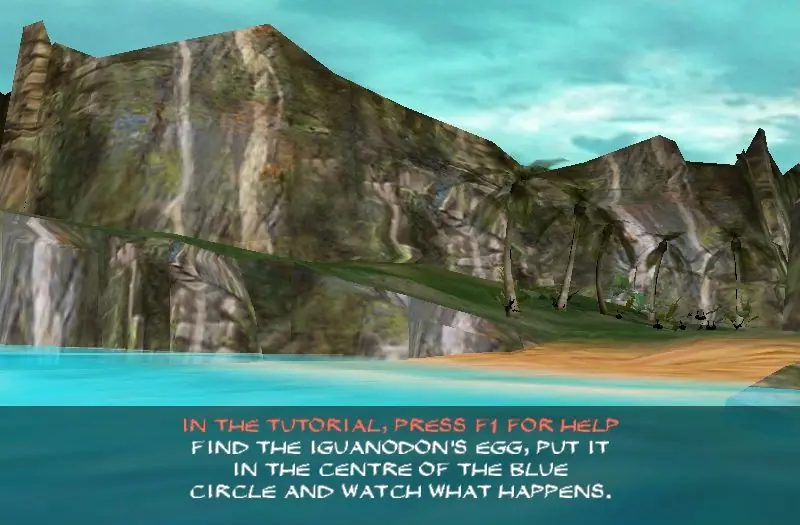
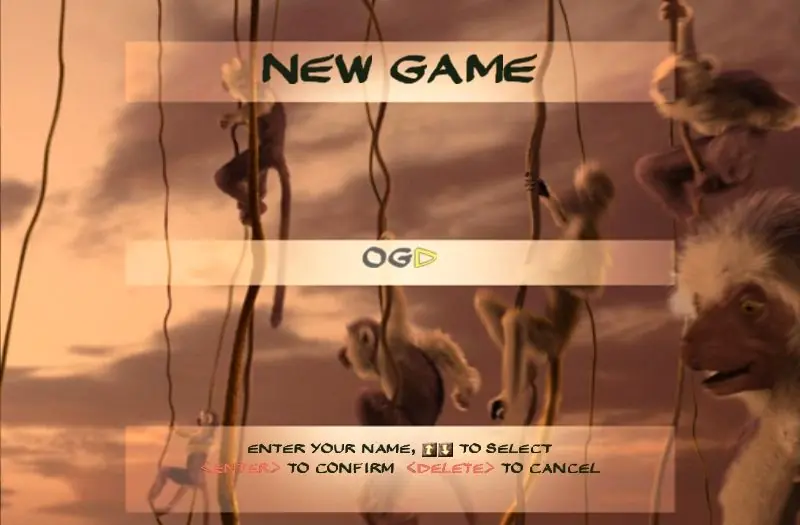
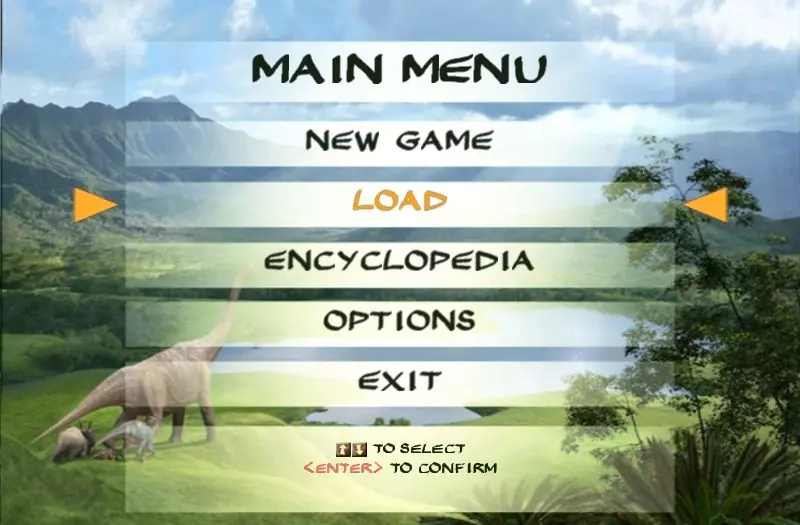
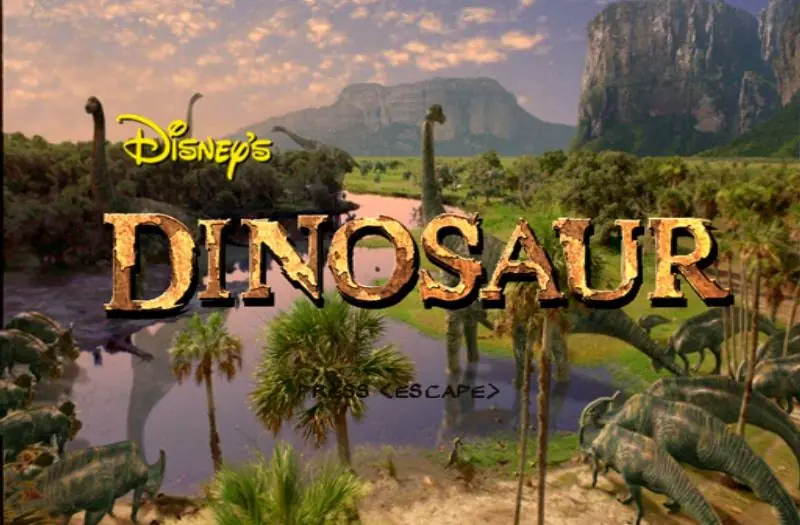
Disney’s Dinosaur — Windows screenshot 1Disney’s Dinosaur — Windows screenshot 2Disney’s Dinosaur — Windows screenshot 3Disney’s Dinosaur — Windows screenshot 4Disney’s Dinosaur — Windows screenshot 5Disney’s Dinosaur — Windows screenshot 6Disney’s Dinosaur — Windows screenshot 7Disney’s Dinosaur — Windows screenshot 8Disney’s Dinosaur — Windows screenshot 9Disney’s Dinosaur — Windows screenshot 10Disney’s Dinosaur — Windows screenshot 11Disney’s Dinosaur — Windows screenshot 12Disney’s Dinosaur — Windows screenshot 13Disney’s Dinosaur — Windows screenshot 14Disney’s Dinosaur — Windows screenshot 15Disney’s Dinosaur — Windows screenshot 16

Download Disney’s Dinosaur

Disney’s Dinosaur is abandonware and no longer sold or supported by its publishers. Files are archived here for these platforms:

PlayStation (2000)

Tutorial: How to play PlayStation games on Windows

Windows (2000)

  • Disneys_Dinosaur_Win_Files_EN.7zEN110.58 MB
  • Instructions Disneys_Dinosaur_Win_Files_EN.7z

    How to play on Windows

    1. Download and Extract Disneys_Dinosaur_Win_Files_EN.7z
    2. Open "Game Files" and run "Dinosaur.exe".
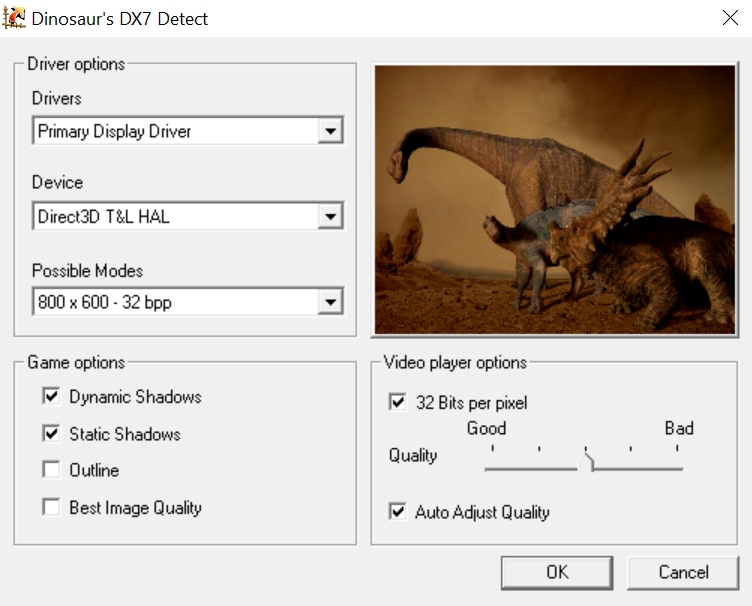
    3. Important: you must select the following settings for the game to run:
      Disney's Dinosaur Windows Settings
    4. Play the game

Other resources

Comments

17 thoughts on “Disney’s Dinosaur”

  1. 1
    Hi guys, I played this with absolutely no issues for a while, then I think after a Windows 11 update the game is suddenly blurry. It can bring me to the levels if I click the right things, but it’s as if the graphics won’t load – I’ve seen other people talk about this issue, but no solution. Anybody know if there’s a way to fix it?
    Reply
  2. 0
    I tried it, and for me, it worked pretty well, I haven’t had any problems with it and it seems to run smoothly on PC.
    Reply
  3. 0
    It’s possible to fix the green blurred menu by using a software called DxWnd to emulate older DirectX versions and setting the “Limit available resources” configuration on the Compatibility tab. That worked for me. I was also using DirectX 7 for the emulation.
    Reply
    • 0
      I tried this myself and it didn’t work. I downloaded the PCX2 emulator and managed to get it to work that way, but had to find the download elsewhere because the ISO’s do not work
      Reply
    • 0
      I know this is an old comment, but where would you find the ‘Limit available resources’ option? I can’t find it in DXWind.
      Reply
  4. 0
    When i try to open disk 2, it says its damaged and cant be opened. im assuming thats where all the game files are as disk one just has some security catalog
    Reply
  5. 0
    This game doesn’t work, everything is blurred out upon launch no matter what settings I select on every computer I’ve tried it on
    Reply
    • -2
      im on windows 10 and none of the words show it’s all blurred out so i cant read anything. is there a way to fix this?
      Reply