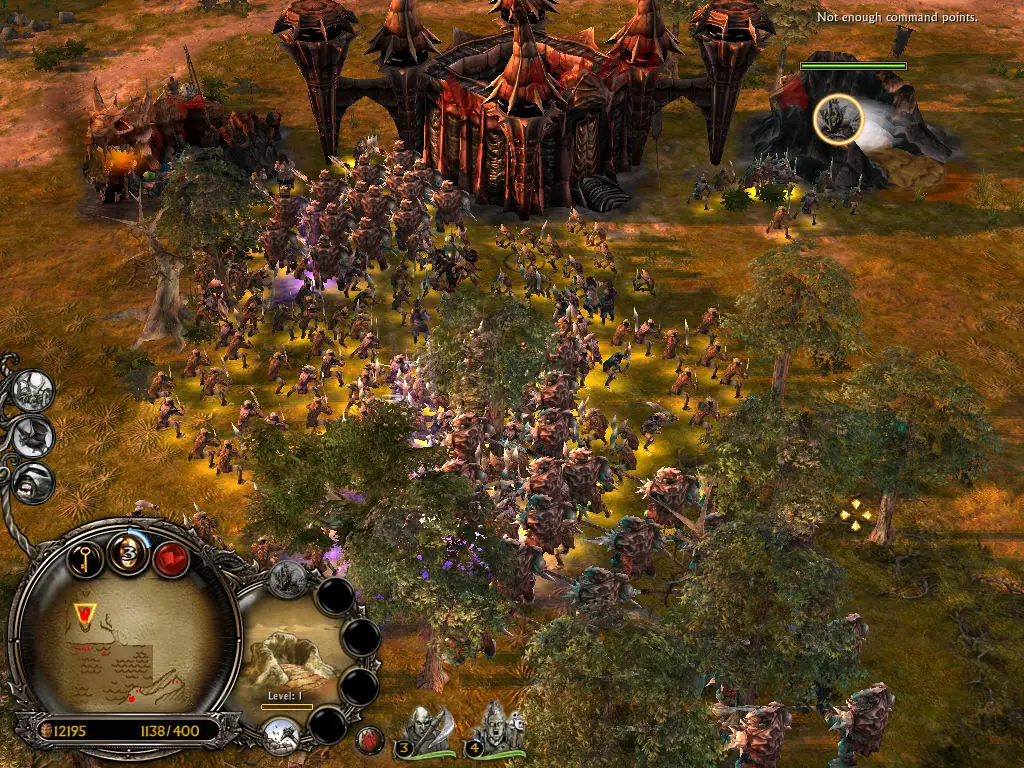
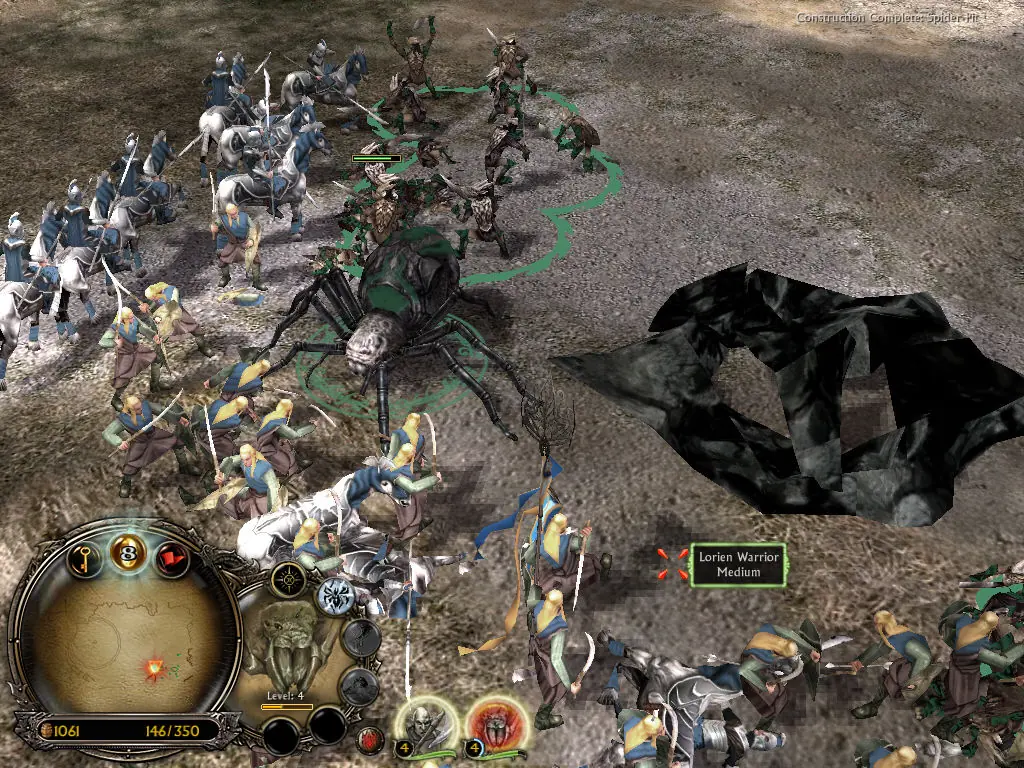
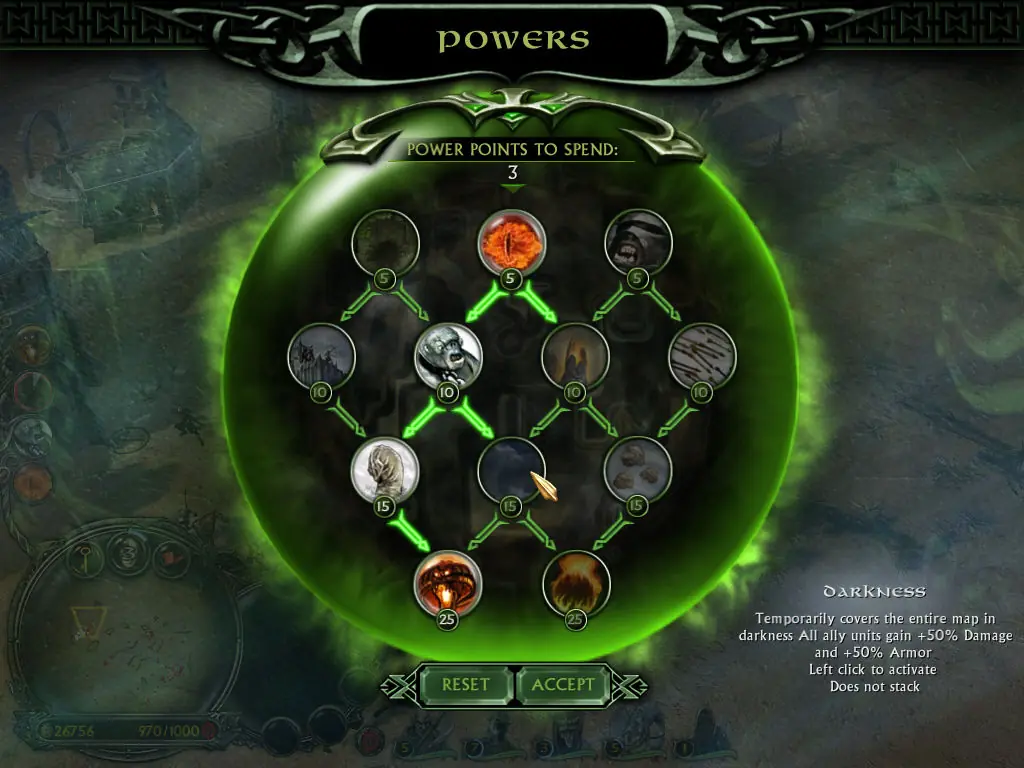
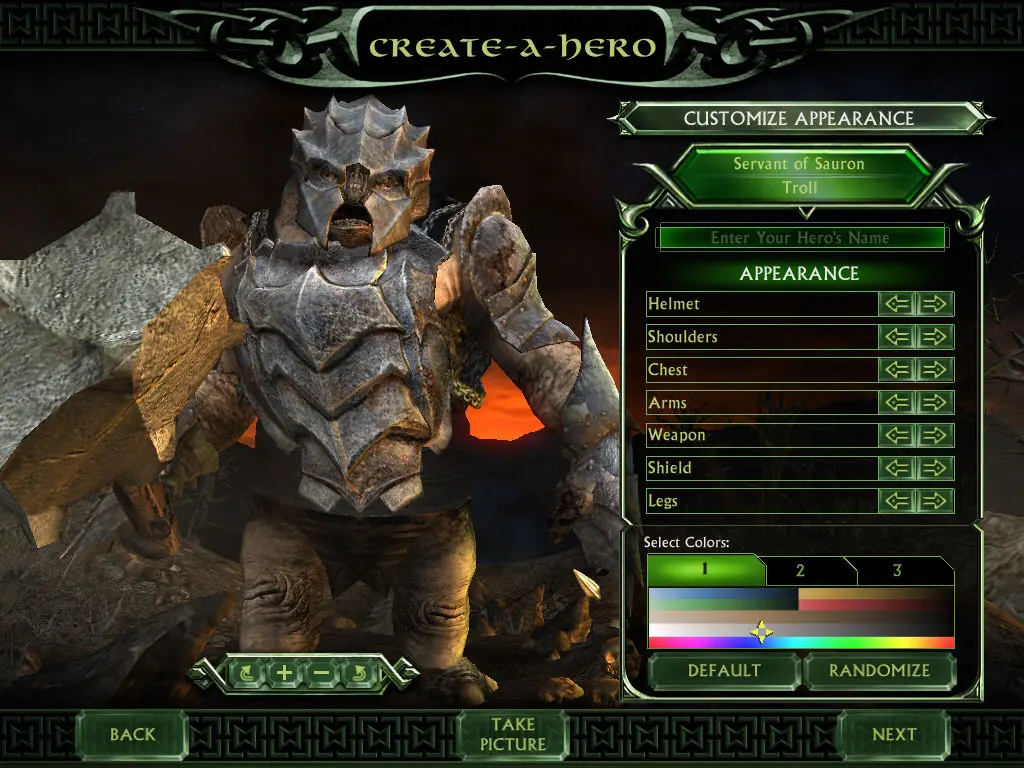
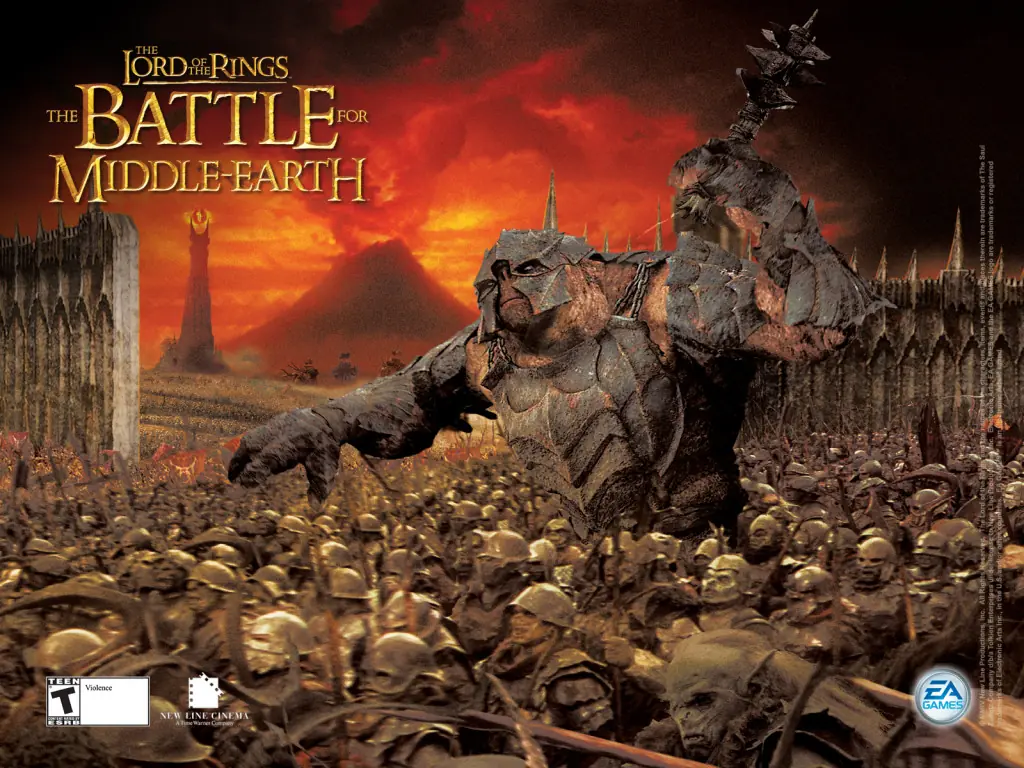
The story for The Battle for Middle-earth II is divided into Good and Evil Campaigns. The Good Campaign focuses on Glorfindel, an Elf who is alerted to a planned attack on the Elven sanctuary of Rivendell. With help from the Dwarves and other Good forces, the Elves attempt to eliminate Sauron and his army to restore peace in Middle-earth. In the Evil Campaign, Sauron sends the Mouth of Sauron and the Nazgûl to muster wild Goblins. With his army, Sauron moves forward with his plan to destroy the remaining Good forces in the North. The Windows version of the game was released in March 2006 and the Xbox 360 version was released in July 2006.
The Battle for Middle-earth II is abandonware and no longer sold or supported by its publishers. Files are archived here for these platforms:
How to play on Windows
Instructions for The Battle for Middle Earth 2
Instructions for The Battle for Middle-earth 2: The Rise of the Witch-king (you need to download the base game first)
Instructions for The Battle for Middle-earth 2: The Rise of the Witch-king (YOU NEED BFME 2 FIRST)


1. The folder titled BFME 2 + Rise of the Witch King is in your C drive
2. Make sure that you take the folder out of the folder you extracted the file into. Basically for me, the folder BFME 2 + Rise of the Witch King was inside another folder called BFME 2 + Rise of the Witch King.
Check if the files still attached to daemon tools,I had the same error and i needed to readd them
I need some help please.
i have followed everything up until the point of fininding the files in %APPDATA% which i cant find.
I need some help/assistance please.
how to fix this?
Drag the folder to your C:// disc on your computer. – If you’re installing the game away from your SSD or you have a desired SSD/HDD, place the folder there, at the surface level. For example, I placed mine on my D:// as that’s where I was installing the game.
You want the virtual drive to be “SCSI” and then select “Add drive”. https://ibb.co/SPZZF80 – Ensure the virtual drive you make has the “SCSI” icon situated in the upper right. I went through this process once and to my knowledge, I did it right but the icon did not appear on the drive – I deleted it and started again and it popped up.
search for %appdata% and you want to click on the %appdata% folder – Initially, you may not see this but follow the instructions prior to this and open the game, the App Data will only be generated upon the game being opened, you can then replace the “Options.ini”. As it’s based on the User, regardless where you install the game, it should be found within you C:// Drive/User folder by the “search” tab at the bottom.
I haven’t addressed all known issues here but please leave a comment if you have a question so I get notified. 🙂
how to fix this ?/
I already created a SCSI on my Daemon Tools Lite.
And follow the step 3 and 4. what’s wrong ?