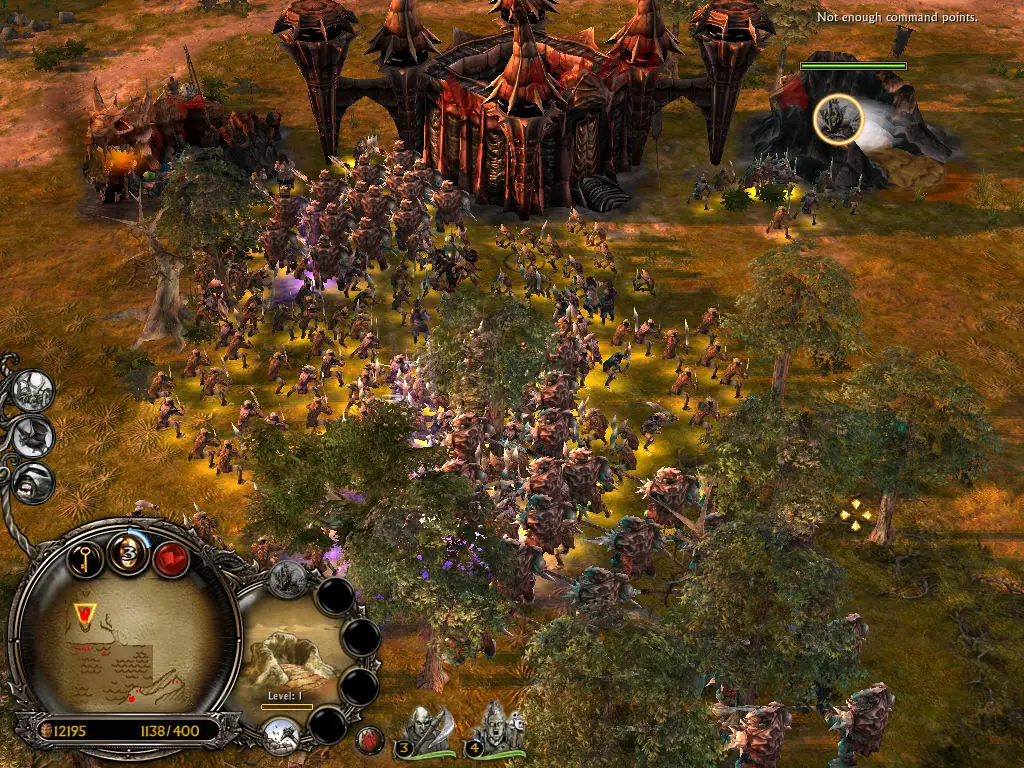
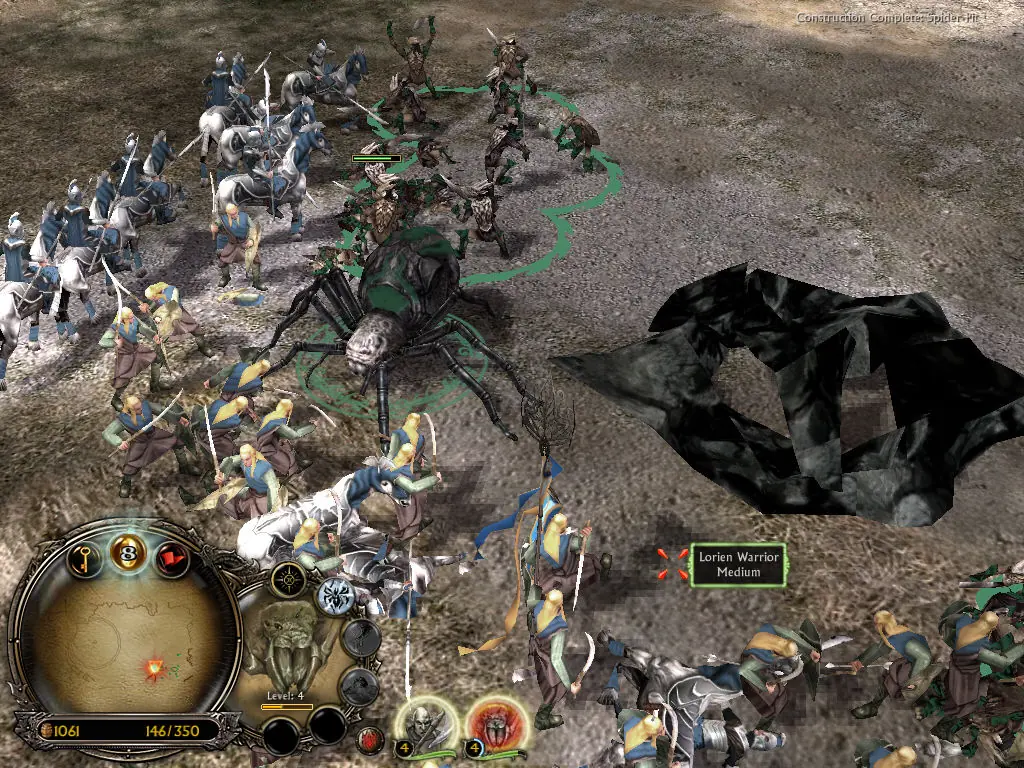
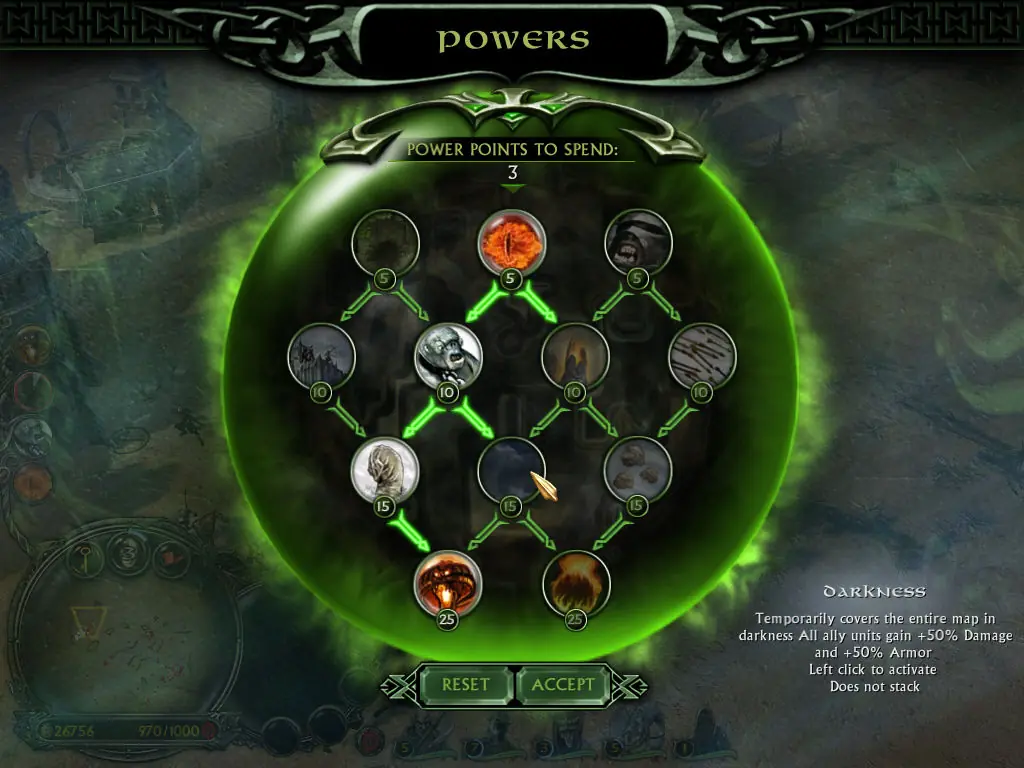
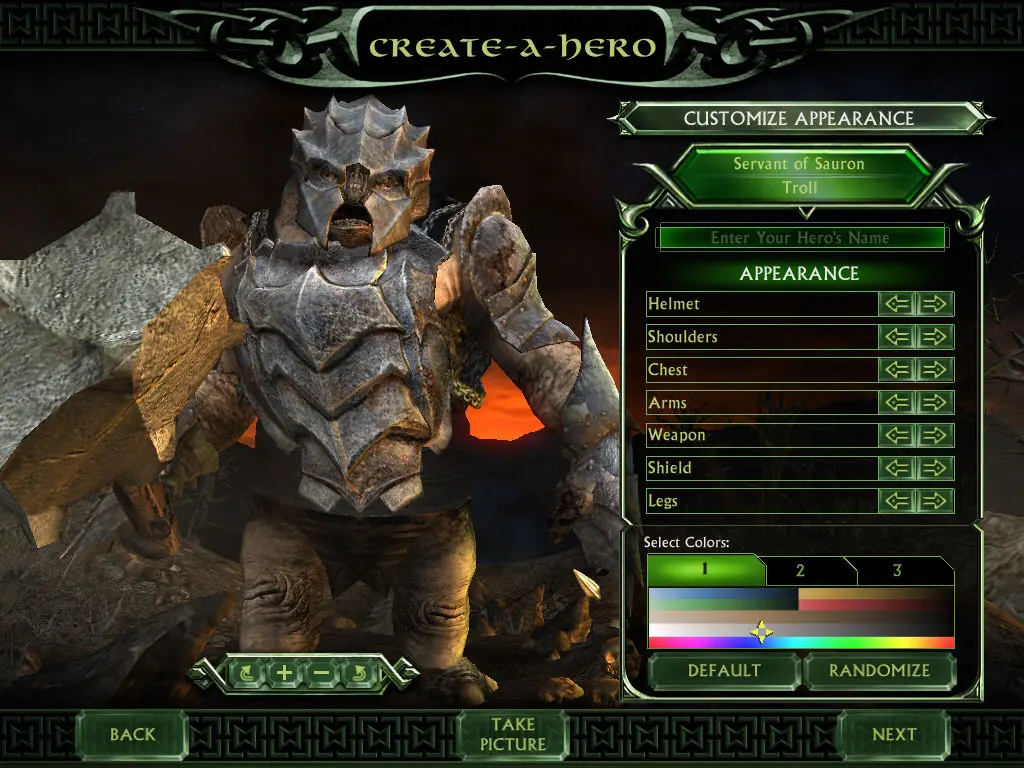
The story for The Battle for Middle-earth II is divided into Good and Evil Campaigns. The Good Campaign focuses on Glorfindel, an Elf who is alerted to a planned attack on the Elven sanctuary of Rivendell. With help from the Dwarves and other Good forces, the Elves attempt to eliminate Sauron and his army to restore peace in Middle-earth. In the Evil Campaign, Sauron sends the Mouth of Sauron and the Nazgûl to muster wild Goblins. With his army, Sauron moves forward with his plan to destroy the remaining Good forces in the North. The Windows version of the game was released in March 2006 and the Xbox 360 version was released in July 2006.
The Battle for Middle-earth II is abandonware and no longer sold or supported by its publishers. Files are archived here for these platforms:
How to play on Windows
Instructions for The Battle for Middle Earth 2
Instructions for The Battle for Middle-earth 2: The Rise of the Witch-king (you need to download the base game first)
Instructions for The Battle for Middle-earth 2: The Rise of the Witch-king (YOU NEED BFME 2 FIRST)

– Extract the contents of “BFME 2 + Rise of the Witch King” and move it to your C drive (as above)
– Navigate to the correct folder and run the AutoRun.exe
– The folder path should be exactly this: “C:\BFME 2 + Rise of the Witch King\Game Files\BFME2\BFME2 Installer” (make sure you don’t have two nested folders with the same name
If you do this you do not need to bother with any daemon tools mounting (later just install a no-cd crack so you don’t need to keep these files here).
Fyi the reason this works is because the auto runner is looking for the files mounted on the cd, and the cd drive would be C: by default. If you extract the installer here then it just finds the installer files and assumes it’s a cd drive.
If your root drive is not labelled C this will not work. Either move it to a drive named C: or rename your drive. If you can’t do this you will need to mount the MI-BFME2.mds file using daemon tools (should just be able to double click the file). Just make sure the drive it is mounted to is labelled C:
Open the folder that results (directory should be “Users\”your name”\AppData\Roaming);
Create a new folder inside there and just call it “My Battle for Middle-Earth”
use this link there is a tutorial on how to install and it worked fine on my windows 11 today
use this link there is a tutorial on how to install and it worked fine on my windows 11 today
https://www.gameburnworld.com/dl/dl.php?file=LordOfTheRingsBattleForMiddleEarth2v1.06FixedDatEng.rar
https://www.gameburnworld.com/dl/dl.php?file=LordOfTheRingsBattleForMiddleEarth2TheWitchKingv2.01NoDVDFixedDatEng.rar
The password for the rar file is: gbw