Home » Games » School Tycoon

School Tycoon

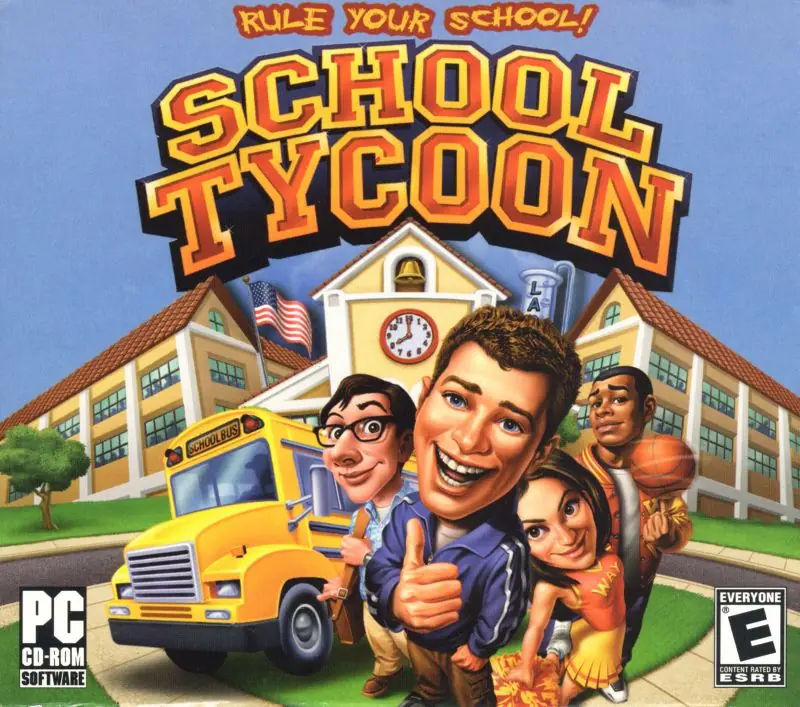
School Tycoon Game Cover
4.5/5 - 92 votes

School Tycoon is a video game developed by Cat Daddy Games and published by Global Star Software in 2004. The game was designed to appeal to a younger audience as it is easier and less complicated than other business simulation games by removing the spreadsheets and statistics of game management.

Other Titles

Xuexiao Daheng学校大亨스쿨 타이쿤

Genres
Developers
Released
Platforms
Download

About School Tycoon

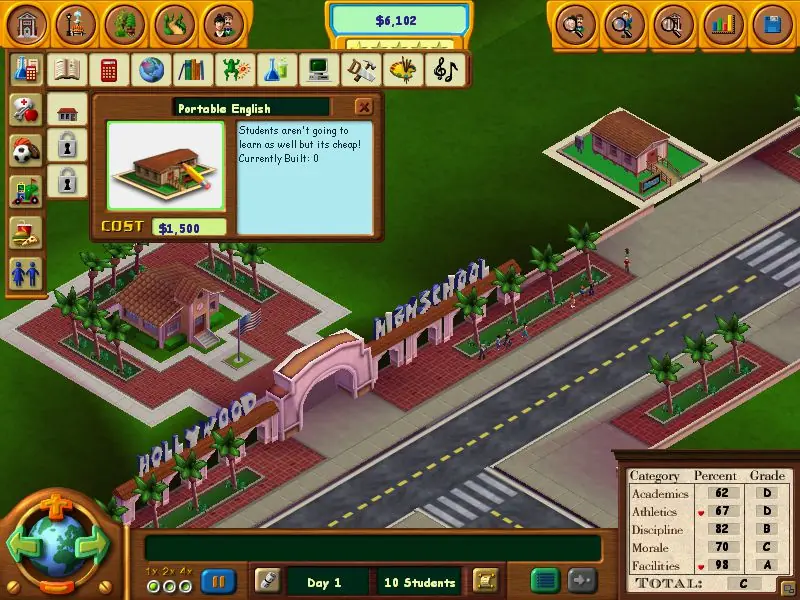
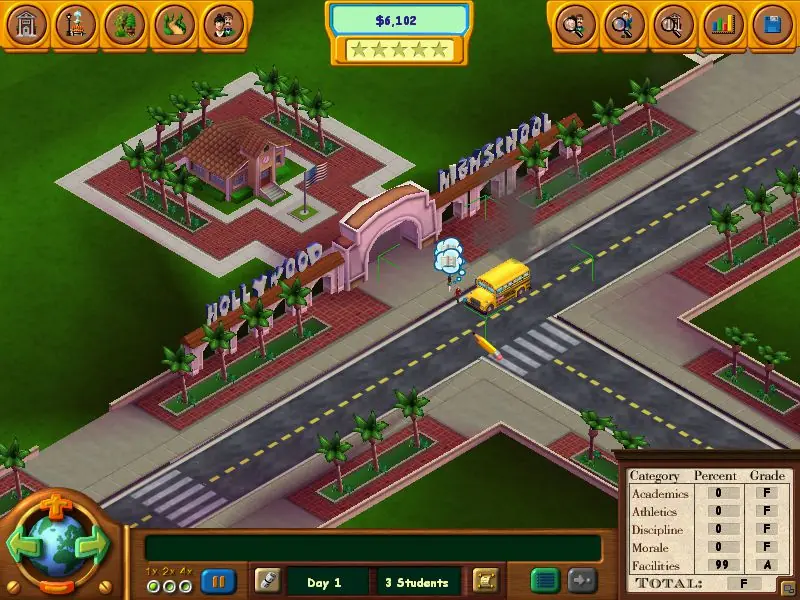
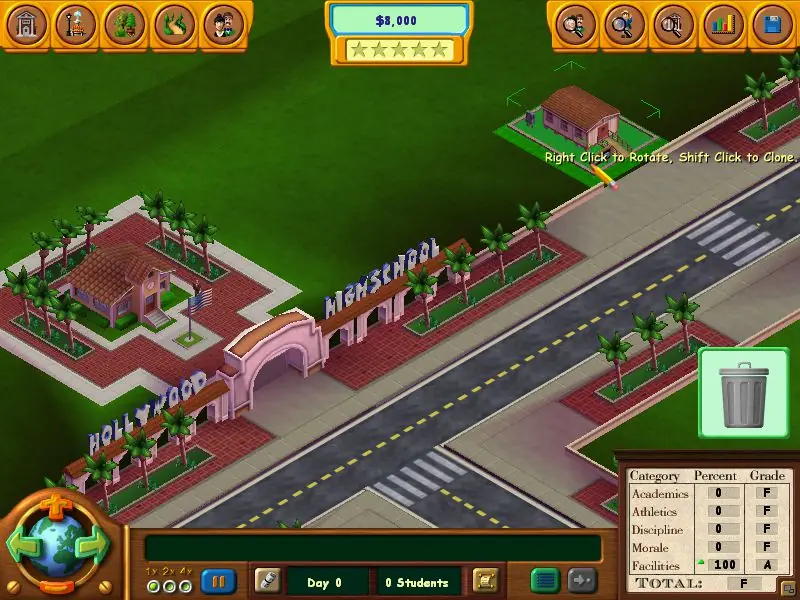
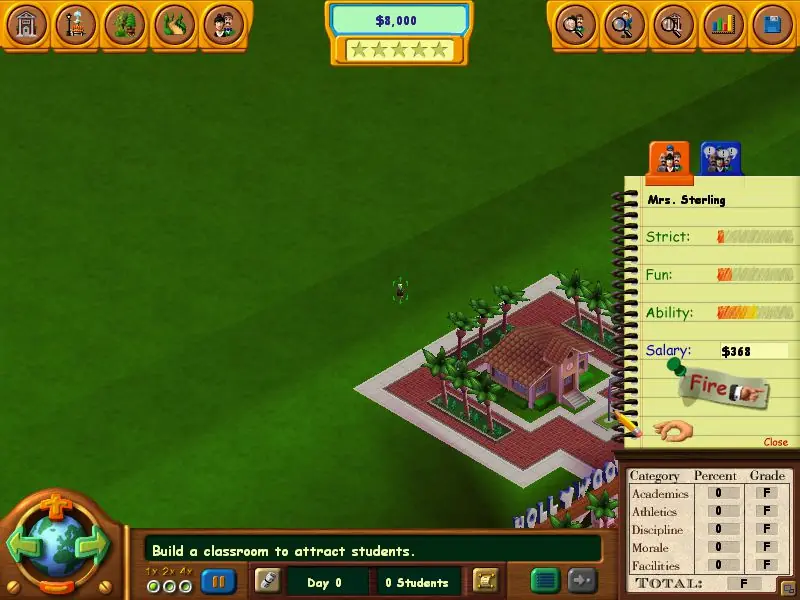
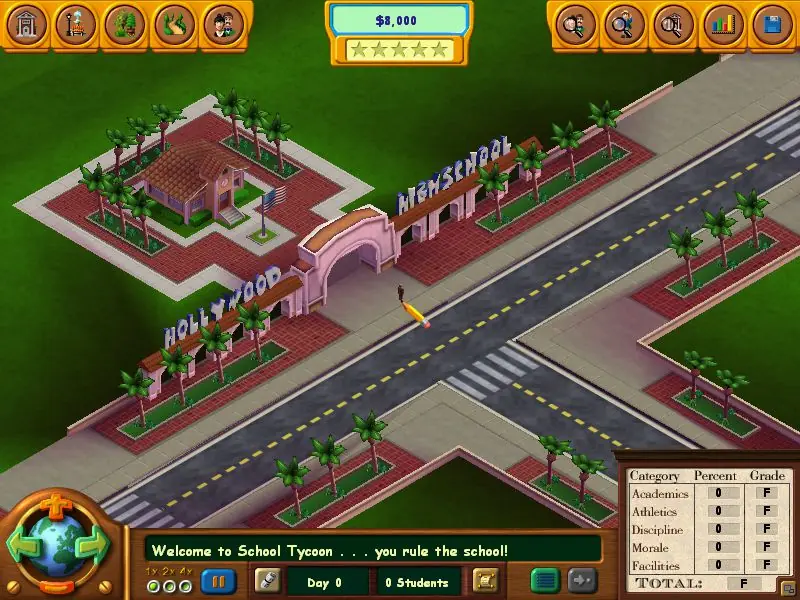
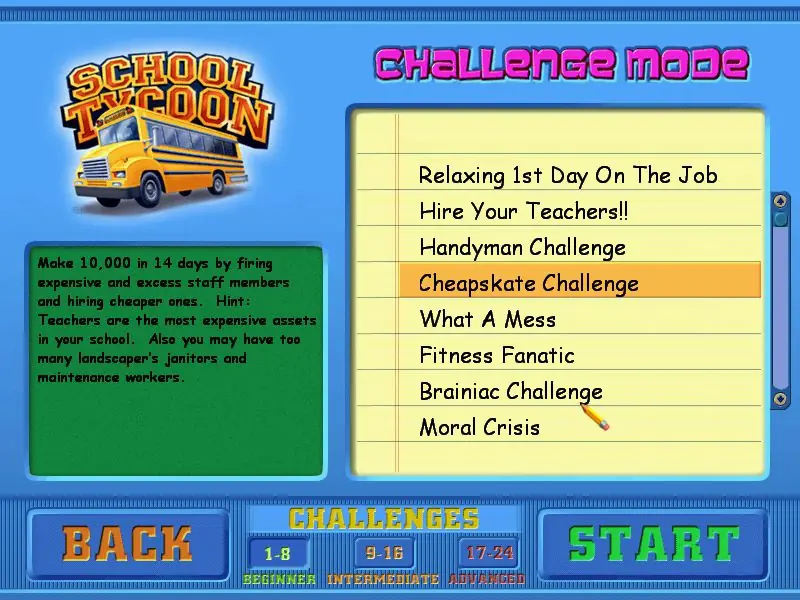
The game features an overhead view of a farm, city lot, or beach-side lot where a school is to be built. The player places buildings and paths to create the layout of the school. The objectives in the game increase in difficulty as the player progress; an easy objective might be to get a certain number of students into school while a more difficult objective would be to earn a certain amount of money within a time limit. There is also a sandbox game mode without specific objectives, giving the player the freedom to build any type of school they desire. The game view can zoom in to select individual students, or zoom out to look at the whole school. The game also has speed controls, to accelerate the pace of events, and has variable difficulty settings. Students in the school can learn ten different subjects. When starting off a school, the player can only afford small classrooms. As money is earned, better and larger classrooms can be built, helping the students to learn more. The player can build academic buildings, sports facilities, entertainment buildings, and an assortment of other structures such as statues, fountains, and food areas. It is also possible to hire teachers and coaches with a variety of different skills.
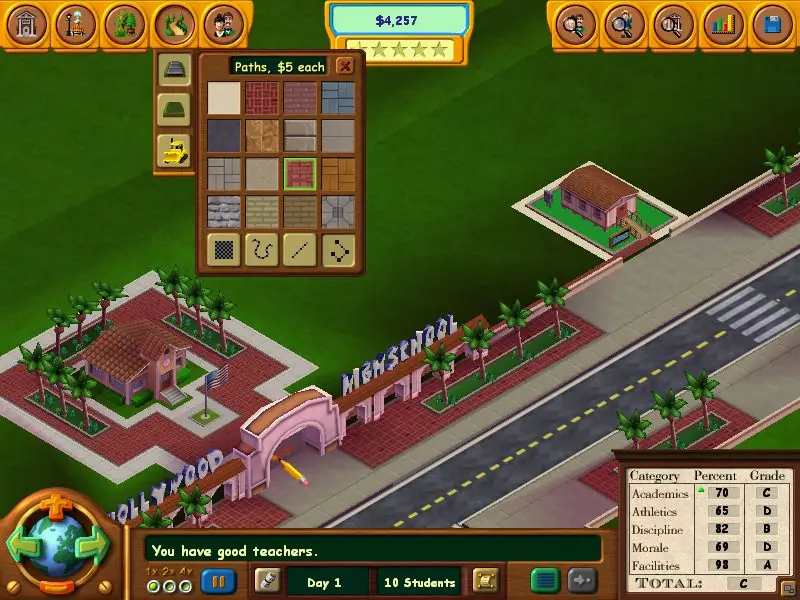
Screenshots

Windows

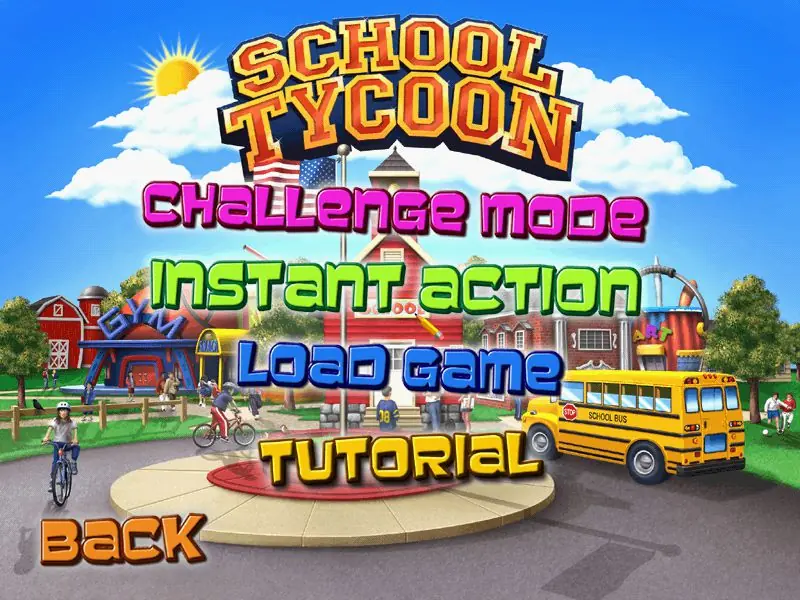
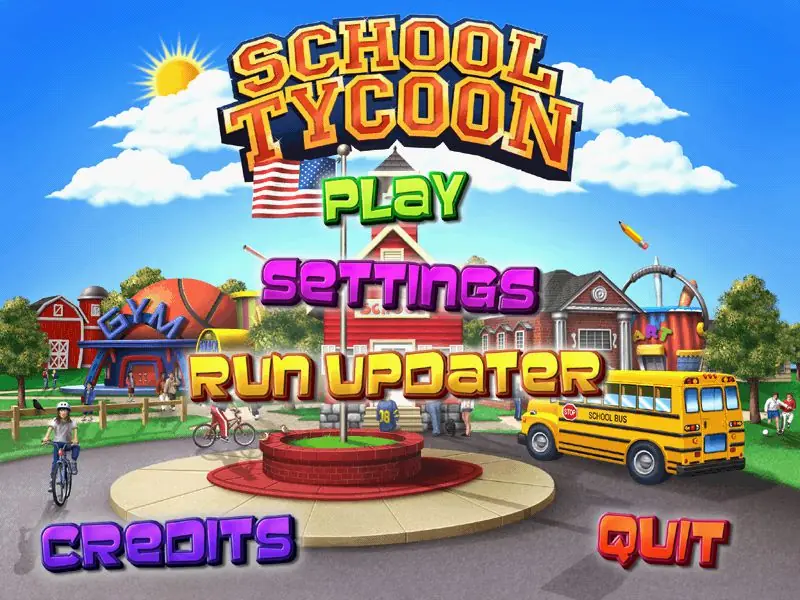
School Tycoon — Windows screenshot 1School Tycoon — Windows screenshot 2School Tycoon — Windows screenshot 3School Tycoon — Windows screenshot 4School Tycoon — Windows screenshot 5School Tycoon — Windows screenshot 6School Tycoon — Windows screenshot 7School Tycoon — Windows screenshot 8School Tycoon — Windows screenshot 9

Download School Tycoon

School Tycoon is abandonware and no longer sold or supported by its publishers. Files are archived here for these platforms:

Windows (2004)

  • School_Tycoon_Win_ROM_EN.7zEN562.97 MB
  • Instructions School_Tycoon_Win_ROM_EN.7z

    How to play on Windows

    1. Mount SchoolV1.bin and run Setup.exe
    2. Follow on-screen instructions to finish installing the game
    3. Launch the School Tycoon.exe shortcut on your desktop
    4. Play the game

Manuals and readmes

Comments

31 thoughts on “School Tycoon”

  1. 0
    I got it to run and everything but it says you need a CD! What’s the point of having it on the website if you can’t play it? 🙁
    I want to relive my childhood so badly! Anyway around this?
    Reply
    • -1
      Yes buy the cd and get an external dvd drive for your computer. try checking and seeing if they still have pc games at your local thrift store or in a worse case scenario online.
      Reply
  2. 0
    Hi, I have used emulators before, but this is my first time trying this website for retro games. How do I mount the file? I keep getting the pop up that I need to have the CD ROM, or after I updated it just wouldn’t launch the game from the menu
    Reply
  3. 0
    I used power iso to mount the bin/cue files and ran the setup but when the menu opens and I press play game it says insert CD rom 🙁
    Reply
  4. 0
    I am dying to play this game but I don’t have the option to mount the schoolv1.bin file! The option to open it with windows explorer will not appear. I did not have this issue with other games on this site.
    Reply
    • 0
      I figured it out! You need winrar and Anyburn. First you need ti extract the file with winrar then you have to use Anyburn. Click “Convert Image files” then select the Bin file to convert make sure you have it set to covert to a ISO file. Then extract the iso file with winrar. Follow the regular instructions. and then you have a game. 🙂

      Yes I know its a lot but it works!

      Reply
      • 0
        I’m using windows 11. I did as you have mentioned. But when I run setup it shows a dialogue box with an error (incorrect function)
        Reply

Similar games