Home » Games » The Battle for Middle-earth II

The Battle for Middle-earth II

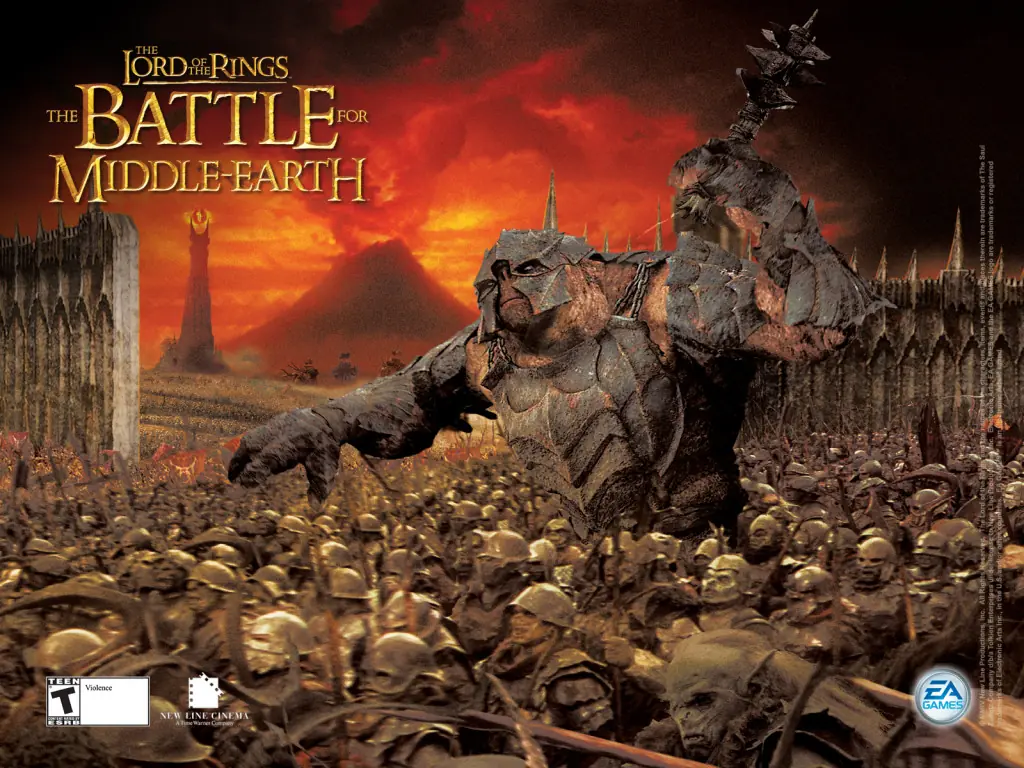
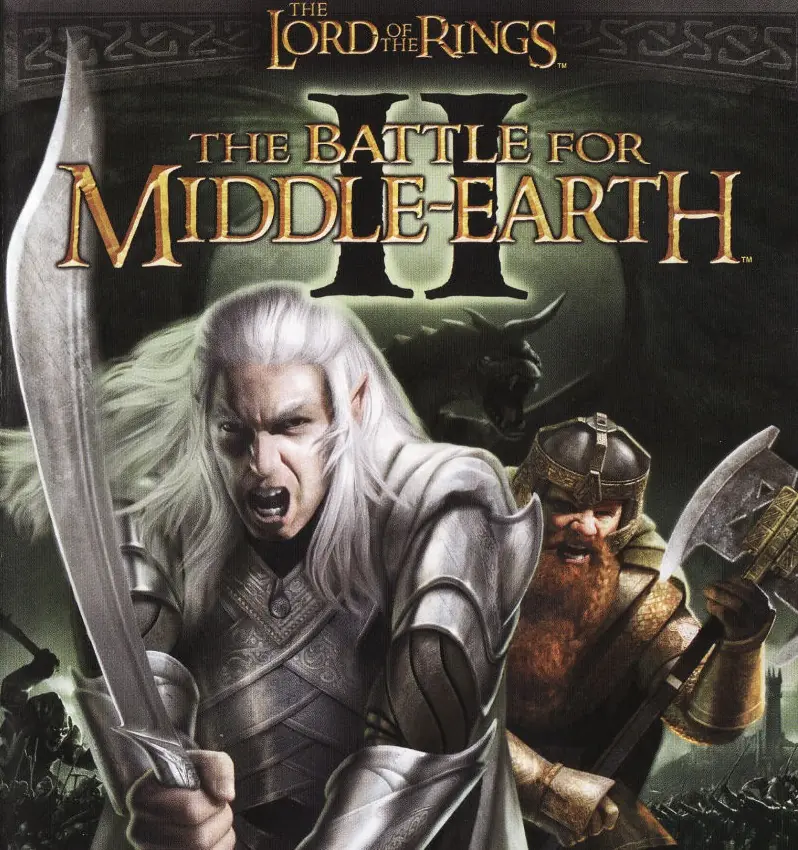
The Battle for Middle-earth II Game Cover
4.6/5 - 1,893 votes

The Battle for Middle-earth II is a 2006 strategy game developed by EA Los Angeles and published by EA Games.

Other Titles

The Lord of the Rings: The Battle for Middle-earth IIВластелин колец: Битва за Средиземье IIเดอะลอร์ดออฟเดอะริงส์: แบทเทิลฟอร์มิดเดิลเอิร์ธ II指环王: 中土战争 II魔戒:中土戰爭ⅡA Gyűrűk Ura: Harc Középföldéért IIBFME2Der Herr der Ringe: Die Schlacht um Mittelerde IIEl Señor de los Anillos: la batalla por la Tierra Media IIIl Signore degli Anelli: La Battaglia per la Terra di Mezzo IILe Seigneur des Anneaux: La Bataille pour la Terre du Milieu IIO Senhor dos Anéis: A Batalha pela Terra Média IIPán Prstenů: Bitva o Středozem IIRingarnas Herre: Slaget om Midgård IIRingenes Herre: Kampen om Midgard IIWładca Pierścieni: Bitwa o Śródziemie IIIl Signore degli Anelli: La battaglia per la Terra di Mezzo 2The Lord of the Rings: The Battle for Middle Earth 2Властелин колец: Битва за Средиземье 2Der Herr der Ringe: Die Schlacht um Mittelerde 2Kampen om Midgard ll – Ringenes HerreLe Seigneur des anneaux : La Bataille pour la Terre du Milieu IIRingenes Herre: Kampen om Midgård IIارباب حلقه‌ها: نبرد برای سرزمین میانه ۲سيد الخواتم: معركة الأرض الوسطى 2سيد الخواتم: معركه الارض الوسطى 2เดอะลอร์ดออฟเดอะริงส์: เดอะแบตเทิลฟอร์มิดเดิลเอิร์ธ II魔戒:中土大战II중간계 전투2

Genres
Publishers
Developers
Released
Platforms
Download

About The Battle for Middle-earth II

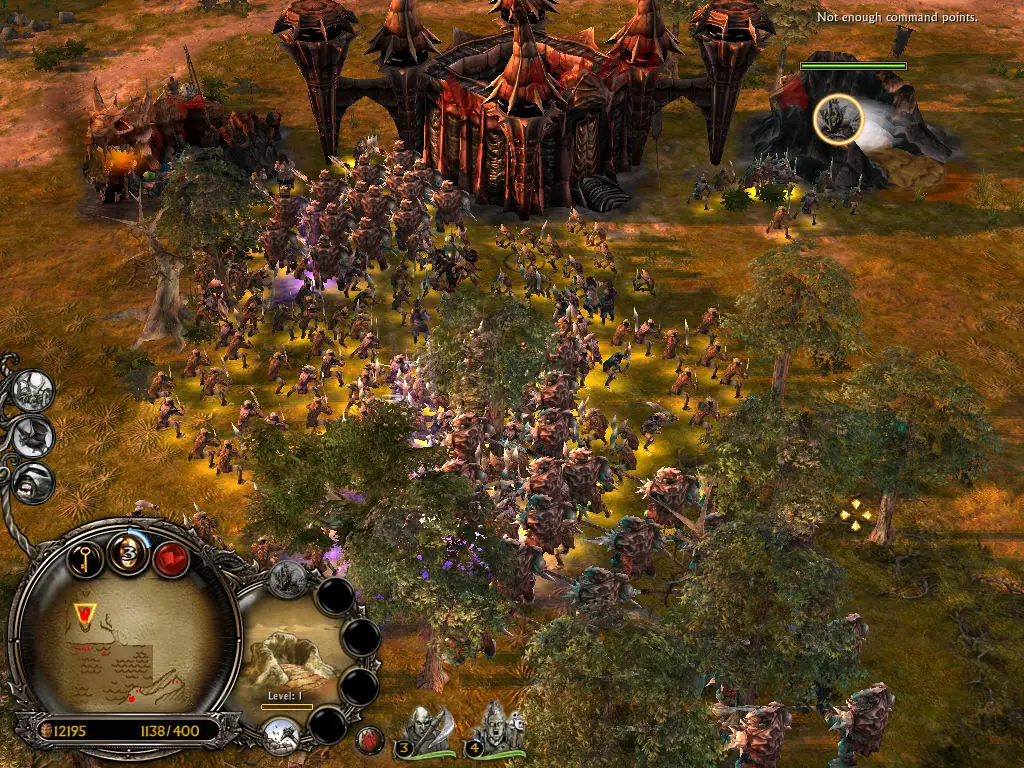
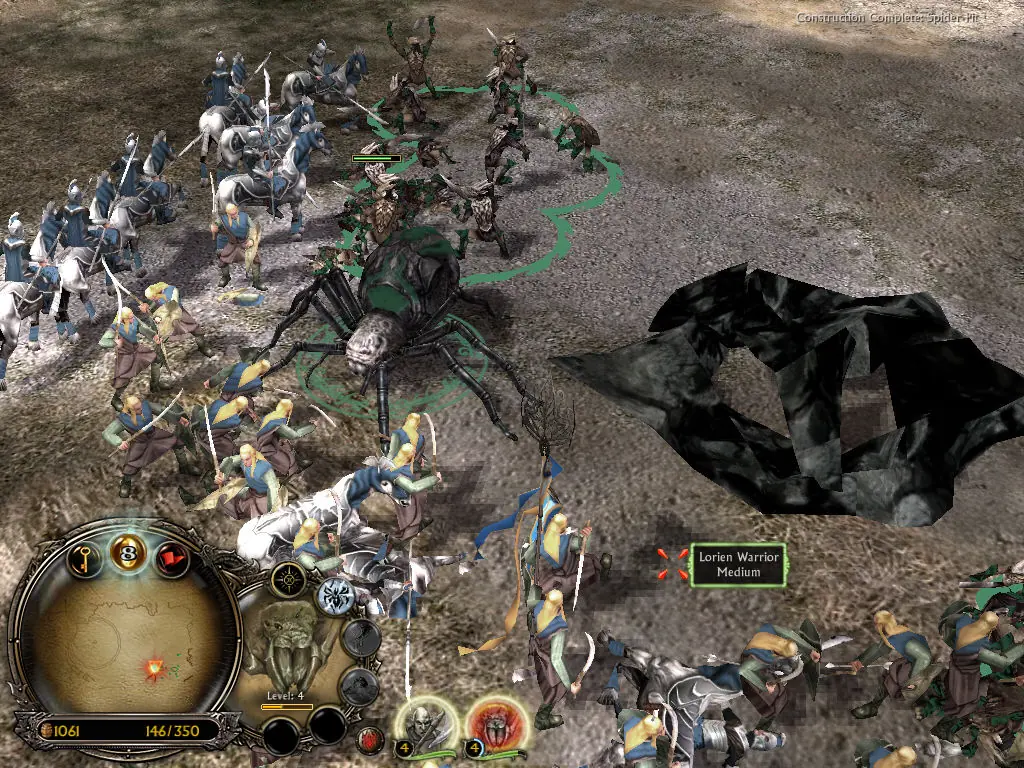
The story for The Battle for Middle-earth II is divided into Good and Evil Campaigns. The Good Campaign focuses on Glorfindel, an Elf who is alerted to a planned attack on the Elven sanctuary of Rivendell. With help from the Dwarves and other Good forces, the Elves attempt to eliminate Sauron and his army to restore peace in Middle-earth. In the Evil Campaign, Sauron sends the Mouth of Sauron and the Nazgûl to muster wild Goblins. With his army, Sauron moves forward with his plan to destroy the remaining Good forces in the North. The Windows version of the game was released in March 2006 and the Xbox 360 version was released in July 2006.
Screenshots

Windows

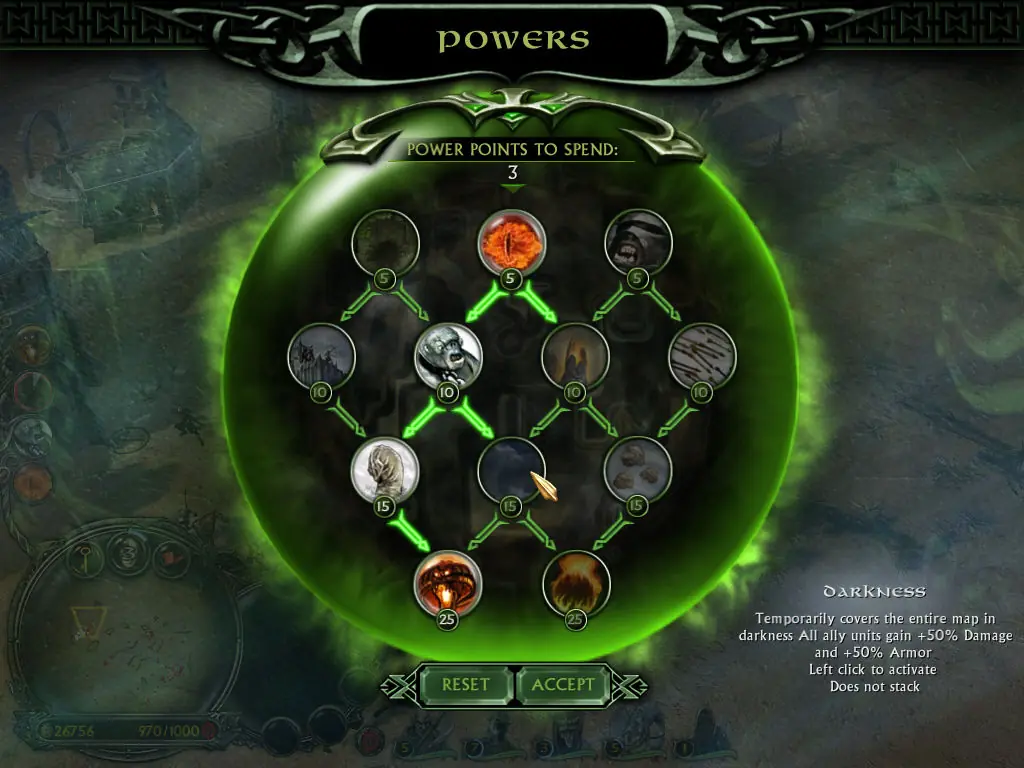
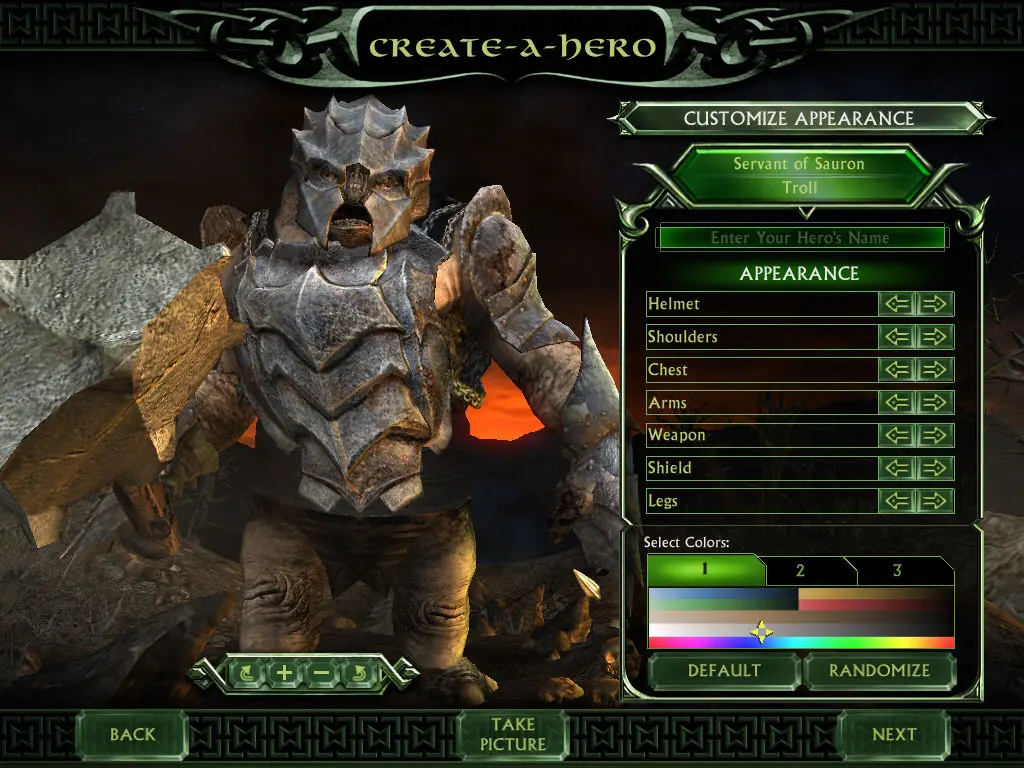
The Battle for Middle-earth II — Windows screenshot 1The Battle for Middle-earth II — Windows screenshot 2The Battle for Middle-earth II — Windows screenshot 3The Battle for Middle-earth II — Windows screenshot 4The Battle for Middle-earth II — Windows screenshot 5The Battle for Middle-earth II — Windows screenshot 6

Download The Battle for Middle-earth II

The Battle for Middle-earth II is abandonware and no longer sold or supported by its publishers. Files are archived here for these platforms:

Windows (2006)

  • BFME_2_+_Rise_of_the_Witch_King.rarEN3.75 GB
  • Instructions BFME_2_+_Rise_of_the_Witch_King.rar

    How to play on Windows

    1. Click on the download button. It should redirect you to your download. Make sure you download the file properly and that your internet does not disconnect while downloading.
    2. While waiting for your download, make sure that you have a software called Daemon Tools installed on your computer.
    3. Extract the “BFME 2 + Rise of the Witch King” folder to your desktop.
    4. Drag the folder to your C:// disc on your computer.
    5. Open the “BFME 2 + Rise of the Witch King” folder and then open the “Game Files” folder.

    Instructions for The Battle for Middle Earth 2

    1. Open the folder called BFME2 and then the folder called BFME2 Installer. Inside the BFME Installer folder, you want to double click on the file called AutoRun.exe and the installer for The Battle for Middle Earth 2 should launch. Go through the game setup – at some point they will ask you to insert a CD-key. Use any one of these and finish the installation:
      • HNB3-GRYM-GLUS-HKTU-Y9V8
      • XLWW-55XX-5MB8-Q6QJ-5JAP
      • 42FP-FQES-GW72-MT37-MCGQ
      • QJXX-3TVM-EE2V-NUYU-SWDW
      • 3QWW-QZQ7-USET-Z8NQ-WUYB
      • HZKB-QJTS-W5E3-83PJ-K9AA
      • ATK3-5TTF-9HJH-3TRW-2F8F
      • M9NN-6NWW-5VRB-5KLN-EVV3
    2. If you run the game now, they will ask you to insert a CD so it will not work. What you have to do, is open up the software called Daemon Tools and then select add a new drive. You want the virtual drive to be “SCSI” and then select “Add drive”. If this part is a bit complicated, watch the video below and you can see how I did it for clearer instructions. You then want to drag the “MI-BFME2.mds” file (it will be 9KB) into the empty drive on Daemon tools. Note: If Daemon Tools doesn't work, then use WinCDEmu.
    3. The next step, is that you want to go back into the folder called “Game Files”. In here, you want to open the “Options.ini” file (double click it). You will see a line of code which says “Resolution = 1920 1080”. You want to change these numbers to the resolution of your computer, and then save the document.
    4. Next, you want to click on your start menu and then search for %appdata% and you want to click on the %appdata% folder. This is usually C:\Users\(your username)\AppData\Roaming. Inside this folder, you want to find the folder called “My Battle for Middle-earth ™ II Files”. You want to open that folder, and then you want to copy, and then paste, the “Options.ini” file from step 3 into the “My Battle for Middle-earth ™ II Files” folder.
    5. You can now run the game from the desktop shortcut, and the insert a CD message should go away.
    6. Enjoy the game!

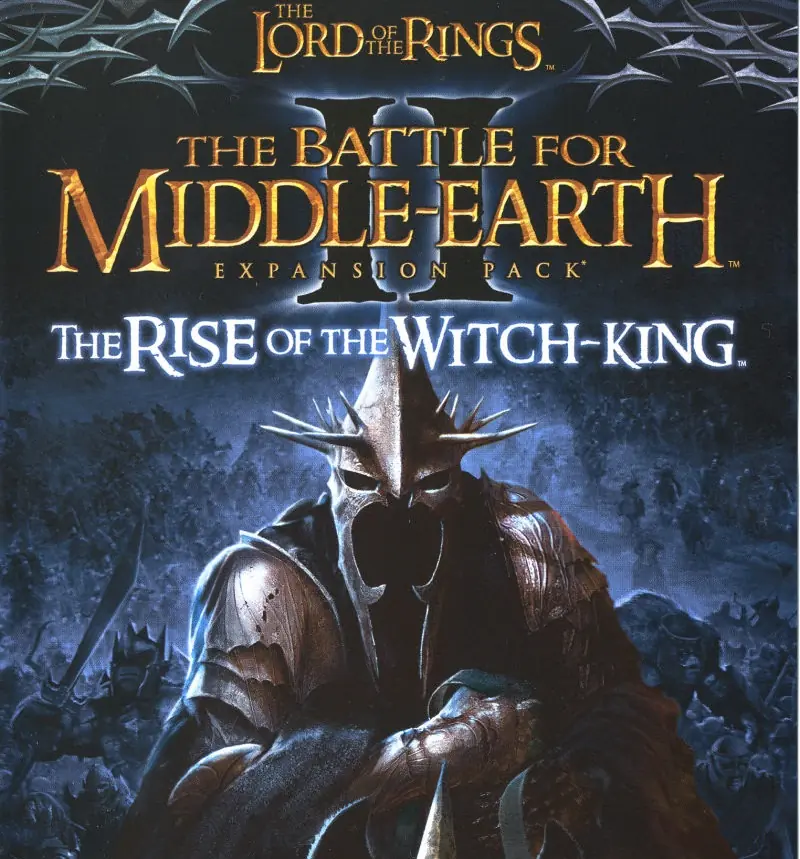
    Instructions for The Battle for Middle-earth 2: The Rise of the Witch-king (you need to download the base game first)

    1. You will need to have The Battle for Middle-earth 2 base game installed before you can install this, so do the previous steps first!
    2. Open the folder called Rise of the Witch King and then the folder called RoTWK Installer. Inside the
    3. RoTWK Installer folder, you want to double click on the file called AutoRun.exe and the installer for The Rise of the Witch-king should launch. Go through the game setup – at some point they will ask you to insert a CD-key. Use any one of these:
      • HE55-26J3-XSSL-A58B-BZ96
      • YQFX-M2HH-LM62-NJ9T-KMZG
      • TJLC-V87P-E5CY-ELRS-VLYP
      • DJ7F-LB8A-NZDE-BJXN-8X8M
      • 3WH9-CR7P-4UPH-PPQE-DT39
      • GG22-XGJA-GQ96-YJJS-NKVG
      • HR55-MLNM-WFJN-UNWR-4X6T
      • JW9R-97QL-NRFW-QAFL-UDEX
    4. If you run the game now, they will ask you to insert a CD so it will not work. What you have to do, is open up the software called Daemon Tools and then select add a new drive. You want the virtual drive to be “SCSI” and then select “Add drive”. You then want to drag the “RotWk_Maxi-TheSmokingMan.mds” file (it will be 5KB) into the empty drive on Daemon tools.
    5. Next, you want to click on your start menu and then search for %appdata% and you want to click on the %appdata% folder. This is usually C:\Users\(your username)\AppData\Roaming. Inside this folder, you want to find the folder called “My The Lord of the Rings, The Rise of the Witch-king Files”. You want to open that folder, and then you want to copy, and then paste, the “Options.ini” file from before into the “My The Lord of the Rings, The Rise of the Witch-king Files” folder.
    6. You can now run the game from the desktop shortcut.
    7. Enjoy the game!

    Instructions for The Battle for Middle-earth 2: The Rise of the Witch-king (YOU NEED BFME 2 FIRST)
    1. You will need to have The Battle for Middle-earth 2 base game installed before you can install this, so do the previous steps first!
    2. Open the folder called Rise of the Witch King and then the folder called RoTWK Installer. Inside the
    3. RoTWK Installer folder, you want to double click on the file called AutoRun.exe and the installer for The Rise of the Witch-king should launch. Go through the game setup – at some point they will ask you to insert a CD-key. Use any one of these:
      • HE55-26J3-XSSL-A58B-BZ96
      • YQFX-M2HH-LM62-NJ9T-KMZG
      • TJLC-V87P-E5CY-ELRS-VLYP
      • DJ7F-LB8A-NZDE-BJXN-8X8M
      • 3WH9-CR7P-4UPH-PPQE-DT39
      • GG22-XGJA-GQ96-YJJS-NKVG
      • HR55-MLNM-WFJN-UNWR-4X6T
      • JW9R-97QL-NRFW-QAFL-UDEX
    4. If you run the game now, they will ask you to insert a CD so it will not work. What you have to do, is open up the software called Daemon Tools and then select add a new drive. You want the virtual drive to be “SCSI” and then select “Add drive”. You then want to drag the “RotWk_Maxi-TheSmokingMan.mds” file (it will be 5KB) into the empty drive on Daemon tools.
    5. Next, you want to click on your start menu and then search for %appdata% and you want to click on the %appdata% folder. This is usually C:\Users\(your username)\AppData\Roaming. Inside this folder, you want to find the folder called “My The Lord of the Rings, The Rise of the Witch-king Files”. You want to open that folder, and then you want to copy, and then paste, the “Options.ini” file from before into the “My The Lord of the Rings, The Rise of the Witch-king Files” folder.
    6. You can now run the game from the desktop shortcut.
    7. Enjoy the game!

Comments

631 thoughts on “The Battle for Middle-earth II”

  1. 0
    Hi, I have a problem, after 2 minutes and 30 second in skirmish I automatically lose the game, what can I do? Thanks
    Reply
  2. 0
    hello – thank you for this and the YouTube video. Unfortunately when I try to install
    Daemon tools my computer crashes and I have to system restore it. I have
    downloaded PowerIso but cannot determine how to make the game work. It
    still asks for a CD-ROM in C: no matter what I do. Could you explain
    how to do the same thing with PowerIso?
    Reply
  3. 0
    hey man every time i press the auto run it says “insert cd/dvd drive” but i have both images mounted on daemon tools on SCSI. HELPPPPP PLEASE
    Reply
  4. 0
    Hi guys,

    I’ve downloaded, extracted and installed. However when I start the game up, i get the screen saying “The Battle for Middle Earth II Special Edition Patch 1.06” which then just disappears. I’ve tried different mounting software and i’ve tried extracting and installing on both the C and D drives (SSD & HDD). Any thoughts people? Everything else seems to work, but when I click on the game after installing and mounting, it starts but just disappears so would appreciate suggestions.

    Cheers

    Reply
  5. 0
    Hello – ran “autorun” in steps above and it said to put in CD-ROM, unable to bypass with CD key. Please advise.
    Reply
  6. 0
    It worked for me! Thanks!
    One small thing tho. I needed to download a file opener just for this so I could open the file.
    Reply
  7. 0
    Does anyone know if i can ad mods to this version, for example how i can install the ROTWK v2.02 v8 to this version?
    Reply
  8. 0
    Hi
    I’ve followed the introduction, but when I start the game it gives the error “insert the right DVD-ROM, select ok and restart the program”
    How can I solve the problem? It’s on windows 10
    Reply
  9. 0
    Hi, I followed your videos instructions. I commence the installation and then it comes up saying, “A problem occurred when trying to transfer the file ‘C:BFME 2 + Rise of the Witch KingGame FilesBFME2BMFE2 InstallerdatamoviesLoadingRing.vpx’ from the media.” Do you have a solution please?
    Reply
  10. 0
    The Video doesn’t mention this but the BFME 2 + blah blah floder has to be on the top layer of the C: Drive. Not in program files or anything.
    Reply
  11. 0
    I download the game perfectly, daemon told perfect, aurorun perfect, but when I must copy options in appdata, in AppData don’t exist a file called BFME II. Please help… How is possible!
    Reply
      • 0
        Same here. When you cannot find the folder in the designated location, just create it with right click -> new -> folder. Make sure you rename the folder with the exact name as in the instructions. Then copy the options file in the newly generated folder.
        Reply

Similar games