Barbie as Rapunzel: A Creative Adventure
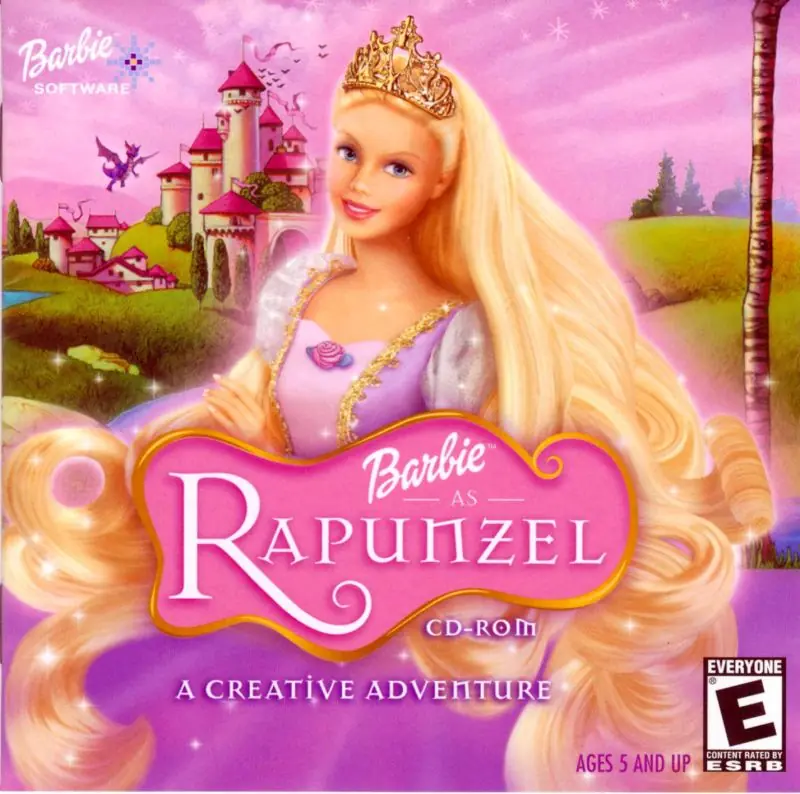
Barbie as Rapunzel: A Creative Adventure is a 2002 educational game developed by Funnybone Interactive and published by Vivendi Universal Games.
Genres
Publishers
Developers
Released
Platforms
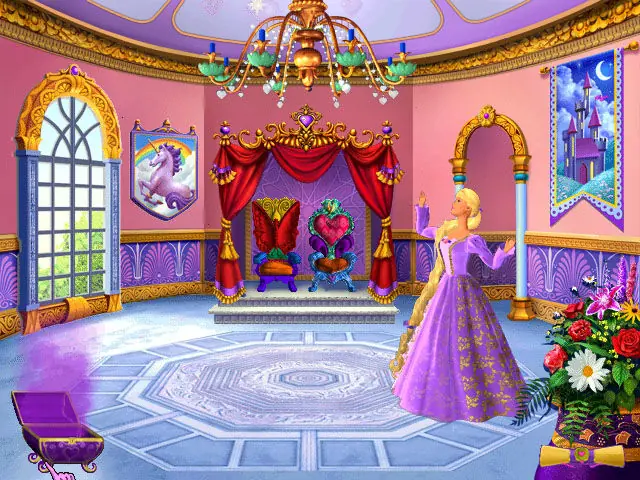
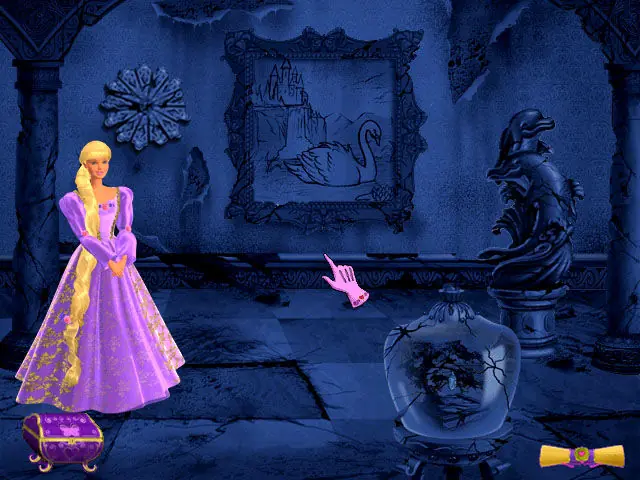
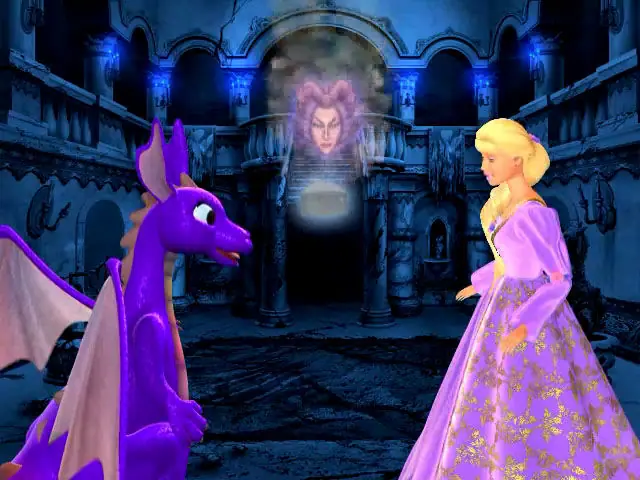





1. Do I need to crack the game after installing?
– No, just make sure you mount the Rapunzel.ISO file (the one included in the ‘Game Files’ folder) to a virtual drive using PowerISO or DaemonTools before launching (I use DaemonTools Lite, but this is just personal preference.)
2. Where are the cutscenes? All I hear are voices with black/green screen.
– Try updating the QuickTime player to the latest version (7.7.9) found on the Apple website et voilà!
3. Help! I can’t see the whole game screen, just a small portion of it on one corner
– This is a case to case basis depending on your monitor. Try fiddling with your monitor resolution (on Windows 10, right click > Display settings > Display resolution). Mine is set to 1280×1024. You must also right click on the game shortcut >Properties>Compatibility>Run in 640×480 screen resolution>OK.
4. Ways to launch the game?
-a. Easiest is double clicking on the Barbie(TM) as Rapunzel shortcut on the desktop
-b. You can also click the BD-ROM Drive (x): Rapunzel while the ISO file is mounted.
-c. type ‘Rapunzel’ on your taskbar’s search bar and an app called Barbie(TM) as Rapunzel will show up. (on Windows 10, Idk if it will work on earlier OS.
-d. If you deleted the shortcut:
On Windows 10, the default installation location is C:Program Files (x86)/Barbie(TM)/Barbie(TM) as Rapunzel. You can also choose to launch the game using the Rapunzel.exe file (It’s the one labeled as Application not Icon under ‘Type’) in the installation folder. Don’t click on the Launch.exe, nothing will happen.
5. If you still can’t launch the game or there are error notifications, try uninstalling completely and redownloading the zip file from this site. Then reinstall.
Hope I can help! Thank you very much to this website for the childhood nostalgia 🙂
It fixed for me when I restarted my computer! I think it wasn’t working because that was my first time installing quicktime onto my computer, so it needed to restart for the program to work properly. I hope this will be helpful to anyone else who is dealing with this.