Zoo Tycoon
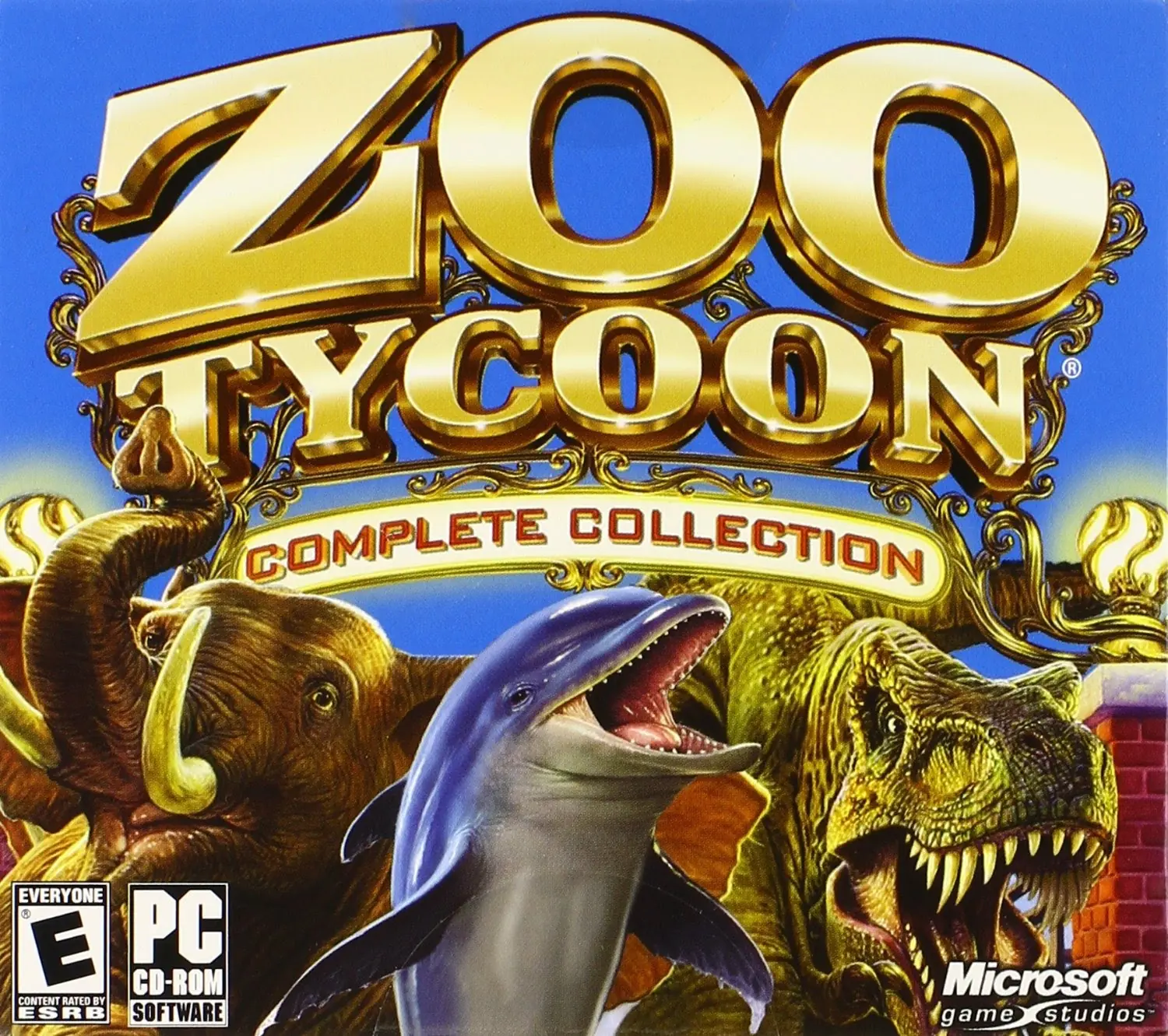
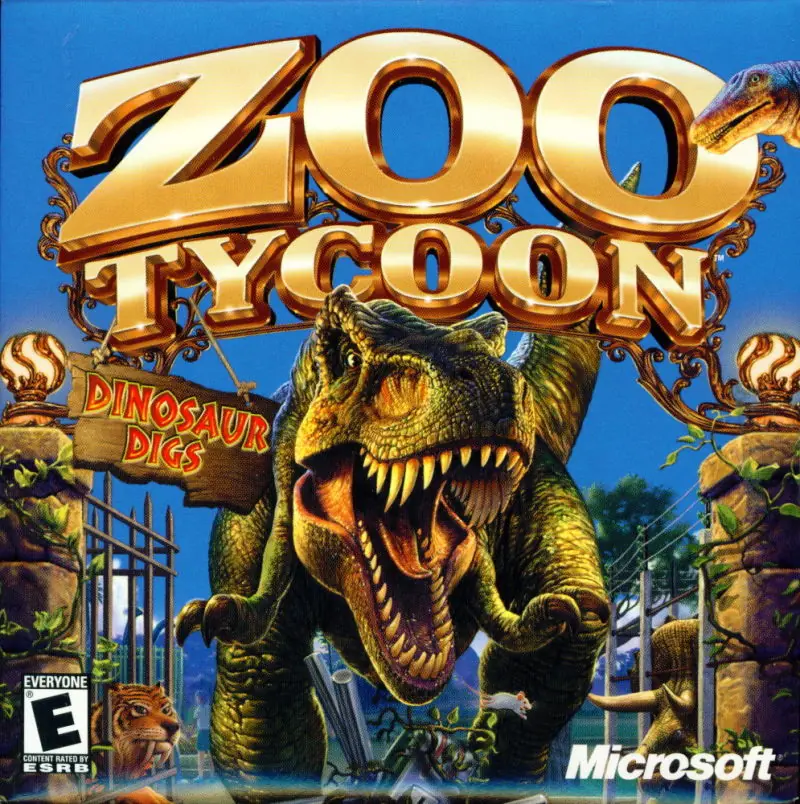
Zoo Tycoon is a 2001 simulation game developed by Blue Fang Games and published by Microsoft.
Genres
Publishers
Developers
Released
Zoo Tycoon is a 2001 simulation game developed by Blue Fang Games and published by Microsoft.
Your chance to design the zoo of your wildest imagination is finally here! Design, build and manage—you are the boss! Keep your guests and animals happy, or face the consequences of hungry animals, in this insanely fun zoo simulation. This place is a real zoo--and you're in charge! Go wild running the most fun and beautiful zoo you can imagine. Care for unpredictable and untamed animals (and those are just the guests!). Plan wisely, because if the animals don't like their food, environment, or handling, they interact poorly with visitors, and unhappy guests means fewer dollars. Play smart and keep everyone and everything happy, and you'll be a zoo tycoon.
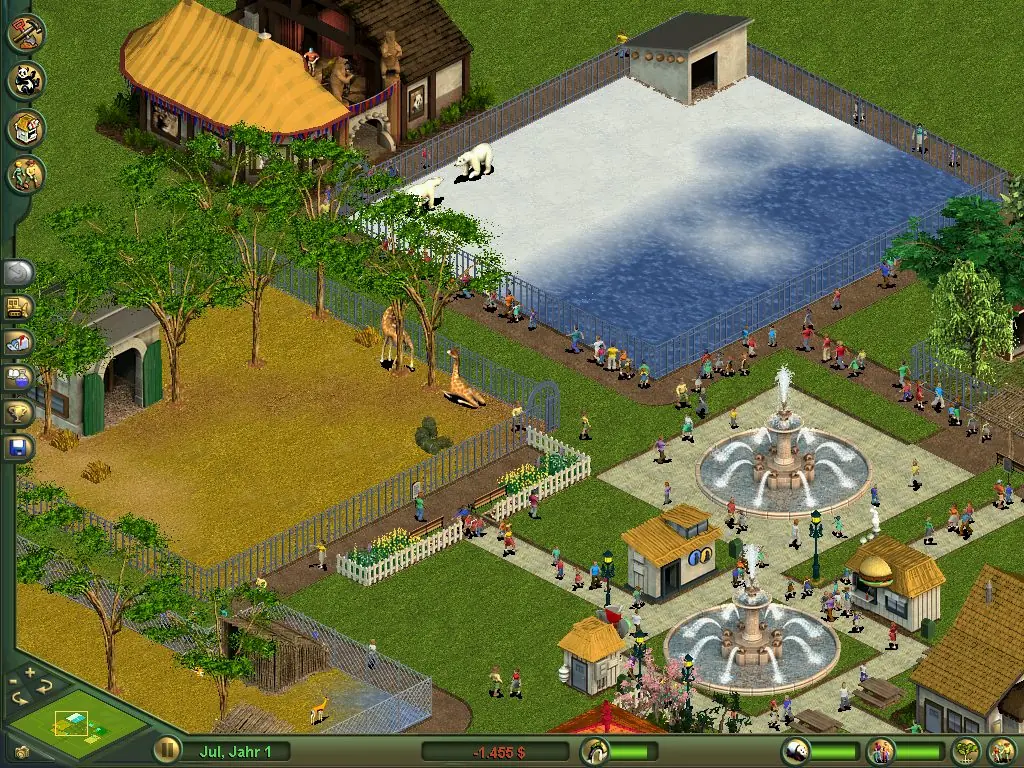
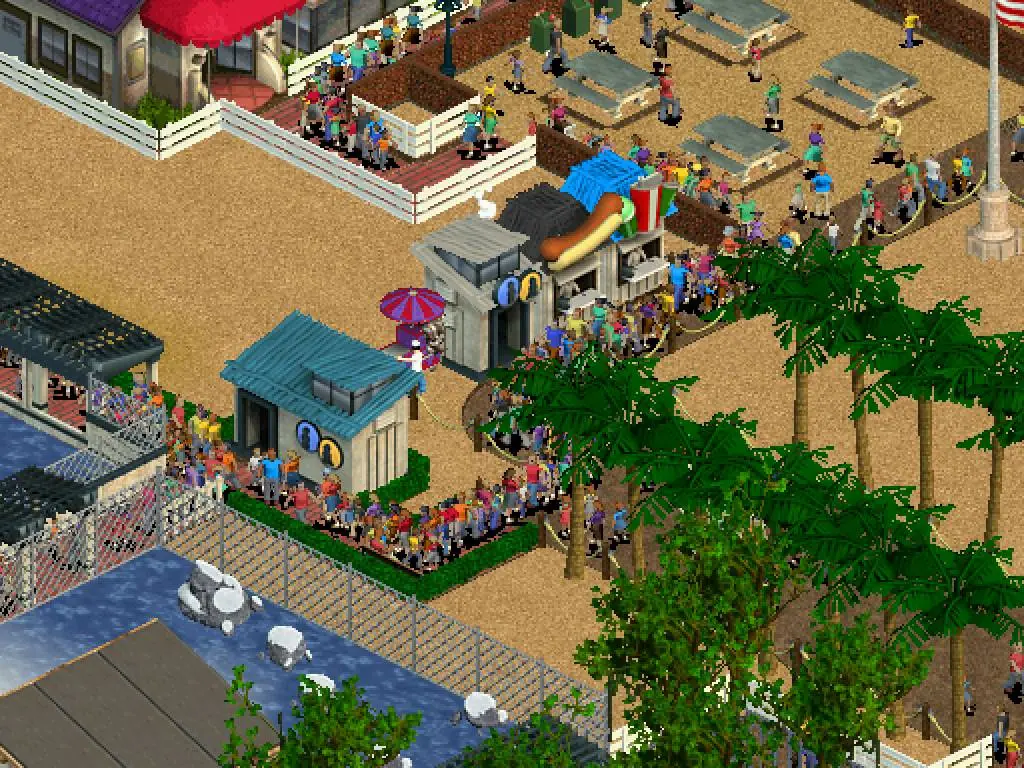
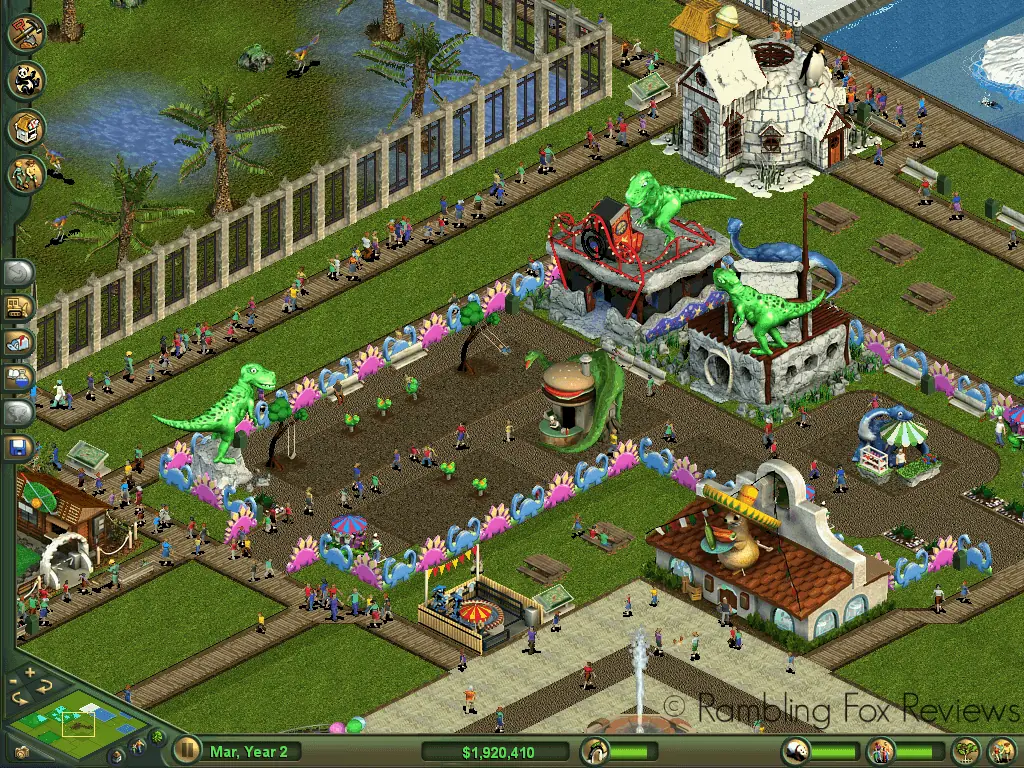
Zoo Tycoon is abandonware and no longer sold or supported by its publishers. Files are archived here for these platforms:
How to play in Windows
sometimes it closes back after 5sec ..
For some reason though, ZT fails to display properly after the introductory Blue Fang Games graphics play. First, the window minimizes from fullscreen to about 1/4 of the screen. At this point, nothing is cropped, the window is just smaller. However, once I am brought to the main menu of ZT, it automatically zooms in to the top left corner of the screen and prevents me from moving my mouse around to see the rest of the main menu.
I am, however, able to click the first menu option (it’s the only visible menu option). When I do so, I am taken to the correct page. But still, I cannot navigate or see beyond the zoomed-in area. When I expand the window to full screen, it merely enlarges the zoomed-in area — still not allowing me to see the rest of the Main Menu, and immediately snaps back to the original, smaller window size.
Then Windows freezes, leaving me no choice but to quit ZT externally via the dock on Mac OS.
I’ve tried running compatibility tests (i.e., right-click the ZT shortcut on my Desktop > Properties > Compatibility) and playing around with the different resolution settings on Windows (e.g., switching my display resolution to 800 x 600) but neither worked. I also even attempted to edit the resolution settings in the .ini file (i.e., BD-ROM Drive (F:) ZOO_TYCN > DATA) to match my recommended display resolution on my Windows 10 (i.e., 2560 x 1366), but kept getting the error message “You can’t save to ‘F:DATA’. Please choose another location.” (I tried saving the edited file elsewhere but doing so had no effect on how ZT displayed).
I’ve read through a Reddit thread and watched a YouTube video addressing this same issue but nothing has worked for me. I am dying to play this game again and relive my childhood so any suggestions or insights (e.g., Does it have to do with the fact that I have not yet purchased Parallels or Windows? The message “Activate Windows – Go to settings to active Windows” is on the screen and does not disappear.) would be very much appreciated. If I need to provide more details about my issue in order to be better assisted, I am more than happy to do so. Thank you in advance!
Note: I am unable to add my screenshots to this post, so please refer to my Reddit post here: https://www.reddit.com/r/ZooTycoon/comments/kvkzto/zoo_tycoon_1_zoomedin_display_issue_on_parallels/
on my computer. I followed all the
steps and downloaded it multiple times but the game still won’t launch. I even tried to change the compatibility to previous versions of windows but still no luck :/
First things first, if your computer runs Windows 10, this game won’t work as is. You’ll have to download a special patch for the issue. If you do have a Windows 10 computer, follow these steps and then reply and I’ll give you some more steps on the downloading the patch.
Okay, here we go!
1. Click on the button that says “Zoo_Tycoon_Win_ROM_EN.zip (1.18 GB)” It will open up a link to a website called “Mega”. Click on the green download button. A progress bar will appear at the top of the screen. You don’t have to do anything else on that page, just wait for the download to finish.
2. Once it downloads, double click on the file (it will pop up on the bottom of you browser most the time. If it doesn’t try searching “Downloads” in your Start menu to open your downloads folder. It should be there) to open it and find a button that says “Extract All”. It’s different on different computers, so I can’t tell you exactly where to find the button. Another window should pop up. Click “Extract” on that one, too.
3. For the next step, you’ll need a program that can mount digital CDs. I used Daemon Lite. Here’s the link: https://www.daemon-tools.cc/products/dtLite
On the left side of the screen is a blue download button. Click that and wait for the software to download. Once it finishes, open it.
4. Now that you have Daemon open, click on the gray button in the bottom left corner that says “Quick Mount”.
5. Find the UNZIPPED (Note unzipped. If you try the zipped file it won’t work. You can tell it’s unzipped because it will have the same name as the one you downloaded off this website but the icon won’t have a zipper on it like the other one) file. Open it (you might have to open it twice, I can’t remember), then open the folder called “Game Files”, then the folder called “Base Game”. There should be two files in it called rzr-ztcc1. Open the one that says “BIN File” a little bit to the right of the name. This will “mount” a digital CD on Daemon.
6. A blue icon should pop up next to the Quick Mount button that says something like “(E:) ZOO_TYCN”. Click on it and the installer for the game should pop up. Install it like usual (At some point in the install, it asks you if you want to make a desktop icon. I suggest doing so because it makes later steps easier).
7. If you want the expansion, repeat steps 4-6 but instead of opening the “Base Game” file in step 5, open the one that says “Expansion” and open the BIN file there.
8. Go back to the Zoo Tycoon folder and open the “Crack” folder. You’ll need to click on the Base Game Crack folder and then click Extract All again. Then open the unzipped folder and right click on the application called “zoo” and copy it.
9. Right click on the Zoo Tycoon icon on your desktop and click “Open File Location”. Paste the zoo application you just copied into the file, then confirm that you want to replace the files already there.
10. If you didn’t install the expansion, skip this step. Otherwise, repeat steps 8-9 but this time with the Expansion Crack folder and the application inside.
11. You’re done! You can run the game now. If it doesn’t work, let me know. I can try to help you troubleshoot.
GL and I hoped this helps!
Thanks!
It’s a shame, but I’m definitely wanting to enjoy the game anyway!
Thank you!!
1. Download the ROM file -> unzip + extract files
2. Download Daemon 2 Lite
3. Click Quick Mount
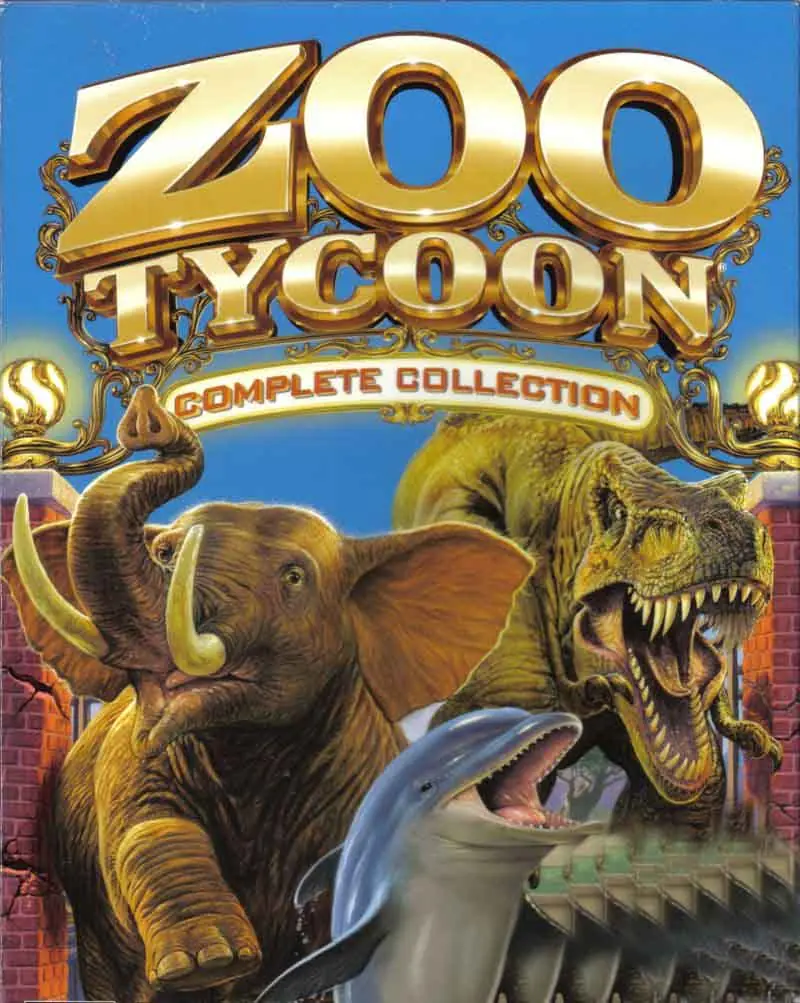
4. Select the the first bin file, then repeat step 3 with the second. Think of this as digitally putting in two CD’S – each bin file represents one. ztcc1 is the base game, ztcc2 is the complete collection.
5. Double click and install ztcc1
6. Double click and install ztcc2
Play!
This worked for me in fixing the matienence worker problem, however now I am expierencing issues trying to get marine animal shows to work if anyone has advice for that!