My Little Pony: Friendship Gardens
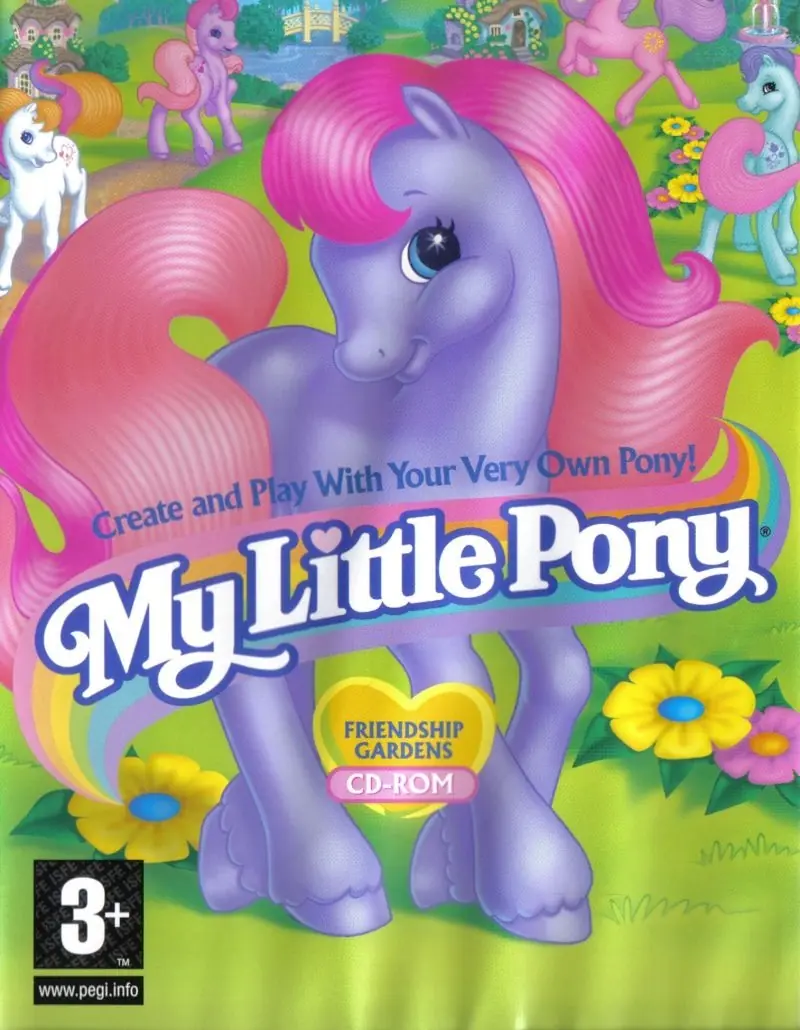
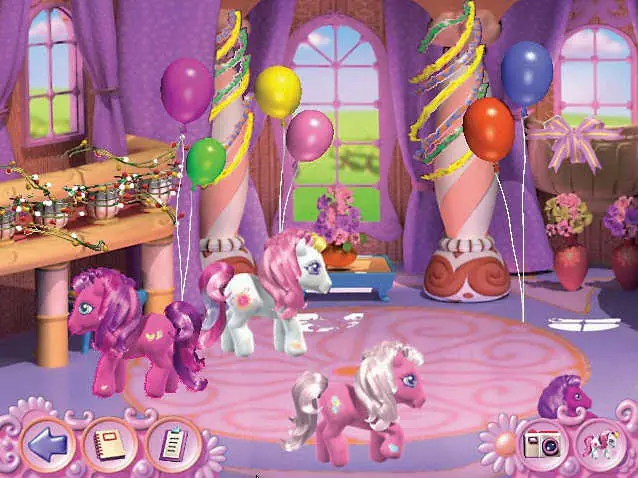
My Little Pony: Friendship Gardens is a 1998 adventure game developed by Artech Studios and published by Infogrames Europe.
Genres
Publishers
Developers
Released
Platforms
My Little Pony: Friendship Gardens is a 1998 adventure game developed by Artech Studios and published by Infogrames Europe.
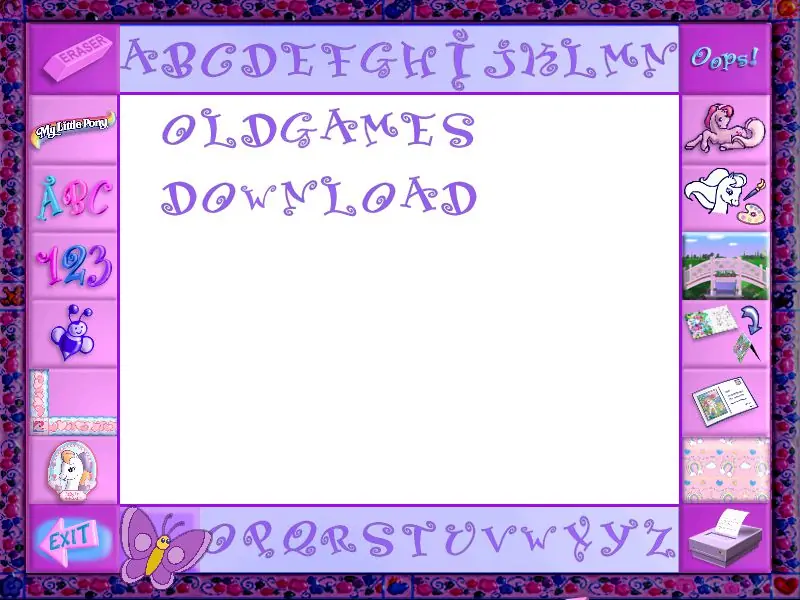
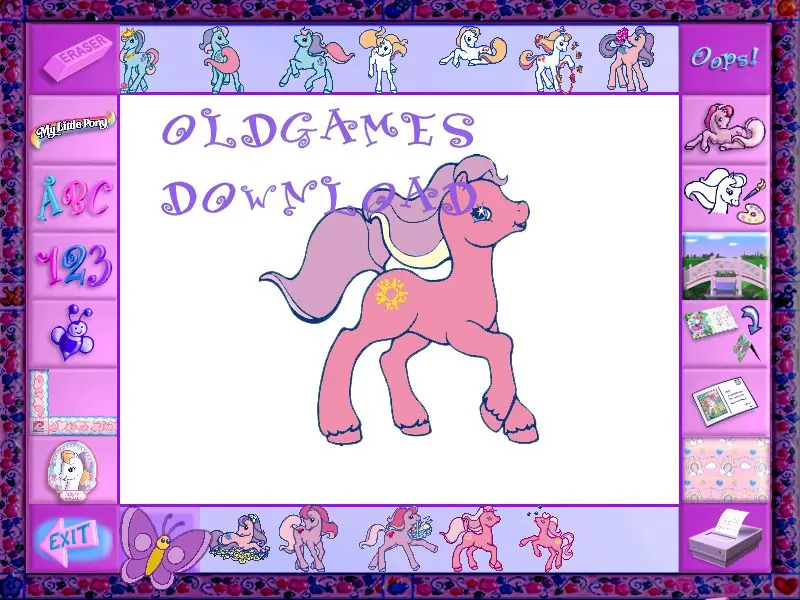
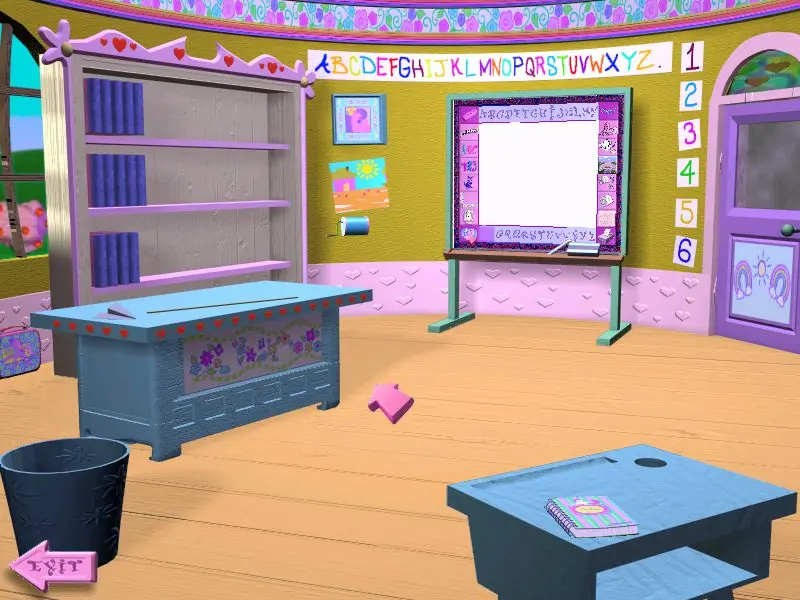
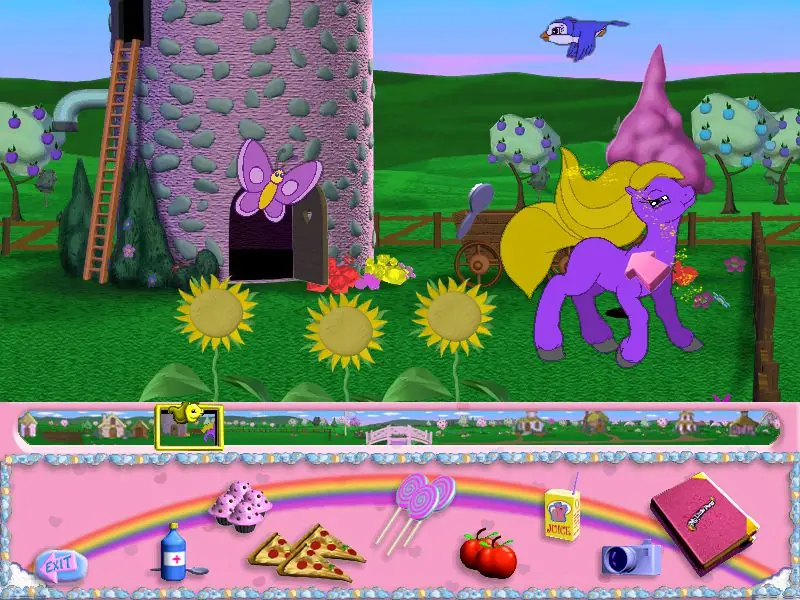
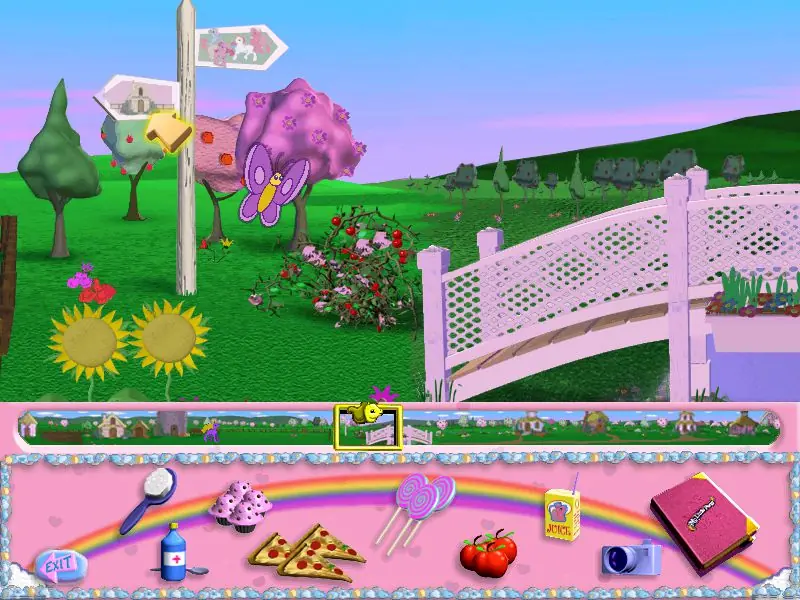
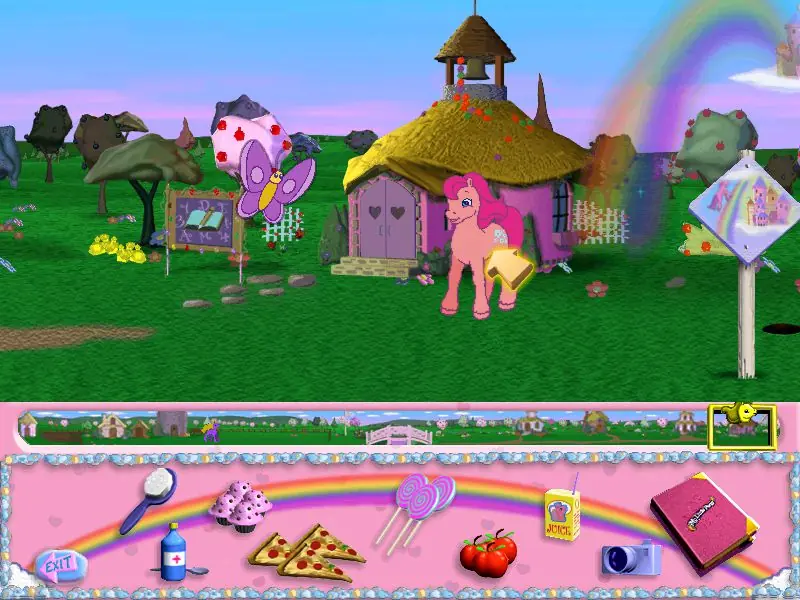
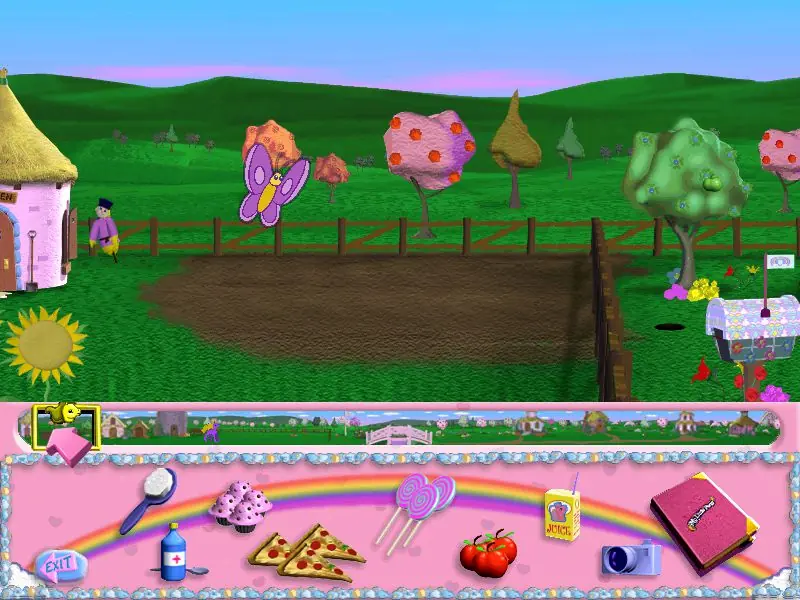
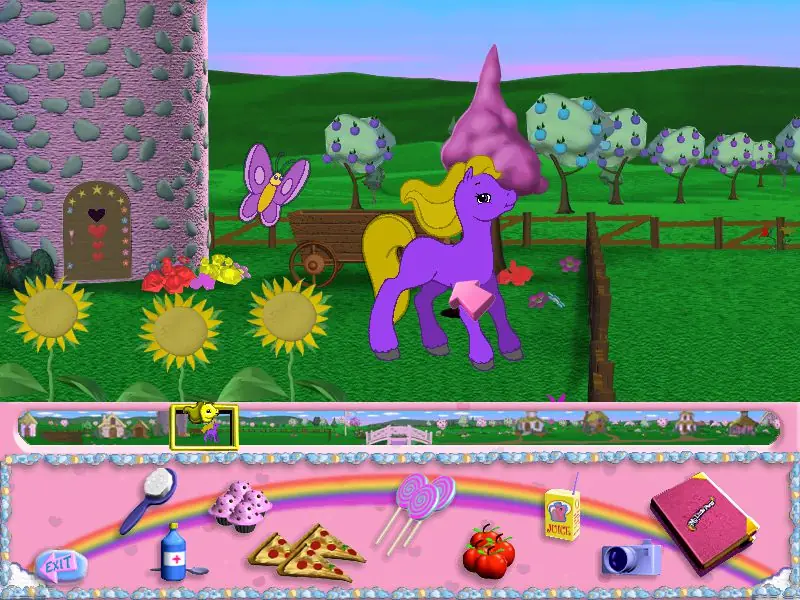
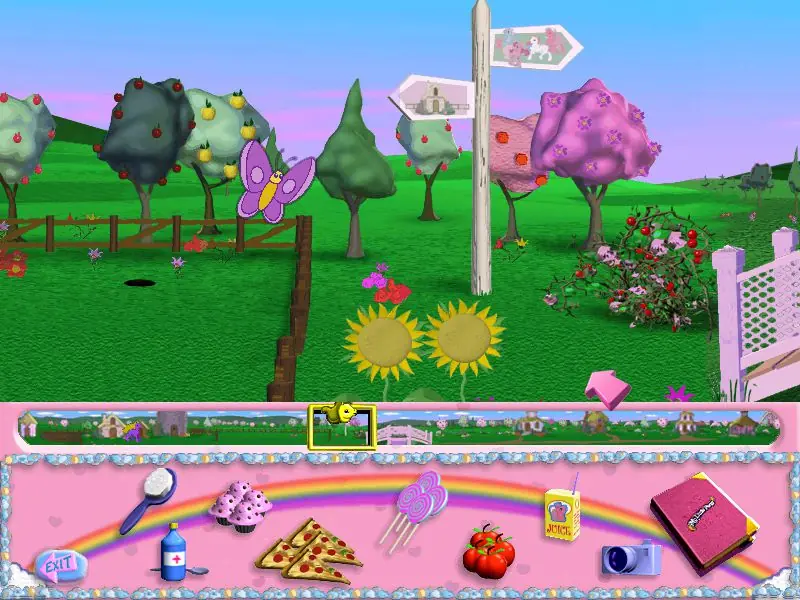
My Little Pony: Friendship Gardens is abandonware and no longer sold or supported by its publishers. Files are archived here for these platforms:
How to play on Windows



I am breaking this up into large steps as some parts of the process require several steps within them. I tried to break it up by each program you have to use.
1. I use WinCDEmu to mount ISO files. Be sure this ISO is always mounted when you want to play, or else it will ask you to put the disc in. I usually turn on “keep drive after restart,” until I am sure I want to be done with the ISO and eject it manually (right click the drive in Windows explorer and select “eject”).
2. I use OTVDM to run 16-bit applications so that I can run the installer without Windows 10 telling me I cannot run it on this device. Once OTVDM is installed, you don’t need to ever interact with it for it to work. It simply just makes 16-bit applications open properly (and you’ll see a command prompt box open when you go to use these applications).
3. I used DGVoodoo to get the game to a place where it’s usable. Normally, the different aspects like the butterfly and your cursor would leave a trail wherever they went. DGVoodoo got rid of this. You want to grab all four of the .dll files from DGVoodoo for DirectX games. This means you’ll go to the DGVoodoo folder > MS > x86, and copy the files. Paste those .dlls into the main install folder for the MLP game (it will have “Pony.exe” in the folder, along with folders for data, music, photos, and videos). You can then open DGVoodoo from its original location (it’s called dgVoodooCpl.exe) so we can edit the settings for the game. You’ll see a dropdown at the top called “Config folder/Running instance.” Next to the drop down, press the “Add” button and select the main My Little Pony folder where “Pony.exe” is contained. I have to do this twice for it to work for some reason, but you know it worked when you see the correct folder showing in that drop down instead of the one that was there when you opened it. I attached two screenshots that show the settings needed for DGVoodoo. You can ignore the “Glide” tab since this game uses DirectX and not 3Dfx Glide.
4. Not really a step, as the game should work normally from here! You should be able to just open the program as you normally would and get into the game. 🙂 I did have it crash on me one time when I finally went to Ponyland, but then I adjusted my settings in DGVoodoo and haven’t come across it since.
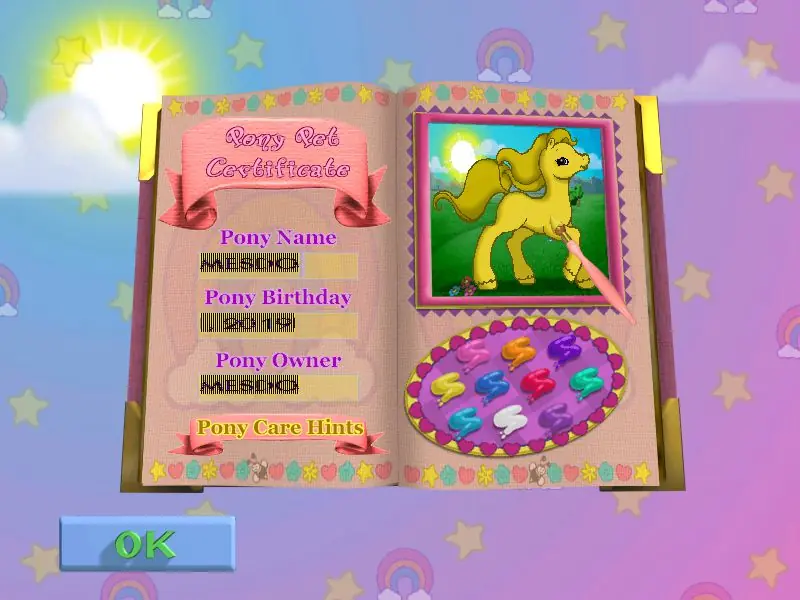
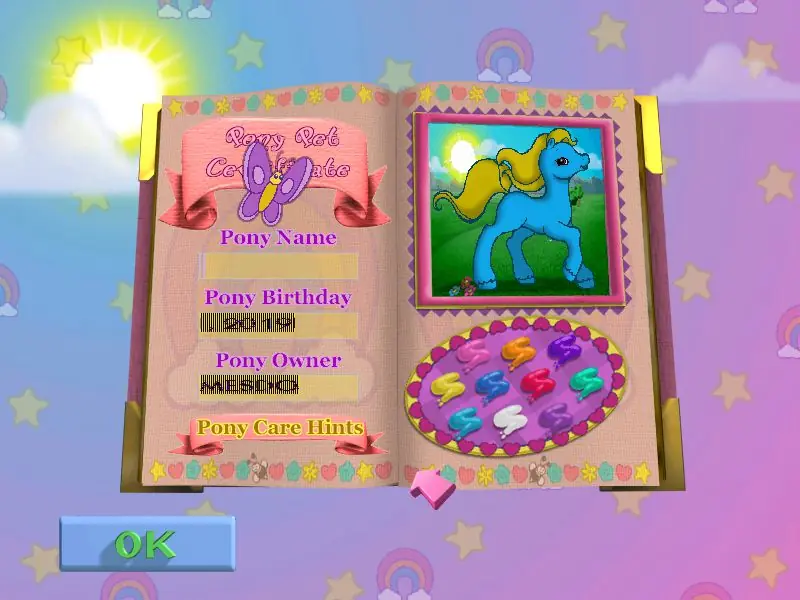
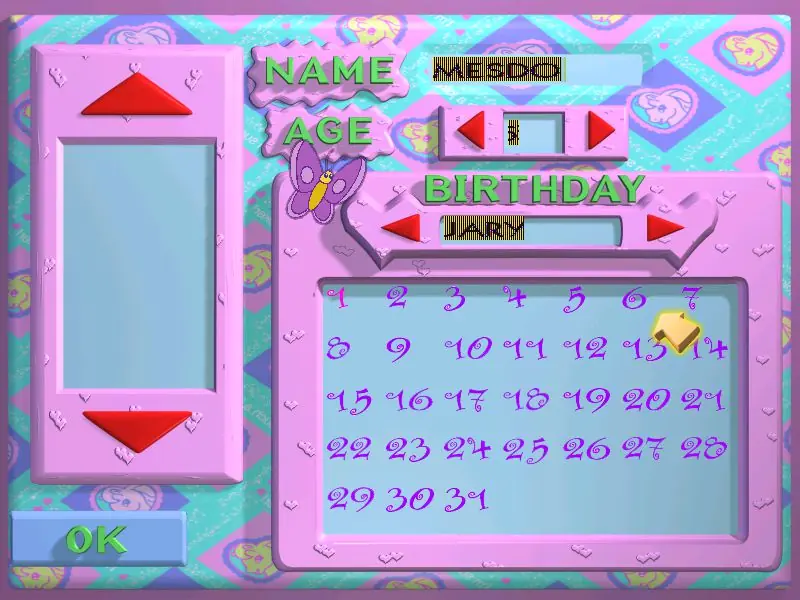
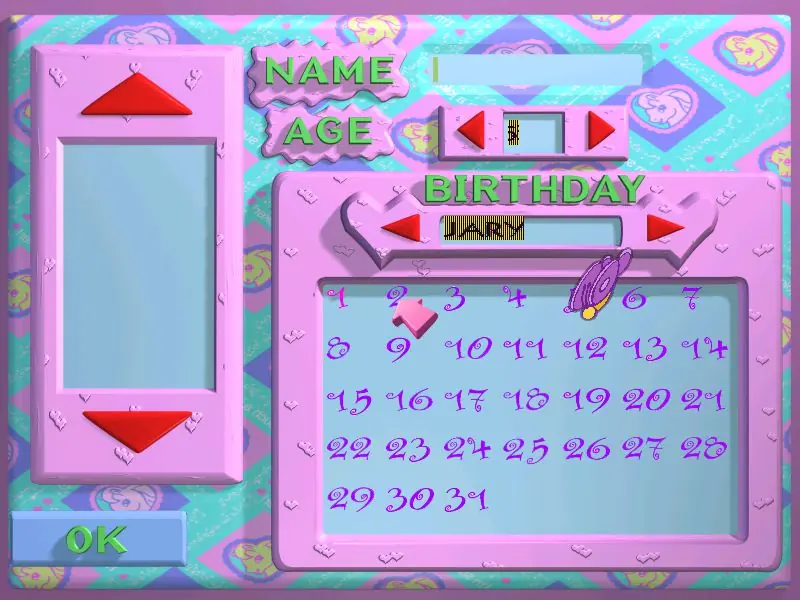
IMPORTANT: The only other thing I wanted to mention is that the text was still wonky, but I was able to type names and figure out what entries I was selecting for my birth month and day. Do not be alarmed if the text is too far to the left for you to read it and has yellow/blue lines on it. I couldn’t figure out a setting to solve this. But the rest of the game works great!
Happy gaming! 🙂
https://uploads.disquscdn.com/images/76ce1d2c338815b03e7656ae6d82bd1b46d0ae148e274d414ac081cbee53f025.png https://uploads.disquscdn.com/images/85ae7ddae13a816678647839b96ba016653f6c1945a7e5c44d67837a4434c795.png